Set up a connection
To deploy diagrams, start process instances, or test tasks, you must first connect Desktop Modeler to a Camunda 8 Orchestration Cluster. Follow the steps below to set up a connection.
-
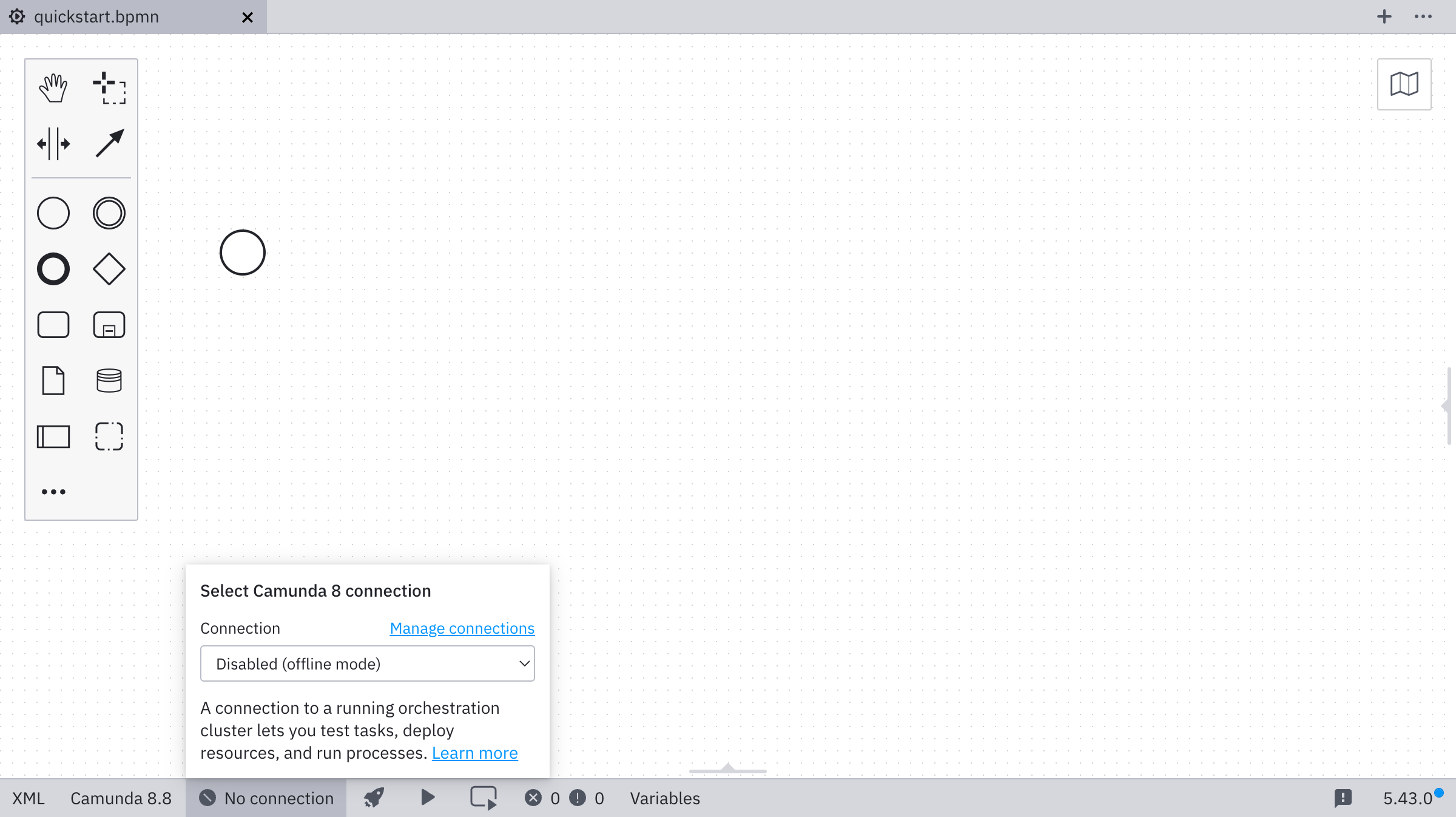
Click the Connection manager. For new installations, this will show No connection. If you have previously selected a connection, it will show the name of that connection.

-
To add a new connection, open the settings. You can either open the connection manager and click Manage connections or open the settings directly (
Cmd/Ctrl + ,).By default, a local c8run connection is already configured. If you have previously used Desktop Modeler to deploy a diagram, that connection will also be available as Unnamed Connection. You can rename this connection to something more descriptive in the connection manager settings.
-
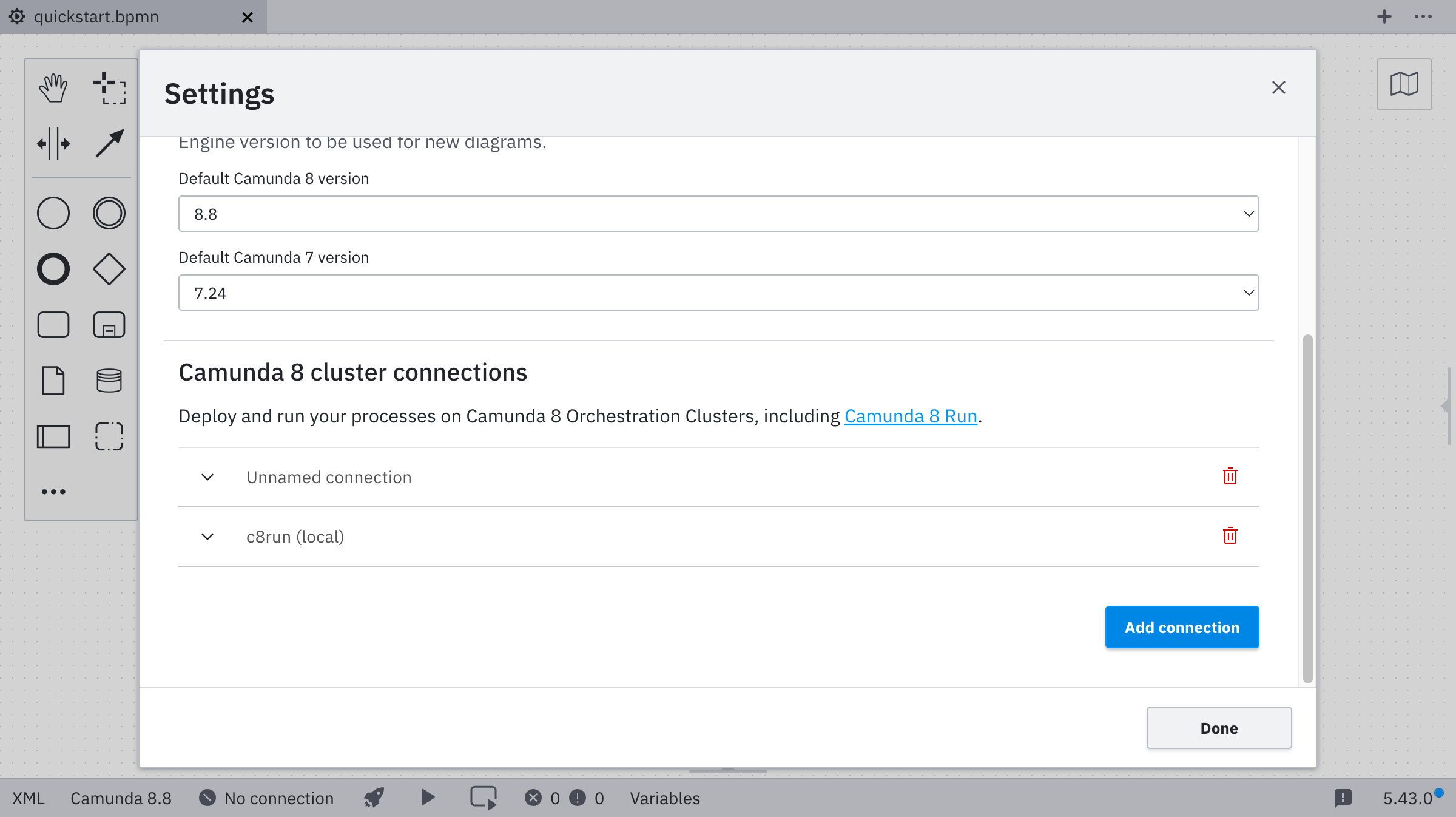
Click Add connection.
-
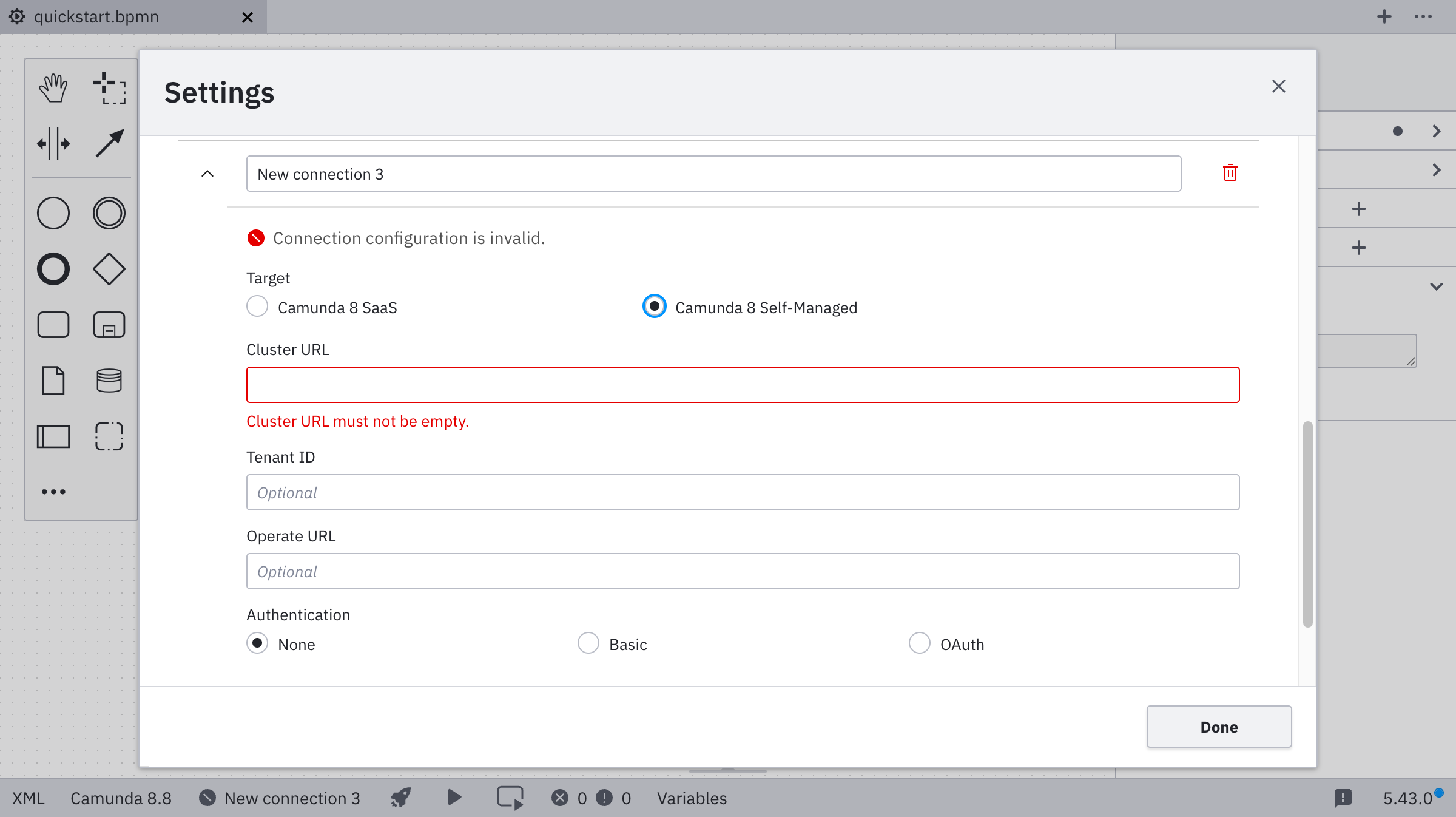
Select Camunda 8 Self-Managed as the target.
-
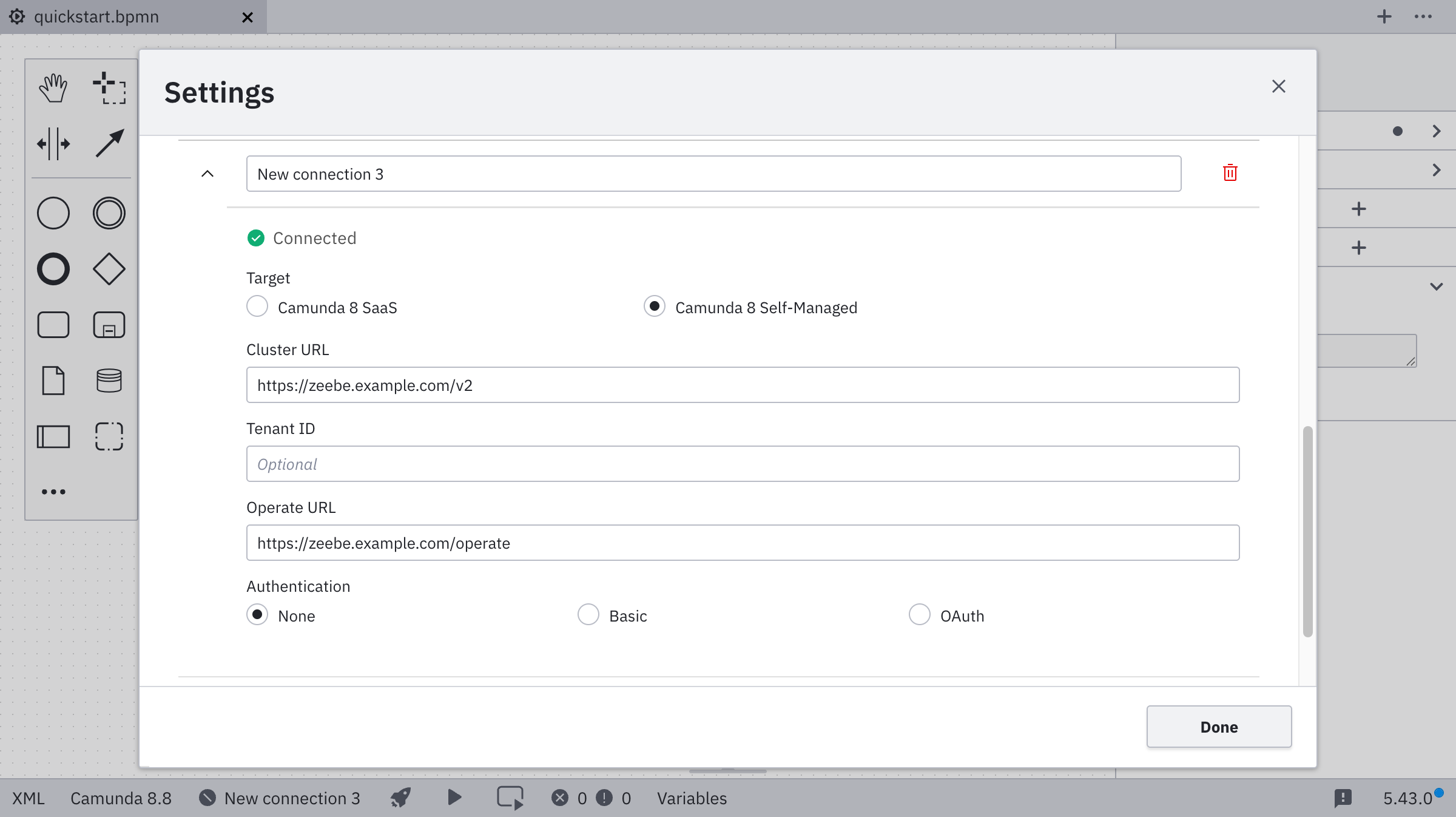
Enter the cluster URL, and optionally the tenant ID and Operate URL.
cautionYou can connect to Camunda 8 both securely and insecurely through the
httpsandhttpprotocols. Secured connections to a remote endpoint are established only if the remote server certificate is trusted by the app. Ensure that root and intermediate certificates you trust are known to the app.Multi-tenancy is available only when authentication is enabled through Orchestration Cluster Identity.
-
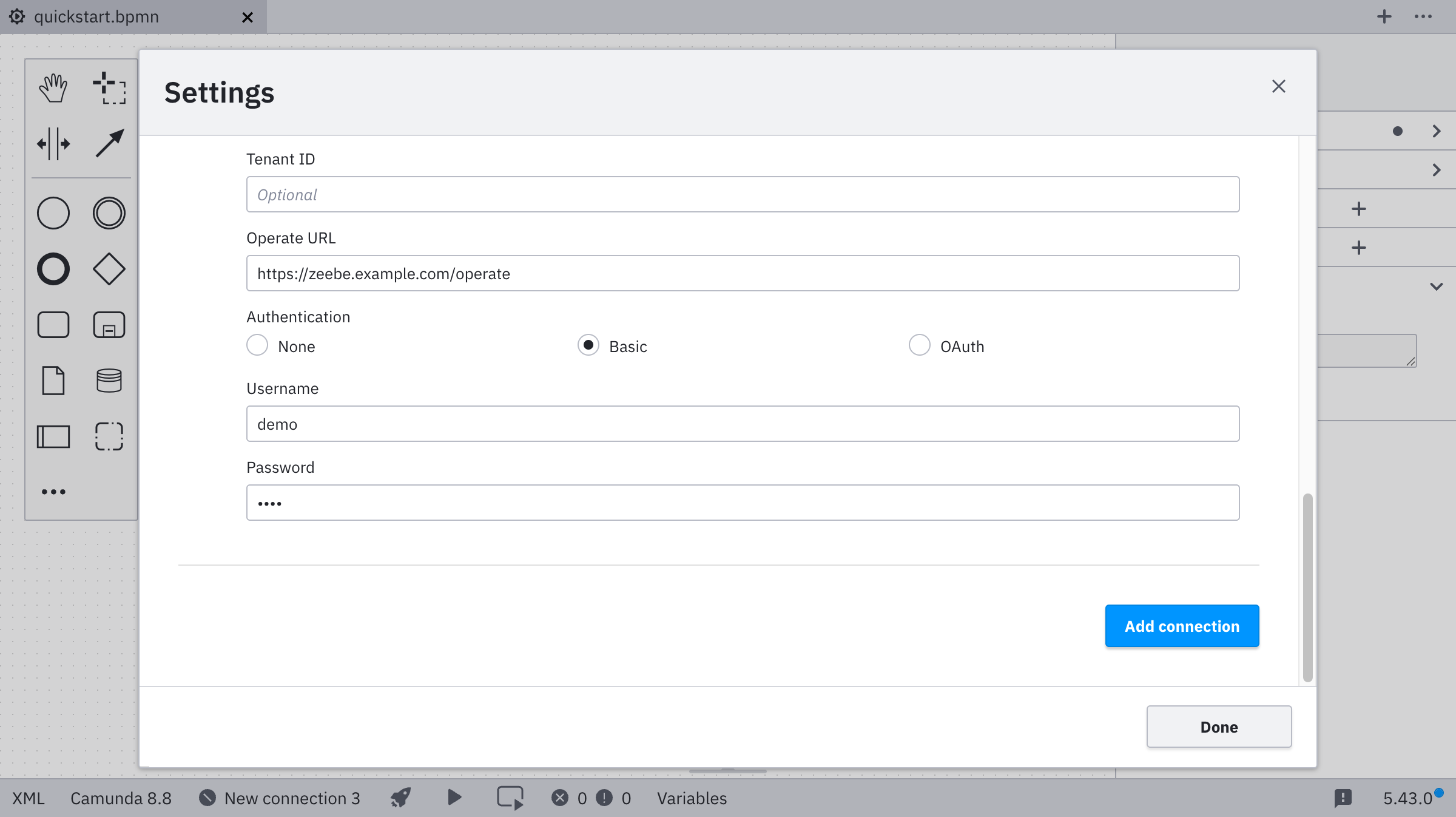
Select your authentication method, and enter the required credentials.
- Basic
- OAuth
For Basic authentication, enter your username and password.
For OAuth, enter the credentials for your OAuth provider. These credentials are configured during the default Helm installation. You can find them in Orchestration Cluster Identity or set them using Zeebe environment variables.
noteWhen using Modeler to deploy a process model or start a process instance, you may run into issues with resource authorizations. Make sure your client has the right authorizations assigned to it.
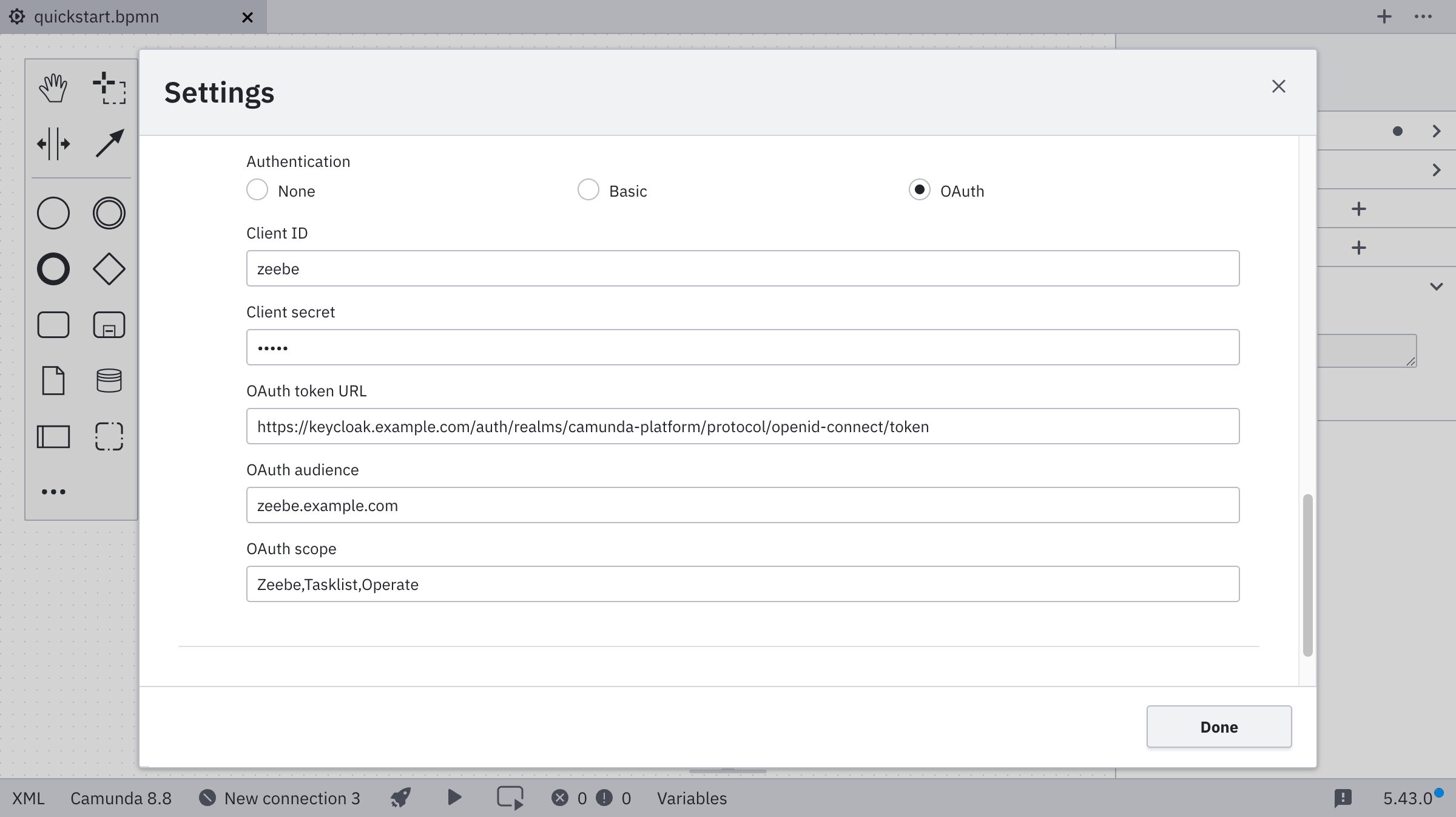
Name Description Example value Client ID The name of your Zeebe client. zeebeClient secret The password of your Zeebe client. zecretOAuth token URL The full path to the token endpoint. https://<keycloak base url>/auth/realms/camunda-platform/protocol/openid-connect/tokenOAuth audience The permission name for Zeebe. zeebe.example.comOAuth scope The permissions available to the token. Zeebe,Tasklist,OperateIf the connection is established successfully, you can leave the settings and go back to the connection manager, where your new connection is now available.
-
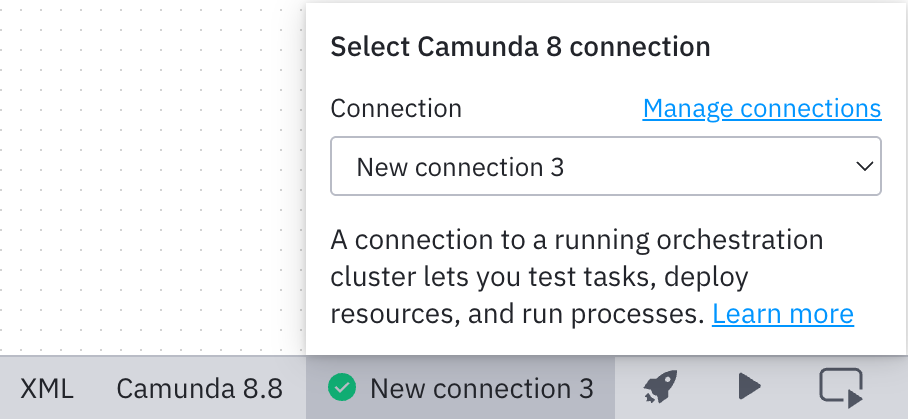
Select the connection you just created to use it for deployment or other tools like task testing or starting a new process instance:
 note
noteAs a next step, deploy your diagram.