Managing tasks
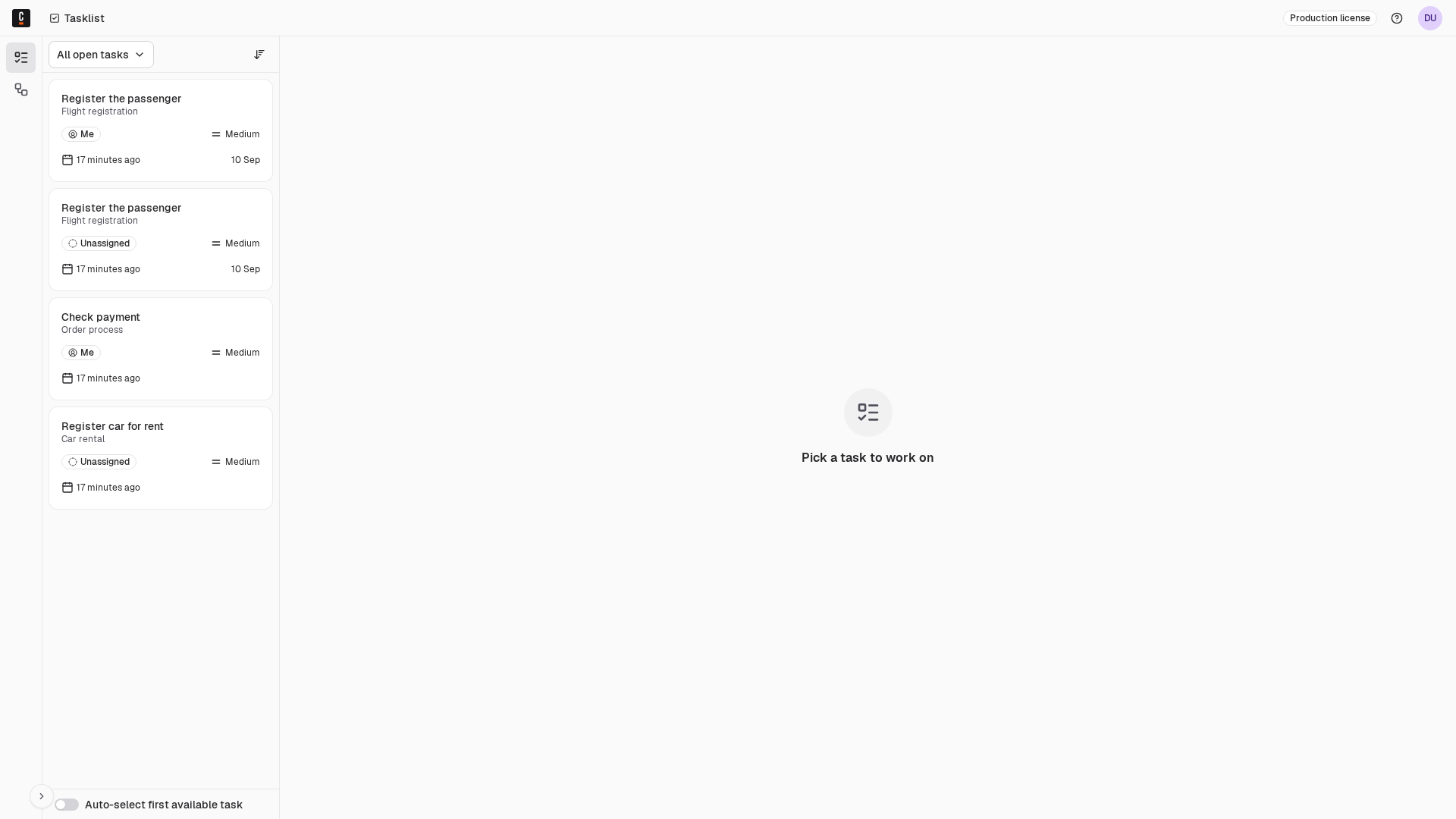
When you've successfully logged in, you'll see the Tasks page:
Assign tasks
To find relevant tasks you can use filters.
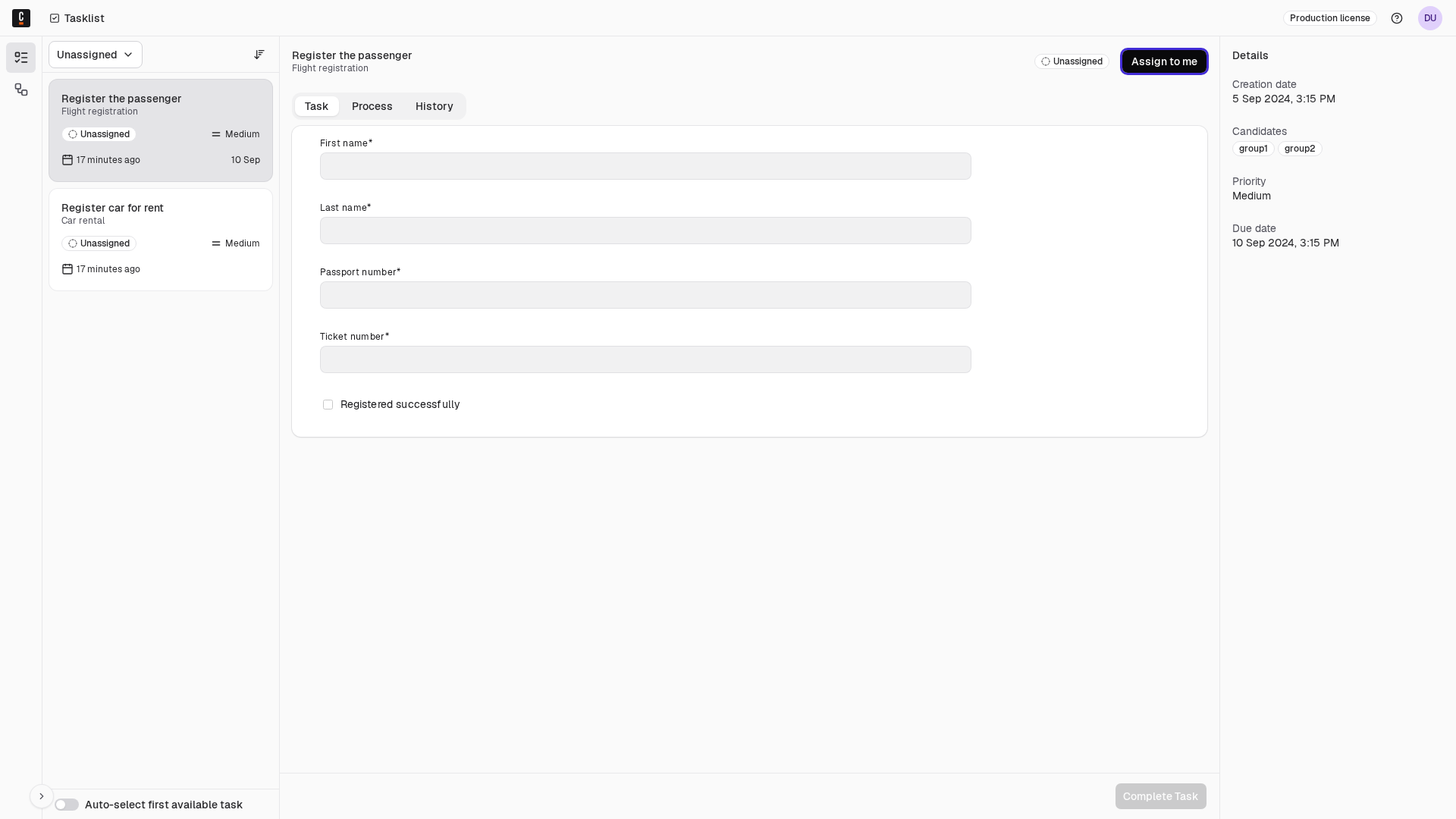
Select the Unassigned filter list and assign a task to yourself using the Assign to me button on the top panel:
Work on assigned tasks
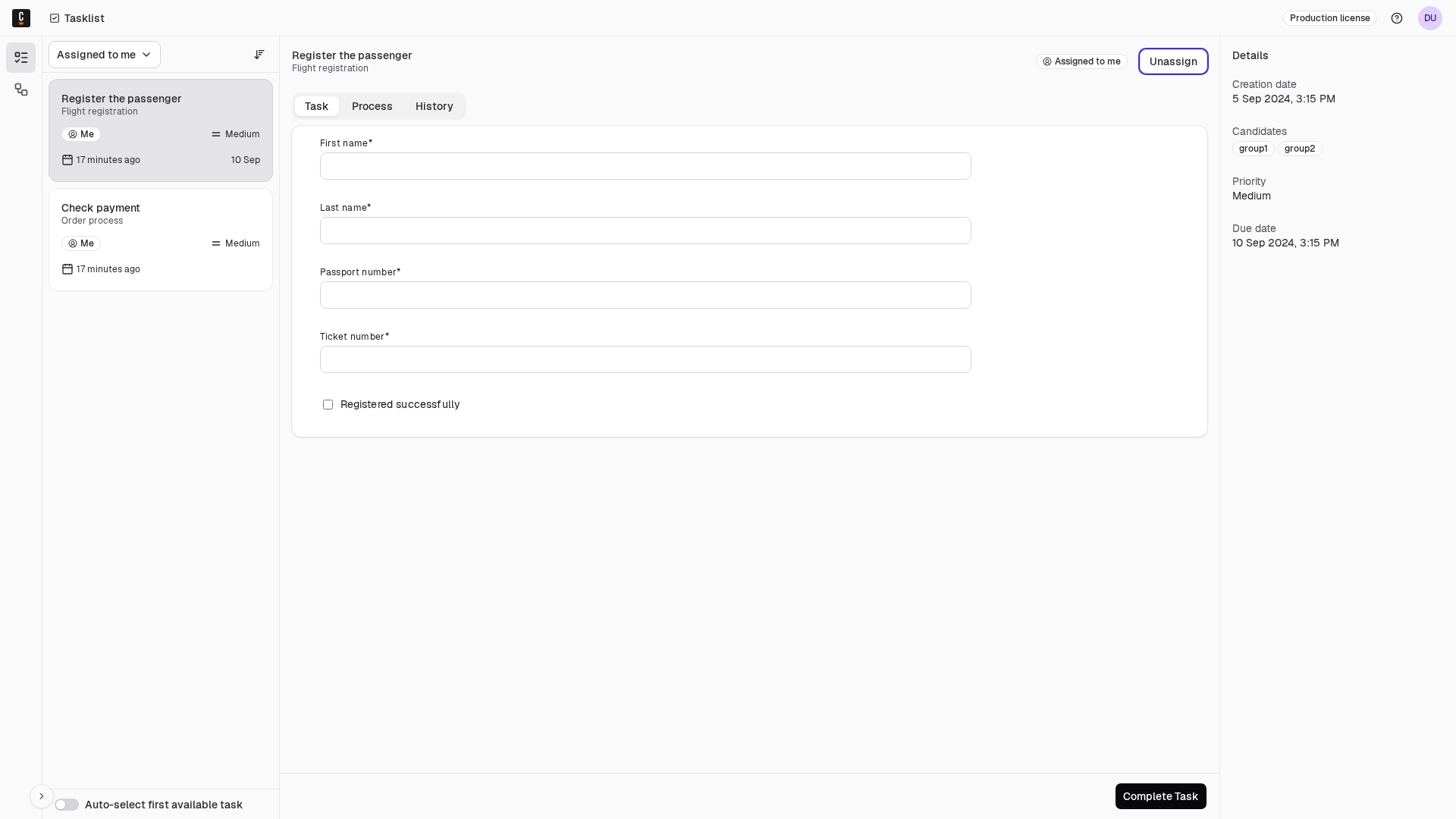
Select the Assigned to me filter list to see the tasks that are assigned to you. Select a task to work on it.
Complete a task
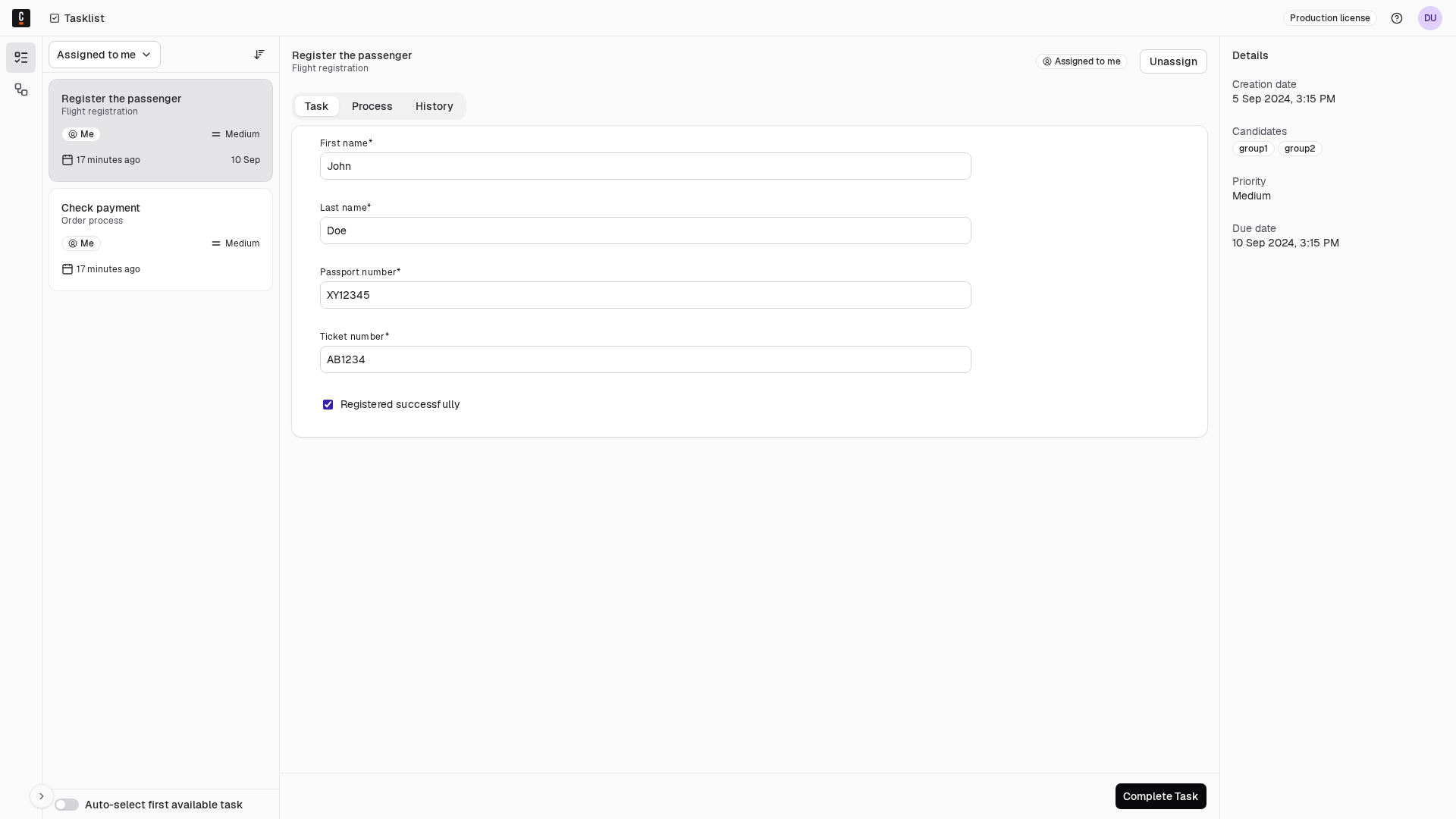
When a task is assigned to you, you can complete the task by filling out the given form, and clicking on the Complete Task button.
There are also cases where no form is available. In these cases, you have to add and/or update variables directly.
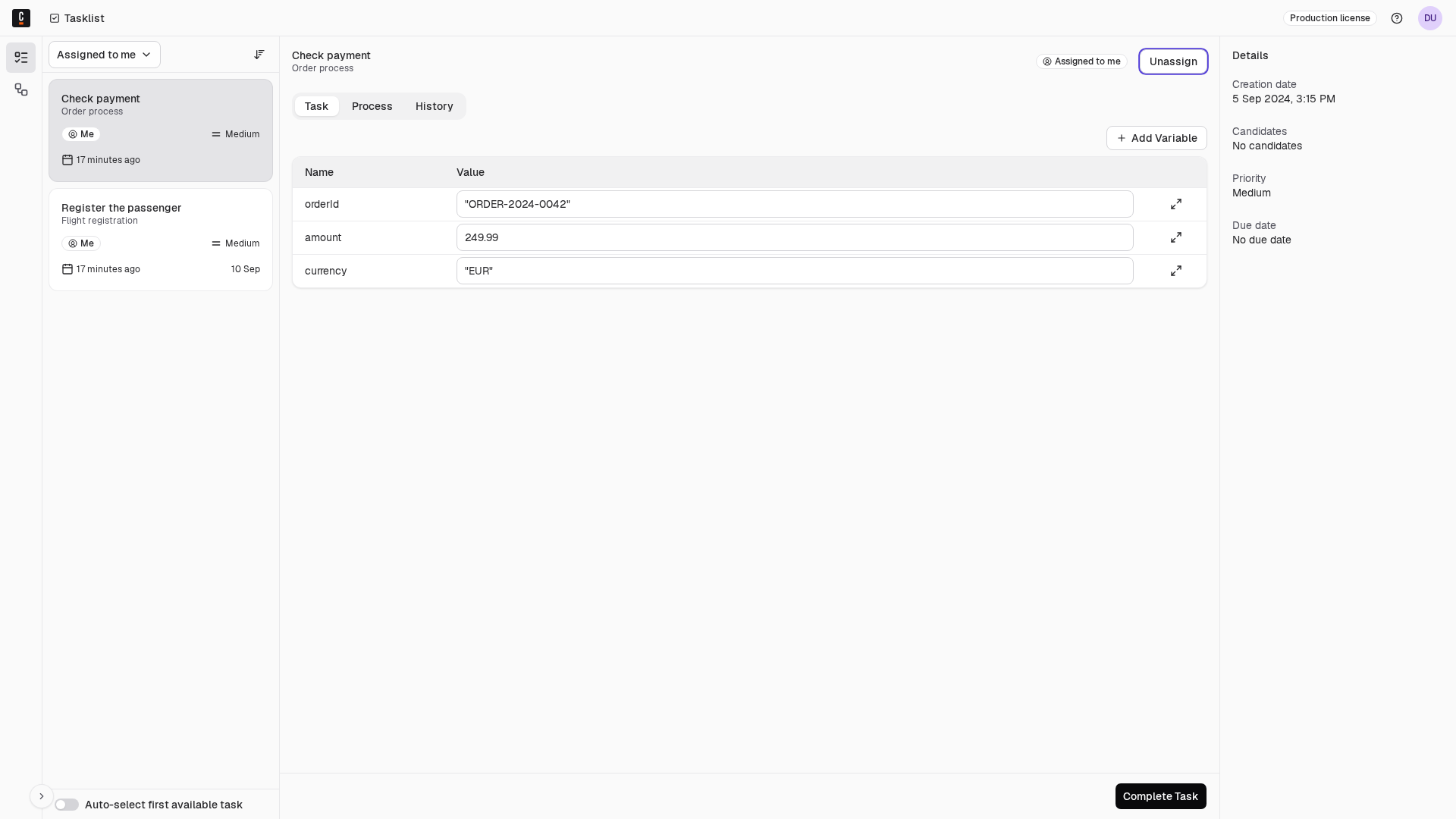
Always choose a list of tasks with a specified status. Then, select the task you want to work on.
Change variables as needed and begin completion with the Complete Task button.
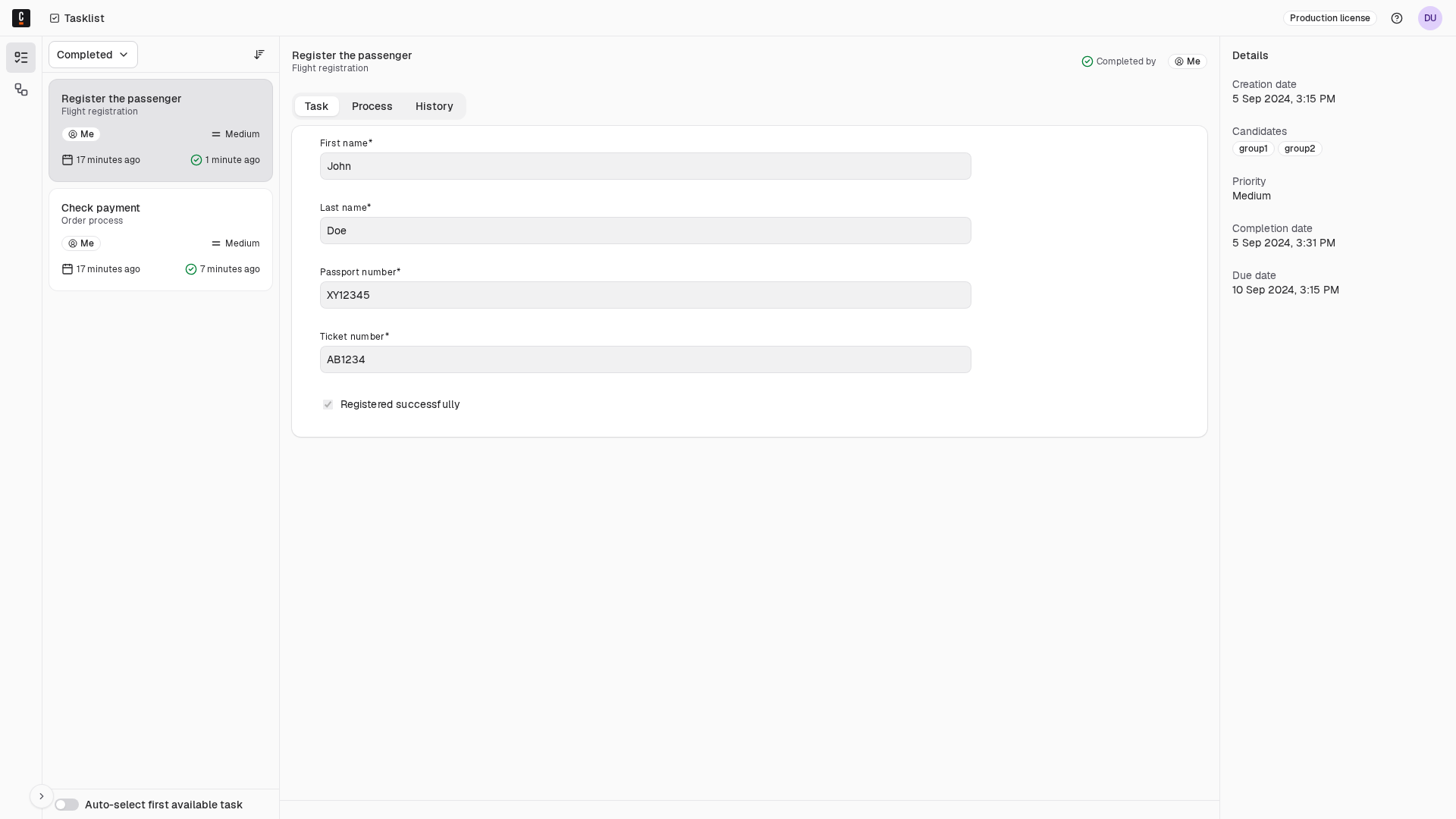
Completed tasks will be shown in the Completed task list.
Add and update variables
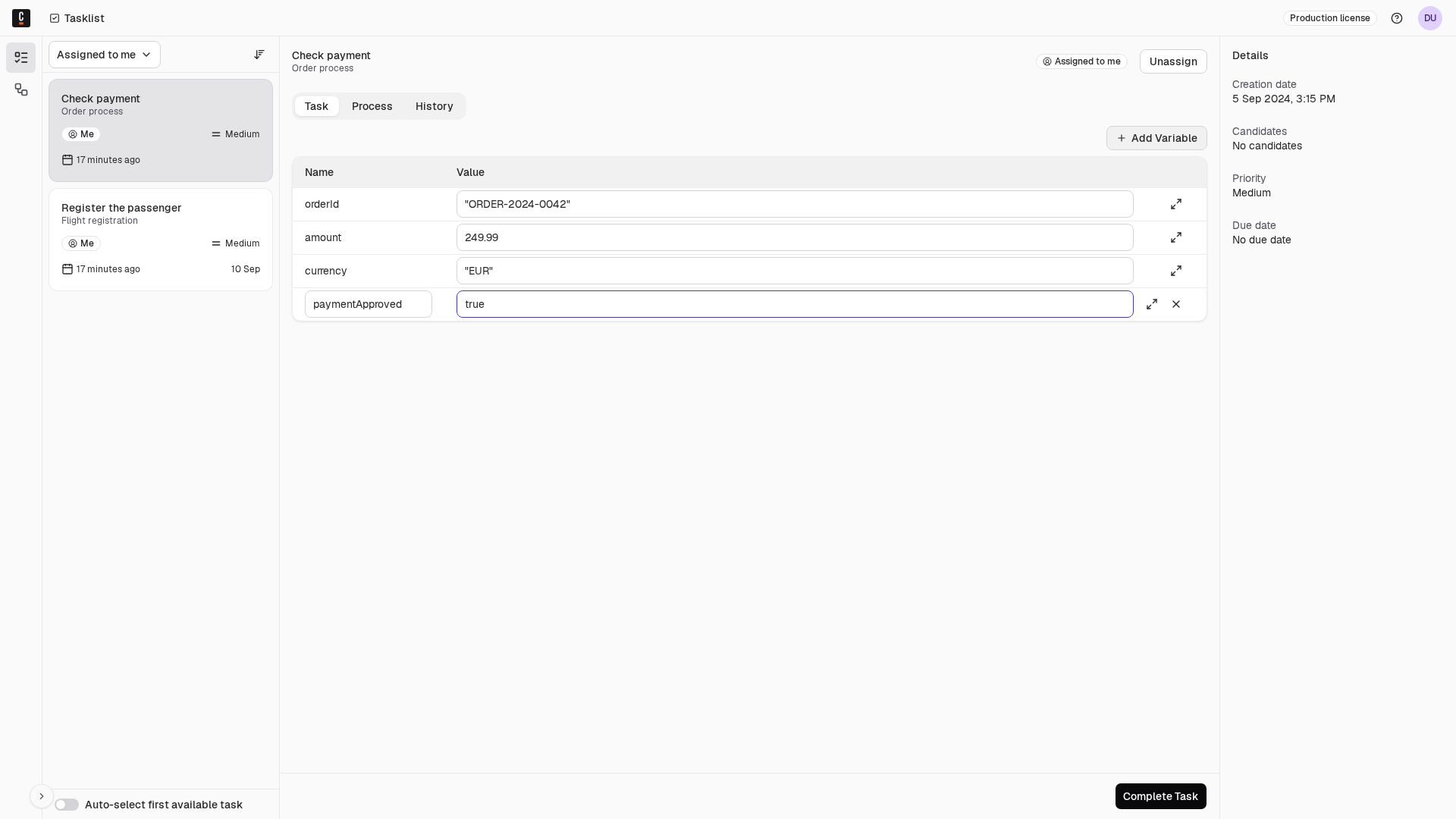
Update variables in the Variables section by adjusting their text field.
To add a new variable, click Add Variable.
View completed tasks
You will now see the completed task by selecting the Completed task list:
Options
Auto-select first available task
If this is enabled, whenever you open tasks, change filter options, or complete a task, Tasklist will automatically select the first task in the list.