Fix problems in your diagram
Design time errors
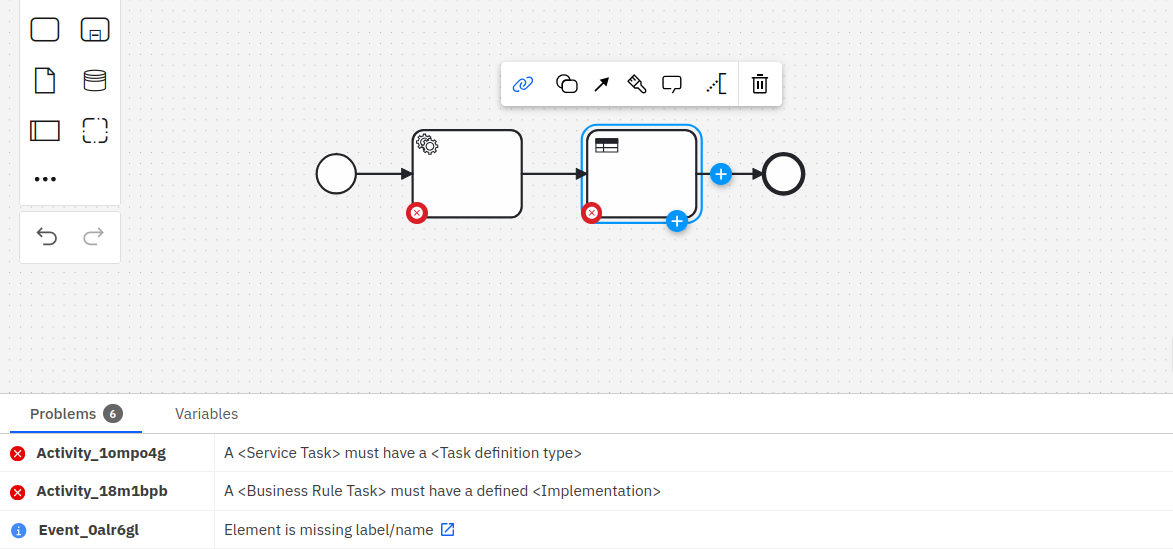
Based on a set of lint rules, Web Modeler continuously validates implementation properties for a process diagram while the user is modeling. The validation errors are added to the panel at the bottom of Web Modeler. Expand the panel to view the errors by clicking the Problems header. The panel is collapsed by default and the latest state (expanded or collapsed) is remembered for the next time you open Web Modeler.
An error is shown if any process ID, decision ID, or form ID is more than 255 characters in length. To resolve this error, check and shorten any IDs that exceed this character limit.
Camunda version selection
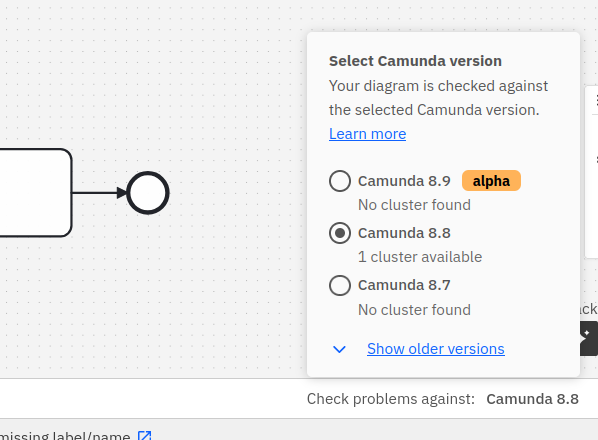
The version selector at the top right in the problems panel can be used to choose the Camunda version the diagram is validated against. The chosen version should match the version of the cluster where the diagram will be deployed so that the correct set of errors is shown. If you do not know the version, it is shown alongside the cluster name in the deployment dialog, which can be opened by clicking the Deploy diagram button.
The version selector also provides information about the number of clusters available for each Camunda version within the current organization.
Interactivity
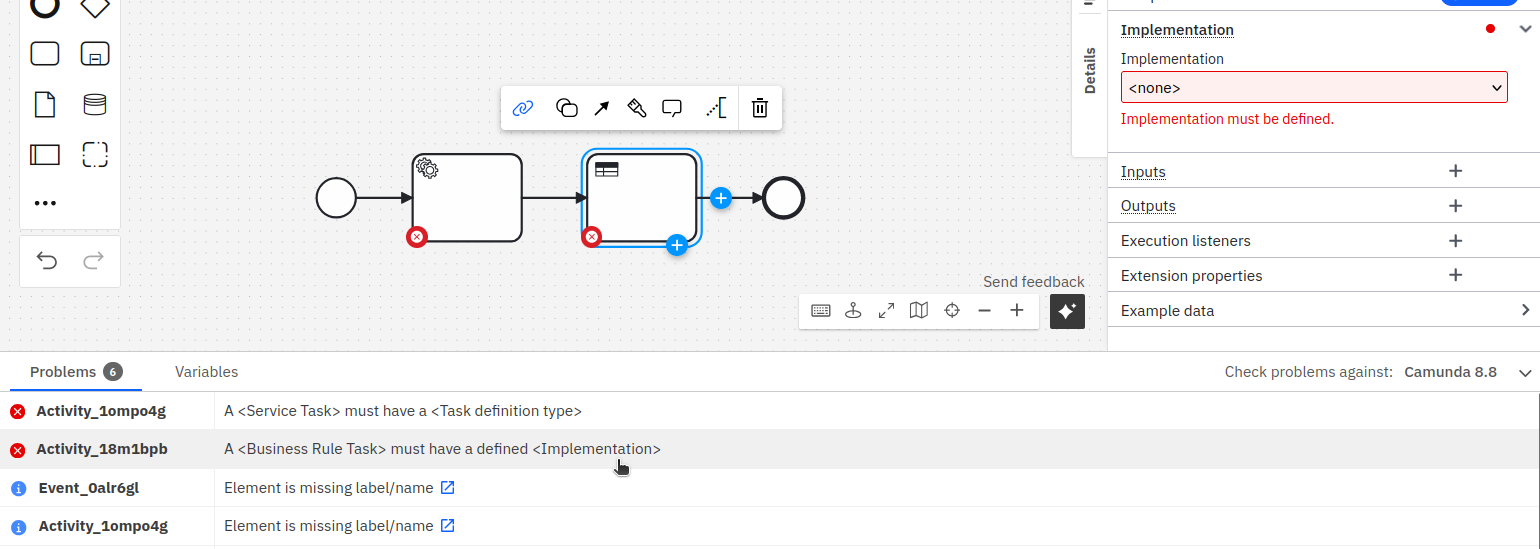
The errors are interactive. Clicking on the row highlights the corresponding element in the canvas and points to the specific property in the properties panel where you can resolve the issue.
Deploy time errors
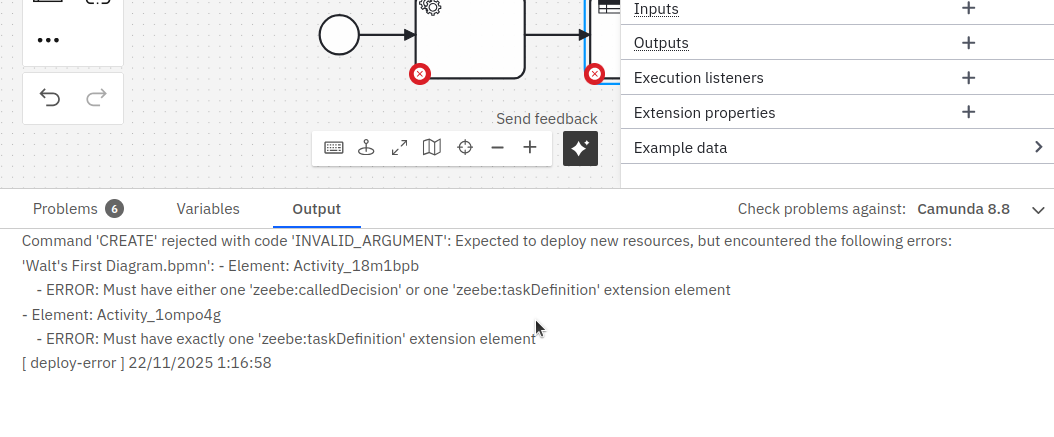
If errors are thrown by the engine when deploying a diagram (whether they were caught by design time errors or not), they will be displayed in a modal.
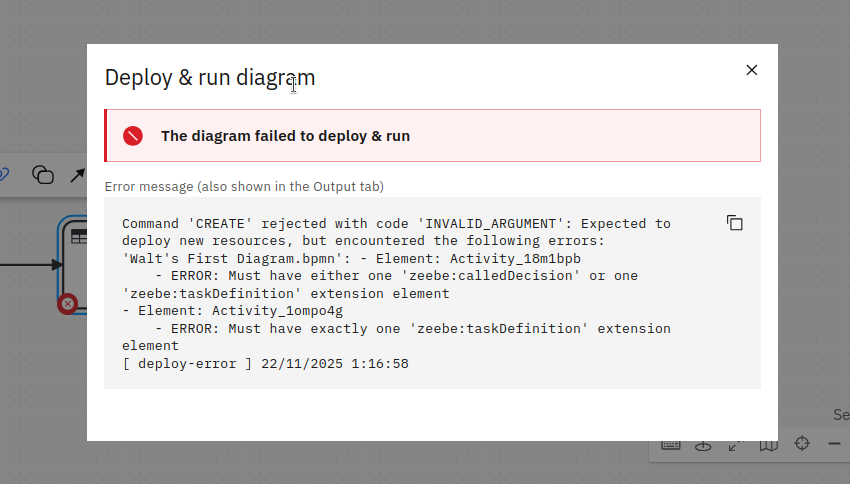
They will also be kept available in the output panel while you remain on the modeling page.