Projects
Desktop Modeler supports Camunda projects. It recognizes a project by the camunda.json file in the root of your project folder.
Within a project, Desktop Modeler offers advanced editor intelligence, deployment, and execution features.
Camunda projects supersede process applications. Your existing process applications keep working; see Migrate from process applications when you are ready to switch.
In professional software development, a typical project contains resources such as BPMN, DMN, and Form files. These live alongside job workers, implementing process logic, additional application code, and tests. How exactly your project is structured may vary depending on the implementation language, libraries, and frameworks you use.
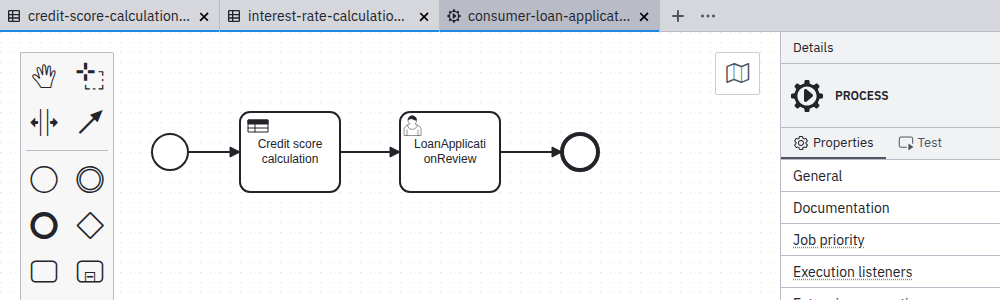
Example: Consumer loan application
Consider a project implementing consumer loan approval. It may contain:
- A main BPMN process (for example,
consumer-loan-application.bpmn) to define the workflow. - DMN decisions (for example,
interest-rate-calculation.dmn,credit-score-calculation.dmn) for business rules. - Forms (for example,
loan-application-review.form) for user interactions. - Various job workers that implement process behavior.
- Additional application code and tests.
In a typical Java/Maven project, the structure of such a project might be as follows:
consumer-loan-application/
├── src/
│   ├── main/
│   │   ├── java/
│   │   │   └── com/example/loan/
│   │   │   │   └── workers
│   │   │   │   │   ├── UnderwriteLoanWorker.java
│   │   │   │   │   └── ...
│   │   └── resources/
│   │       ├── consumer-loan-application.bpmn
│   │       ├── dmn/
│   │       │   ├── interest-rate-calculation.dmn
│   │       │   └── credit-score-calculation.dmn
│   │       └── form/
│   │           └── loan-application-review.form
│   └── test/
│       └── java/
│           └── ...
├── camunda.json
├── pom.xml
└── README.md
Editor support for projects
When you open a file, Modeler checks for a camunda.json file in the same folder or a parent folder to determine whether the file belongs to a project. Within a project, Modeler offers improved navigation and assistance.
Indicating context
Modeler opens and closes projects implicitly. A blue item in the status bar indicates whether a diagram belongs to a project and makes all related diagrams available for navigation.
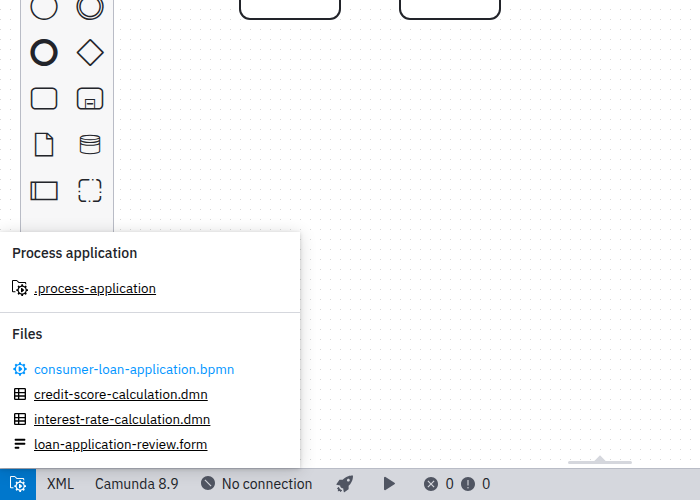
When files from more than one project are open, they are grouped visually.
Creating a project
Create a project by creating a camunda.json file in the root of your project folder. An empty object ({}) is enough to mark the folder. Alternatively, create it in the Modeler UI:
- Click File > New Project....
- Choose a folder.
- Click Select folder.
Modeler creates a camunda.json file in the selected folder and recognizes the folder as the project root. Any file within the folder or its subfolders is part of the project.
Linking resources
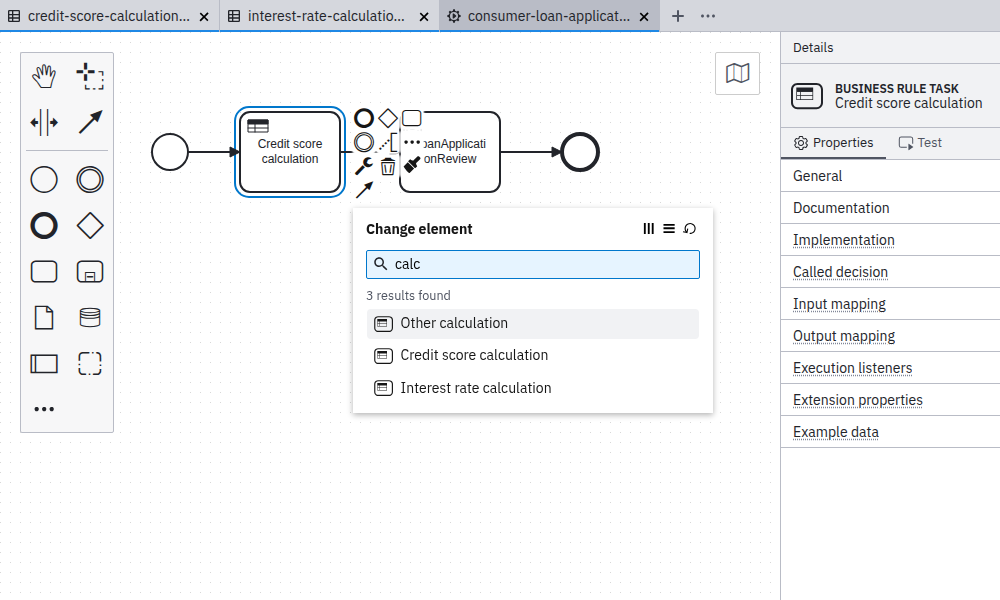
Any file within a project can be linked as a resource. Linking a resource can be achieved in several ways:
- Using the append feature
- Using the replace feature
- Using the create feature
- Manually by setting the process, decision, or form ID in the properties panel
Deploying a project
You can deploy projects using the deploy feature. When you deploy a project, Modeler deploys all files that are part of it.
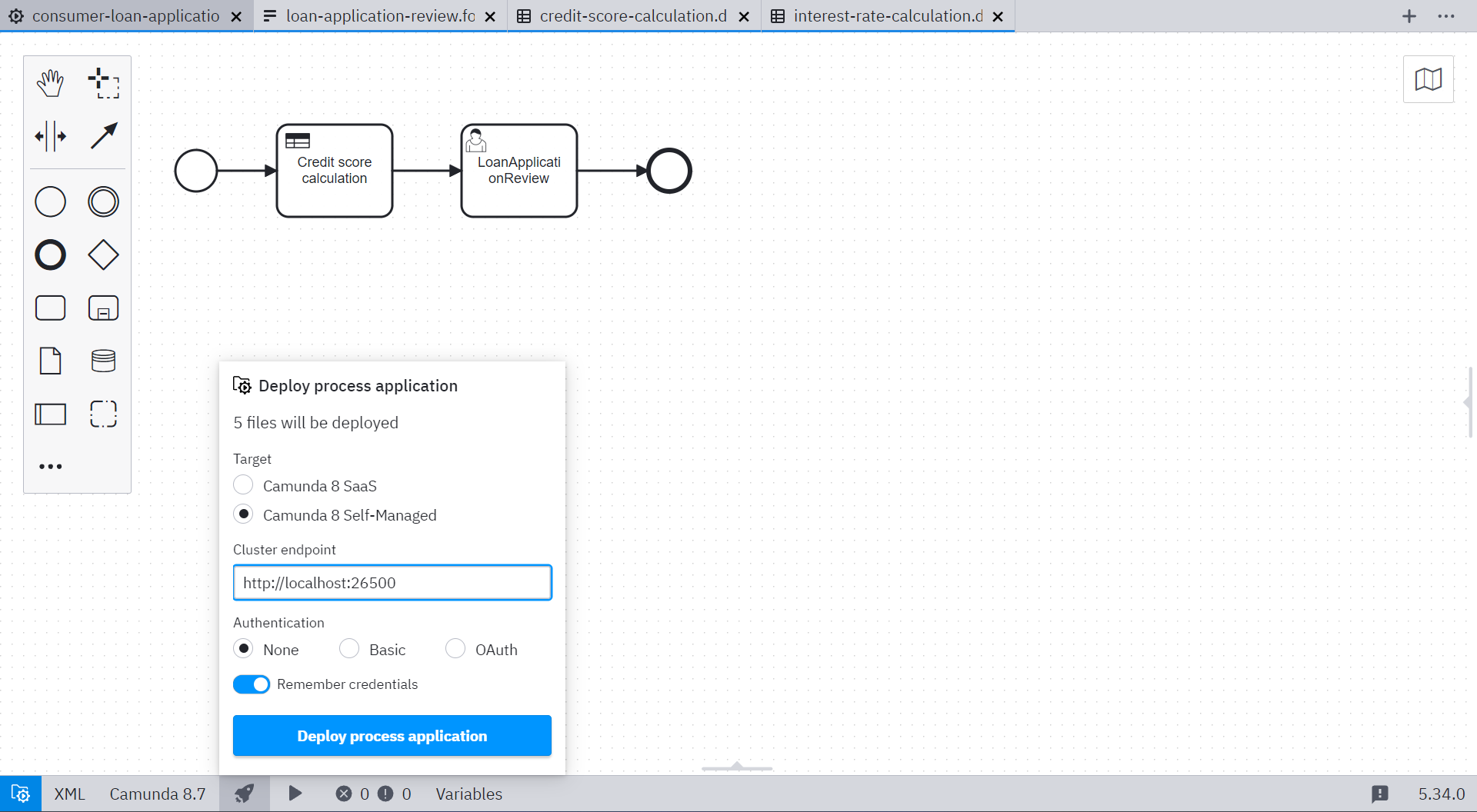
Starting a process instance
Before starting a process instance, all project files will be deployed to reflect the state of the project.
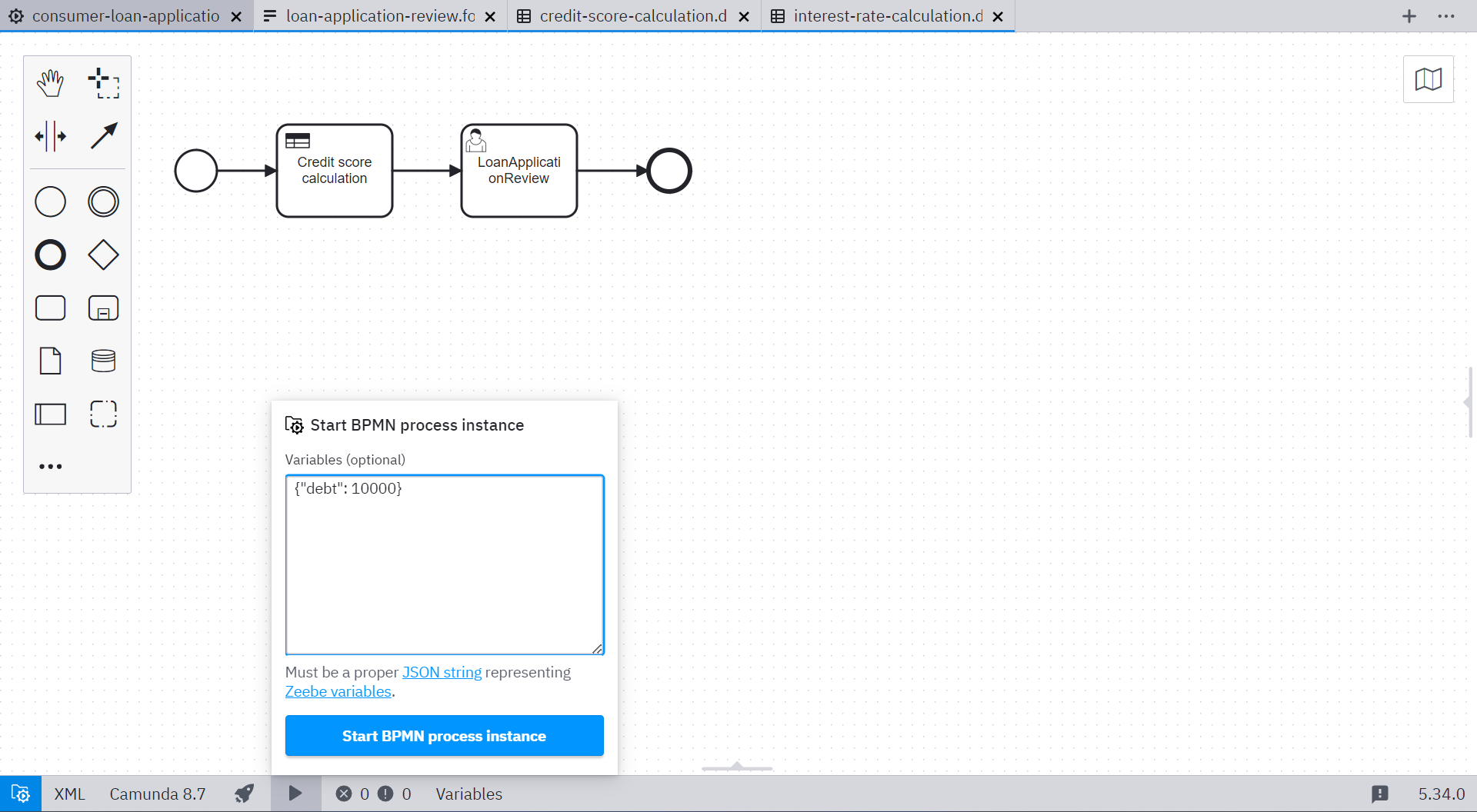
You can start an instance for any process in a project using the start instance feature.