Connect to a runtime
Learn how to choose the runtime connection: the environment that Camunda Hub works against while you model, shown in the Runtime selector at the bottom of the modeling interface.
About the runtime connection
With the runtime connection, you model against a real runtime instead of guessing what exists there. These features use the connected runtime:
| Feature | What it uses the connection for |
|---|---|
| Task testing | Runs the selected task on the connected runtime. |
| Connector credentials | Offers the credentials available on the connected runtime in the properties panel of connector templates. Requires a runtime on Camunda 8.10 or later. |
| Webhook tab of inbound connectors | Shows the webhook status and logs of the connected runtime. |
| Problems panel | Validates the diagram against the Camunda version of the connected runtime. |
The runtime connection doesn't change your deploy target. Deploy and Run keep using the target you choose in their own dialog. See run or publish your process.
The runtime connection is the Camunda Hub counterpart of the Desktop Modeler connection manager. Unlike Desktop Modeler, you don't enter a cluster URL or API client credentials. You choose from the environments assigned to your workspace.
Choose what to connect to
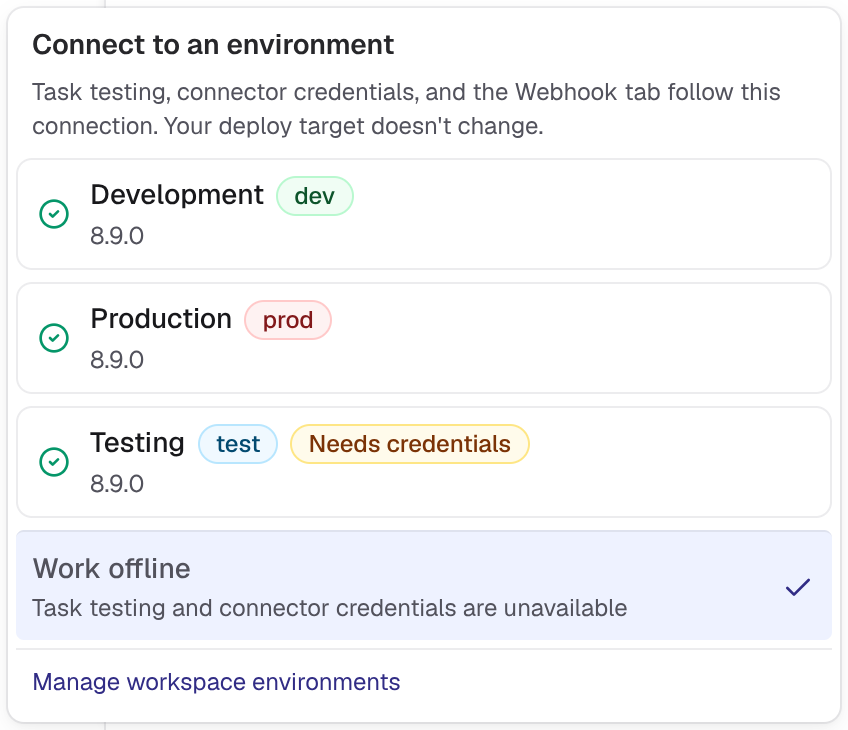
The Runtime selector lists the environments assigned to your workspace, and its title is Connect to an environment.
On Self-Managed, two Physical Tenants of the same cluster are separate environments, so they are separate connections. The selector shows the name of the environment, not the name of the cluster.
Change the runtime connection
Runtime shows Not connected until you choose a runtime or deploy the diagram. After a successful deployment, it shows the environment you deployed to, unless you've already chosen a runtime for this diagram. To connect:
-
Open a BPMN diagram.
-
At the bottom of the modeling interface, next to Check problems against, click Runtime.

-
Select an environment from the list. Each entry shows its status icon, stage, and version, plus a badge if it needs your attention.
-
If the runtime offers more than one logical tenant, choose one. See choose a logical tenant.
The selector closes, and Runtime shows the name, stage, and status of the connected runtime.
Your choice, including Work offline, takes precedence over your deployments: deploying the diagram doesn't change the runtime you chose. The choice applies only to the current diagram in the current browser session. It isn't saved. When you reload the page or open another diagram, choose the runtime again.
Understand runtime status
Each runtime shows an icon for its current state. Hover over or focus a runtime to see its stage and status as text.
| Status | Meaning |
|---|---|
| Healthy | The runtime is available. |
| Unhealthy | The runtime reports a problem. Features that use the connection might fail. |
| Paused | The runtime is paused (SaaS only). The runtime shows Select to resume. |
| Resuming | The runtime is starting after a pause. The runtime shows This might take a moment. |
| Unknown | Camunda Hub can't determine the state of the runtime, for example because it doesn't report health status. |
Below the name, each runtime shows its Camunda version.
Resume a paused runtime
On SaaS, selecting a paused runtime resumes it and connects to it in one step. While it resumes, Runtime shows the Resuming status. You can keep modeling in the meantime.
Enter credentials for a runtime
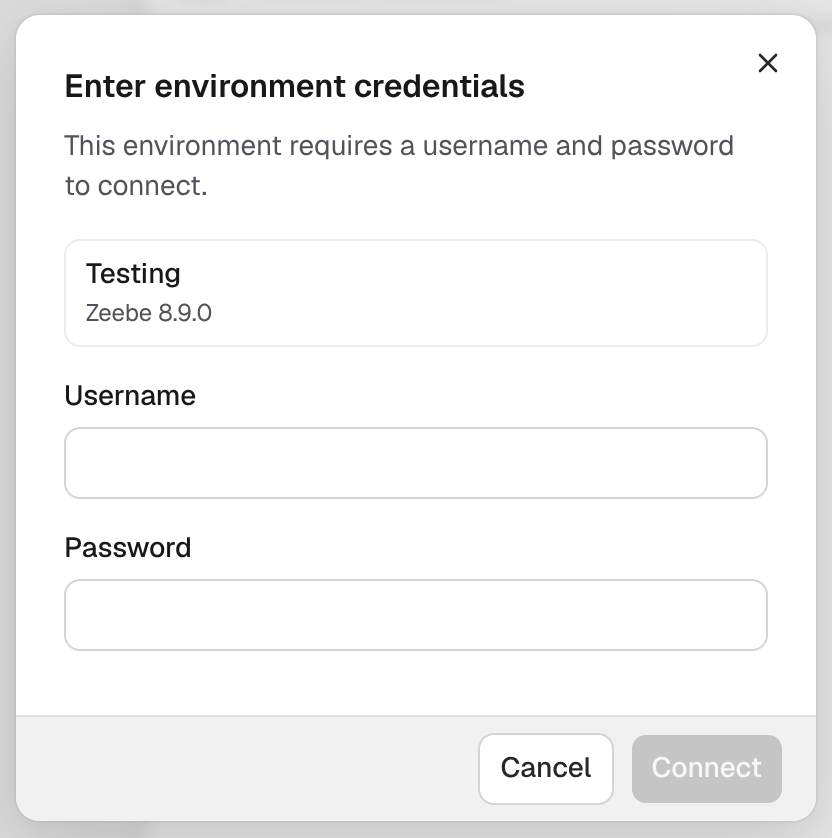
Some Self-Managed runtimes require a username and password (Basic authentication). These runtimes show a Needs credentials badge in the list and a lock icon next to Runtime when connected.
-
Select the runtime. The Enter environment credentials dialog opens and shows the runtime you're connecting to.
-
Enter the Username and Password for the runtime.
-
Click Connect.
Camunda Hub verifies the credentials before connecting. If verification fails, the dialog shows a Couldn't connect message. See troubleshoot the runtime connection.
Choose a logical tenant
If the runtime has multi-tenancy enabled and you can access more than one tenant, the runtime shows a Logical tenant chip.
- Camunda Hub selects the
<default>tenant automatically if you can access it, or your only tenant if you can access exactly one. - Otherwise, the list of tenants opens when you select the runtime. Choose the tenant to connect to.
To switch tenants later, click the Logical tenant chip next to the runtime and choose another tenant. The tenant ID is shown next to each tenant name, since tenant names aren't unique.
If no tenant can be selected automatically and you haven't chosen one, the runtime shows a Needs a logical tenant badge, and Runtime shows a warning icon.
Work offline
Select Work offline at the bottom of the selector to disconnect. While you work offline, task testing and connector credentials are unavailable. Modeling, validation, and deployment keep working.
Manage the available runtimes
The selector only lists the environments that are assigned to your workspace. To change what it offers, use the Manage workspace environments link at the bottom of the selector. It opens the environment settings of your workspace, and it's shown if you can manage the environments of the workspace.
Permissions
Camunda Hub doesn't check your permissions before it reads from the connected runtime. If you can't access something there, the feature shows less information, for example no credential suggestions, and doesn't block you from modeling. The runtime decides what you can access.
Troubleshoot the runtime connection
No environments assigned to this workspace
What you see: The selector shows No environments assigned to this workspace.
Why it happens: No environment is assigned to the workspace of the diagram yet.
How to fix it: Ask a workspace or organization admin to assign an environment to the workspace. Use the Manage workspace environments link at the bottom of the selector if you have permission.
Unable to check environment availability
What you see: The selector shows Unable to check environment availability.
Why it happens: Camunda Hub couldn't load the environments of your workspace, or you no longer have access to them.
How to fix it: Wait a few minutes and open the selector again. If the error persists, check with your admin that you still have access to the workspace environments.
Incorrect username or password
What you see: The Enter environment credentials dialog shows Incorrect username or password.
Why it happens: The runtime rejected the credentials.
How to fix it: Enter the correct username and password for the runtime.
Couldn't verify these credentials
What you see: The Enter environment credentials dialog shows Couldn't verify these credentials. Try again.
Why it happens: Camunda Hub couldn't reach the runtime to check the credentials.
How to fix it: Click Connect again. If the error persists, check that the runtime is running and reachable from Camunda Hub.
These credentials can't access this cluster's logical tenants
What you see: The Enter environment credentials dialog shows These credentials can't access this cluster's logical tenants.
Why it happens: The credentials are valid, but the user isn't authorized to read tenants on the runtime. Camunda Hub reads the tenants to decide which logical tenant to connect to.
How to fix it: Grant the user permission to read tenants in Orchestration Cluster Admin, or use credentials of a user who already has it. Entering the same credentials again doesn't help.
Needs a logical tenant
What you see: The connected runtime shows Needs a logical tenant.
Why it happens: You can access several tenants on the runtime, but not <default>, so Camunda Hub can't choose one for you.
How to fix it: Open the selector, click the Logical tenant chip of the runtime, and choose a tenant.
Configure the runtime connection in Self-Managed
In Self-Managed, the runtime connection is enabled by default. To turn it off, set camunda.hub.feature.runtime-connection-enabled (environment variable CAMUNDA_HUB_FEATURE_RUNTIME_CONNECTION_ENABLED) to false. See the feature flags reference.
When the runtime connection is off, task testing keeps using its own cluster selection, and connector credentials aren't offered in the properties panel.
Offering connector credentials in the properties panel also requires credentials to be enabled with camunda.hub.feature.credentials-enabled (environment variable CAMUNDA_HUB_FEATURE_CREDENTIALS_ENABLED). It's also enabled by default in Self-Managed.