Manage connector secrets
Create SaaS-managed secrets and reference them in your connectors without exposing sensitive information in your BPMN processes.
Secrets on the Cluster secrets tab are managed at the cluster level, so ensure you deploy your processes to the cluster that contains the necessary secrets. If you deploy and the secret is missing, Operate will show an incident.
Create a secret
To manage secrets in SaaS:
-
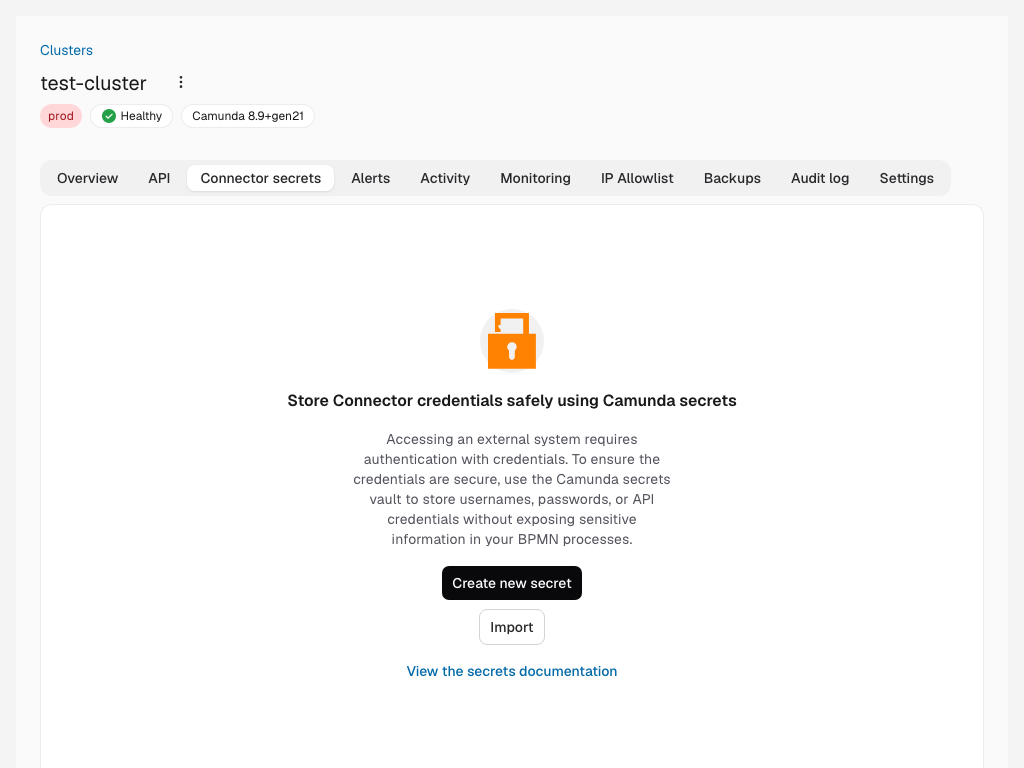
In the left navigation under Clusters, select a cluster.
-
On the Cluster secrets tab, click Create new secret.
-
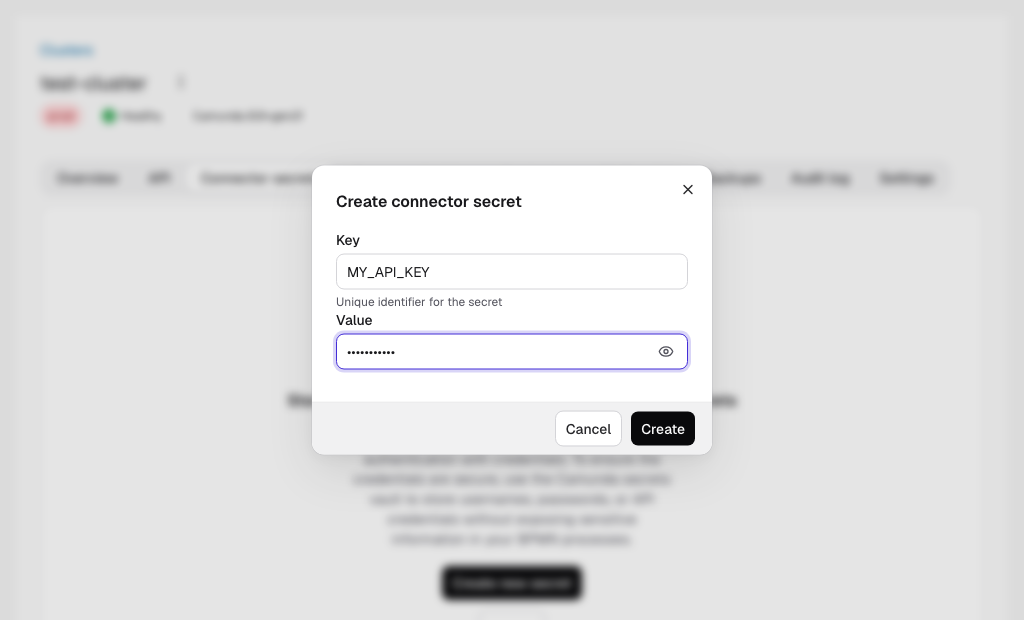
Provide a Key for your secret that you will use to reference your secret from your connector.
-
Provide the Value that will be assigned to the Key.
-
Click Create and view your new secret in the list.
In Self-Managed, review connector secrets configuration.
Use secrets in a workflow
Secrets are used inside connector tasks in your BPMN model. Add a connector task, then reference the secret key with a legacy secret reference in a field that supports secrets.
Example for a plain text field (for example, an authorization header value):
Bearer {{secrets.MY_API_KEY}}
Example for a FEEL expression (note the double quotes around the placeholder):
= { myHeader: "{{secrets.MY_API_KEY}}" }
For more details on where secrets are supported, see the Connectors guide.
Now you can reference your secret in any connector as described in the Connectors guide.
To reuse a complete set of authentication and connection settings, rather than a single value, see credentials. A credential's sensitive fields reference secrets you create here.
Reference connector secrets as camunda.secrets.<name>
In SaaS, you can also reference the connector secrets you create here through centralized secret resolution by using camunda.secrets.<key>. You can use these references in input mappings and Connector fields, in addition to the legacy {{secrets.KEY}} syntax.
To learn how to use these references, see Secret references in input mappings. To understand how Camunda resolves a reference before job activation, see Secret resolution and job activation.
In SaaS, the secret store is provisioned and managed for you. You don't configure a store type, path, or credentials. Add and update values on the Cluster secrets tab; the cluster can resolve them without additional setup.
In Self-Managed, an operator must configure the secret store.
A reference name must match [\p{Alnum}_-]+. Only keys that contain letters, digits, _, and - can therefore be referenced as camunda.secrets.<key>. A key that contains a period (.), such as one used in a file extension, is stored but cannot be referenced this way. A key with a - must be backtick-escaped in FEEL (for example, =camunda.secrets.`db-password`), because a bare - is FEEL's minus operator.