Human in the loop
Learn how to build human-in-the-loop AI workflows in Camunda by combining MCP Client tool discovery with BPMN elements like gateways, intermediate events, and user tasks to control and approve tool execution.
About
Using tool discovery, you can combine the MCP Client connector with other BPMN elements, such as user tasks or intermediate events, to create a human-in-the-loop interaction.
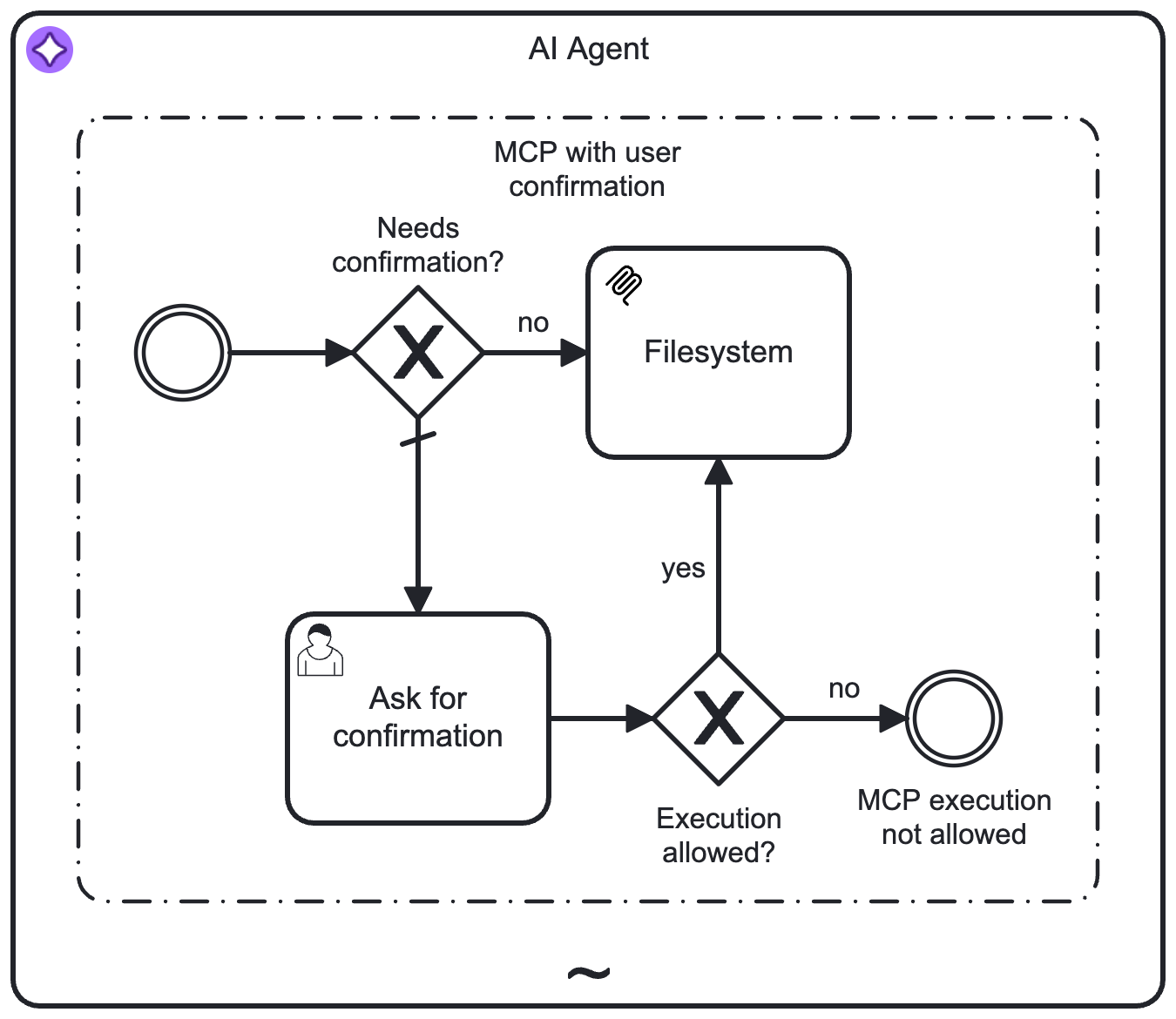
Instead of directly exposing the MCP Client connector as a tool, an intermediate event marked as an MCP client gateway can serve as the root activity of a tool flow within the ad-hoc sub-process.
Configure a filesystem MCP server
The following is an example of how you can configure a filesystem MCP server:
- Add a service task to the ad-hoc sub-process and configure one of the MCP Client connectors.
- Add an intermediate throw event to the ad-hoc sub-process and add an extension property named
io.camunda.agenticai.gateway.typewith the valuemcpClient. - Create an exclusive gateway after the event to decide whether the MCP client tool call should be executed directly or require confirmation.
- Create a flow from the exclusive gateway to the MCP Client service task for direct execution.
- In the condition expression, you can use a FEEL expression like the following to allow tool listing and selected operations directly. This differs from filtering, because all tools remain available, but you can decide which tools need user confirmation:
if toolCall.method = "tools/list" then
  true
else
  toolCall.method = "tools/call" and list contains([
    "read_file",
    "read_multiple_files"
  ], toolCall.params.name)
- Create a default flow to a user task for the confirmation. Set up a form for the user task to enable a decision on whether the tool call should be executed.
- Add a checkbox to the form so the user can confirm or deny the tool call.
- Add a text view to present the tool call with a template such as the following:
# MCP Tool Call Confirmation

The model requested to call the following MCP tool:

{{toolCall.params}}
- Configure a second exclusive gateway after the user task to decide whether the tool call should be executed depending on the value of the checkbox.
- If tool execution is allowed, connect the exclusive gateway to the MCP Client service task.
- If tool execution is not allowed, end the tool flow in an intermediate throw event. Configure an output variable
toolCallResult, to return a denied tool call to the model. Use the following FEEL expression as a variable assignment value:
{"isError": true, "content": [{"type": "text", "text": "Tool call was not allowed by the user"}]}
See the example diagram below: