Display and download a document
In this section, learn how to build a form for document preview and download, and display and download a document from a user task in Tasklist.
Build a form for document preview and download
To display and allow downloading of a document you can use the document preview component in forms. Although this example focuses on Camunda Hub, you can also build a form for document preview and download in Desktop Modeler.
The document preview component offers previews in forms of PDF documents and images as the most common file types. Other document types are supported, but listed without the preview and show the file name with the option to download the file.
In the component's configuration, provide a document reference as an array of document metadata.
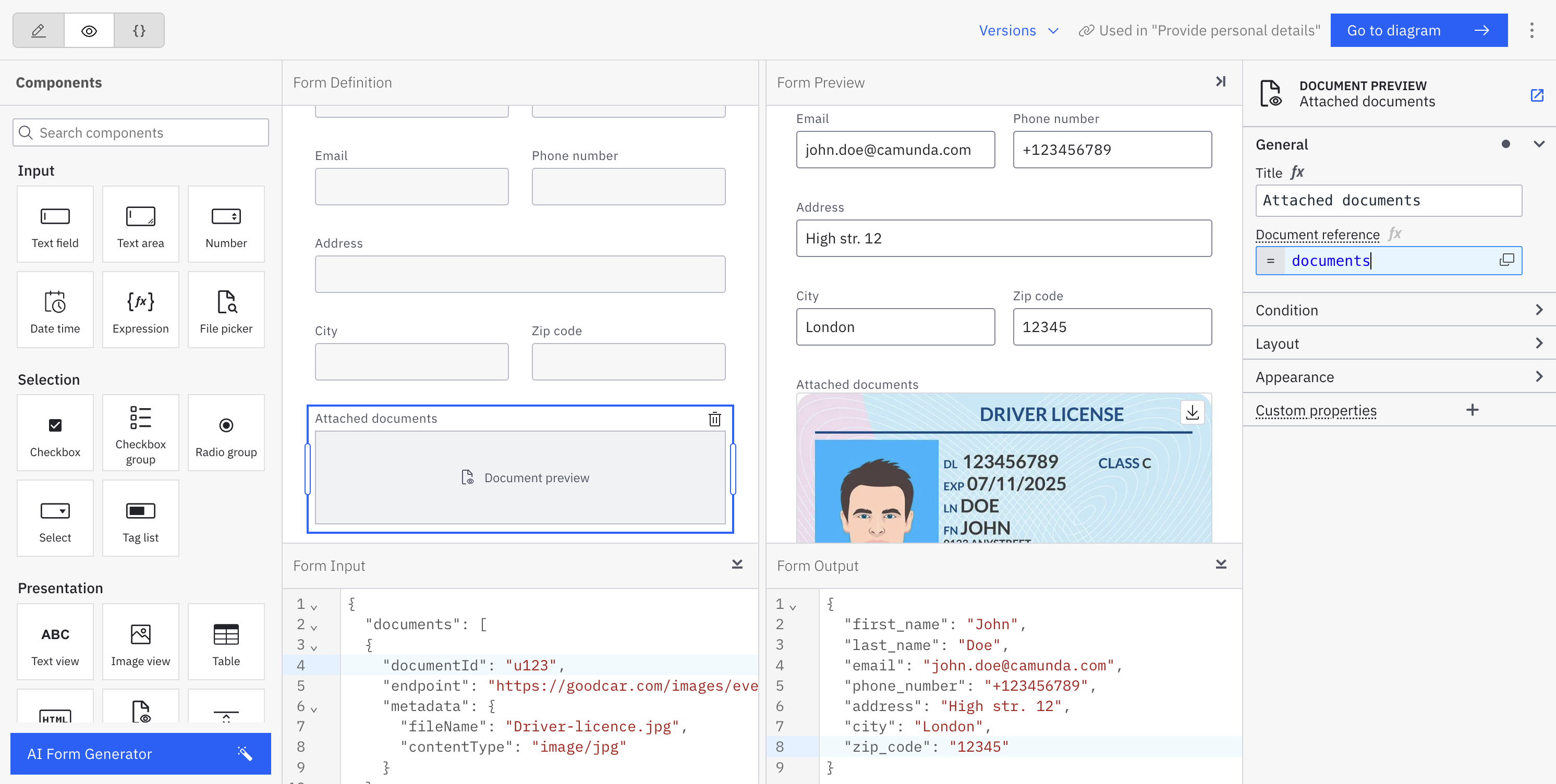
For example, an array may look as follows:
[
    {
        "documentId": "u123",
        "endpoint": "https://api.example.com/documents/u123",
        "metadata": {
            "fileName": "Document.pdf",
            "contentType": "application/pdf"
        }
    }
]
For an example of the document reference as an array on the page for the document preview form component, review our documentation on document preview.
Display and download a document from a user task in Tasklist
A document can be displayed in a user task form in Tasklist.
When a user opens the task, they can view and download the document directly from the form.
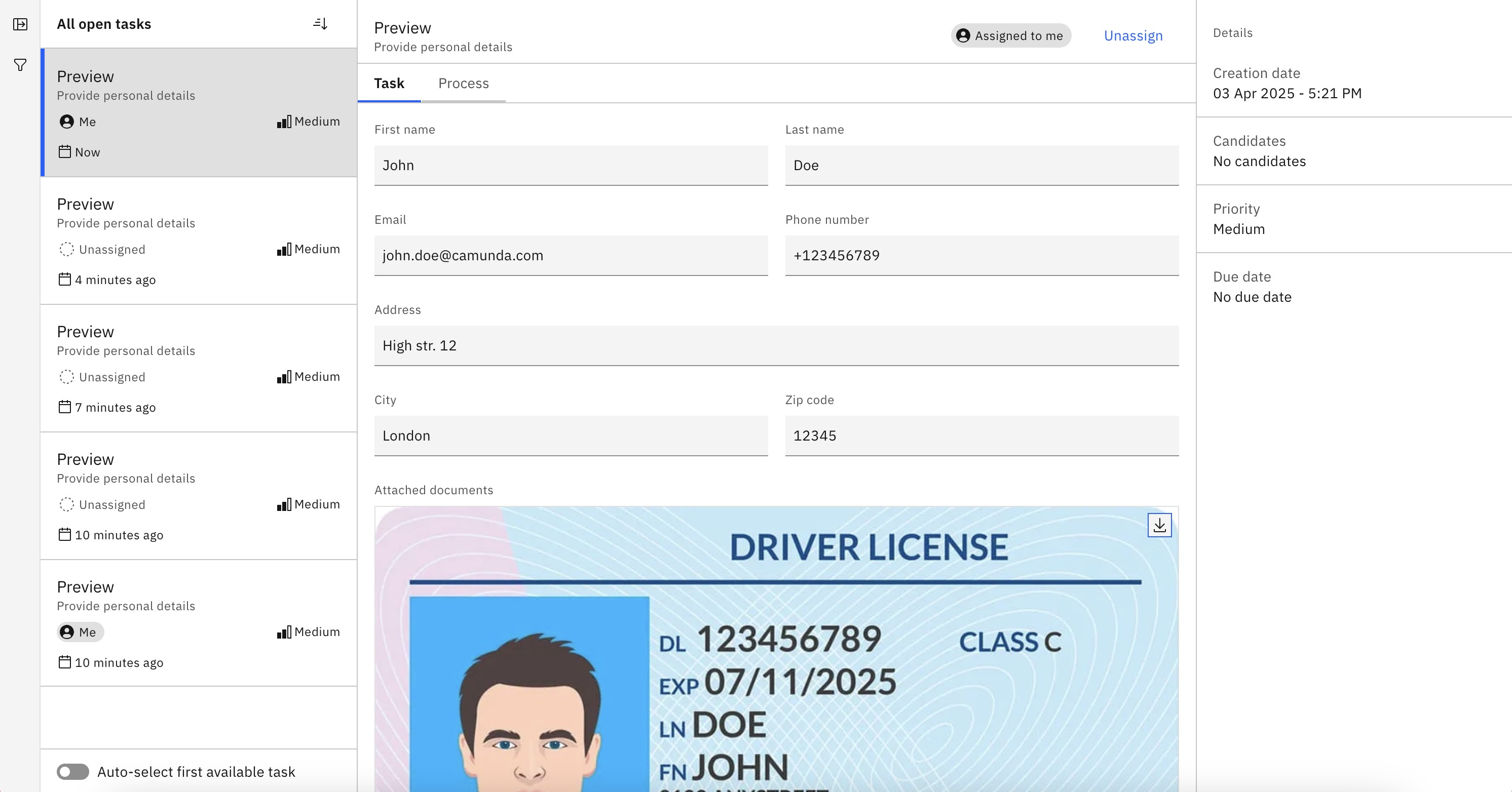
View and download a document in Operate
When a process instance variable references a document, you can preview and download that document directly from the Variables tab in the process instance detail view.
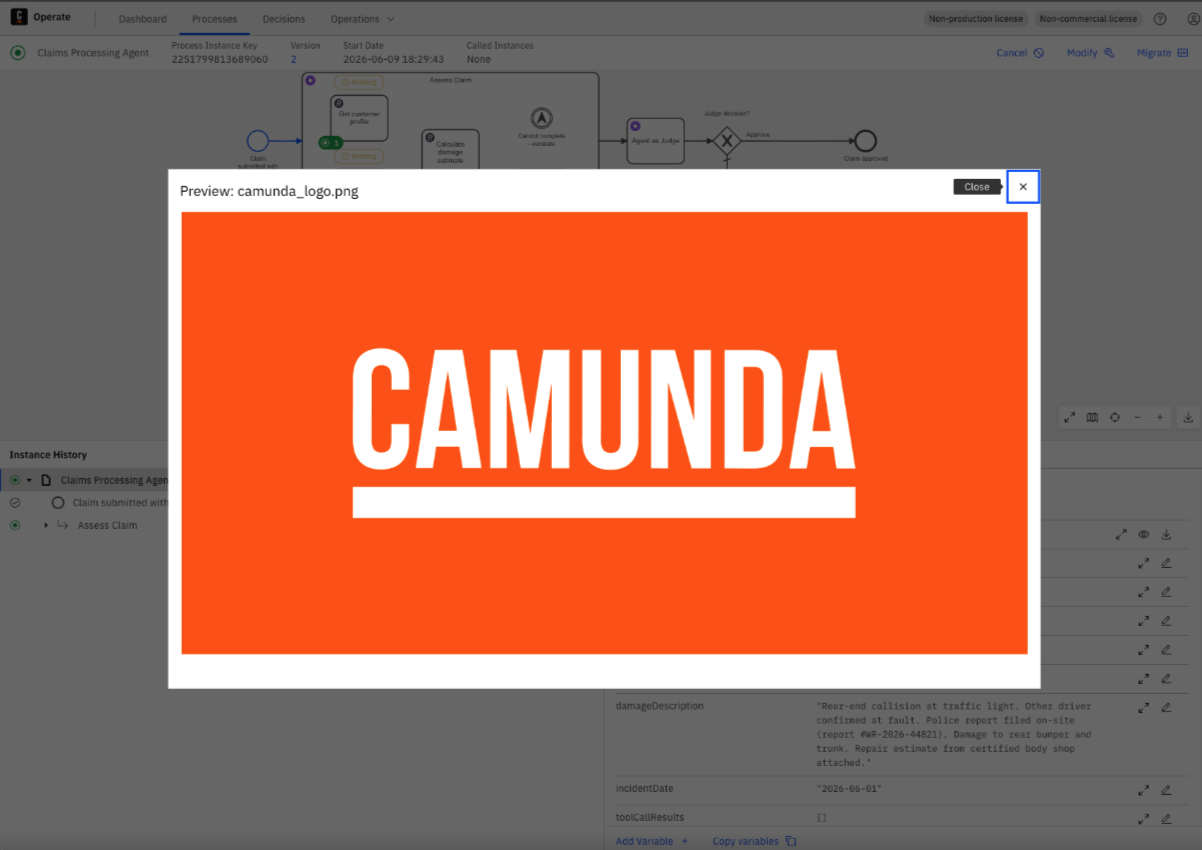
Document variables display the document's file name, type, and size. You can preview supported formats (PDF, JSON, plain text, PNG, JPG) directly in Operate, or download any document to your local machine. Use the All / Documents filter to show only document variables in the table.
This works the same whether the document came from a form, a connector, or an AI Agent tool call.
To inspect the underlying document reference metadata (such as document ID), expand the variable row.
Download a document using the Orchestration Cluster REST API
You can also download a document from your Camunda 8 cluster using the Orchestration Cluster REST API.
This is currently supported for document stores of type: AWS, GCP, in-memory (non-production), local (non-production).
Learn more about this request in the Orchestration Cluster REST API docs.