Box connector
The Box connector is an outbound connector that allows you to interact with the Box storage API from your BPMN process.
Prerequisites
To use the Box connector, you must have a Box account. You can use an enterprise account or create a developer account.
The Box connector supports different Box API authentication methods, all of which require a Custom App in your Box account.
- Camunda recommends enabling the Generate user access tokens feature in Advanced Features in your app configuration. This allows the connector to login as an app user. You can use the User ID shown on the overview page in your Box app console.
- Ensure the app is Authorized in the Platform Apps Manager section of your Box account.
A Custom App is required to interact with the Box API without any manual user interaction during credentials creation when authenticating with the connector.
Create a Box connector task
You can apply a connector to a task or event via the append menu. For example:
- From the canvas: Select an element and click the Change element icon to change an existing element, or use the append feature to add a new element to the diagram.
- From the properties panel: Navigate to the Template section and click Select.
- From the side palette: Click the Create element icon.
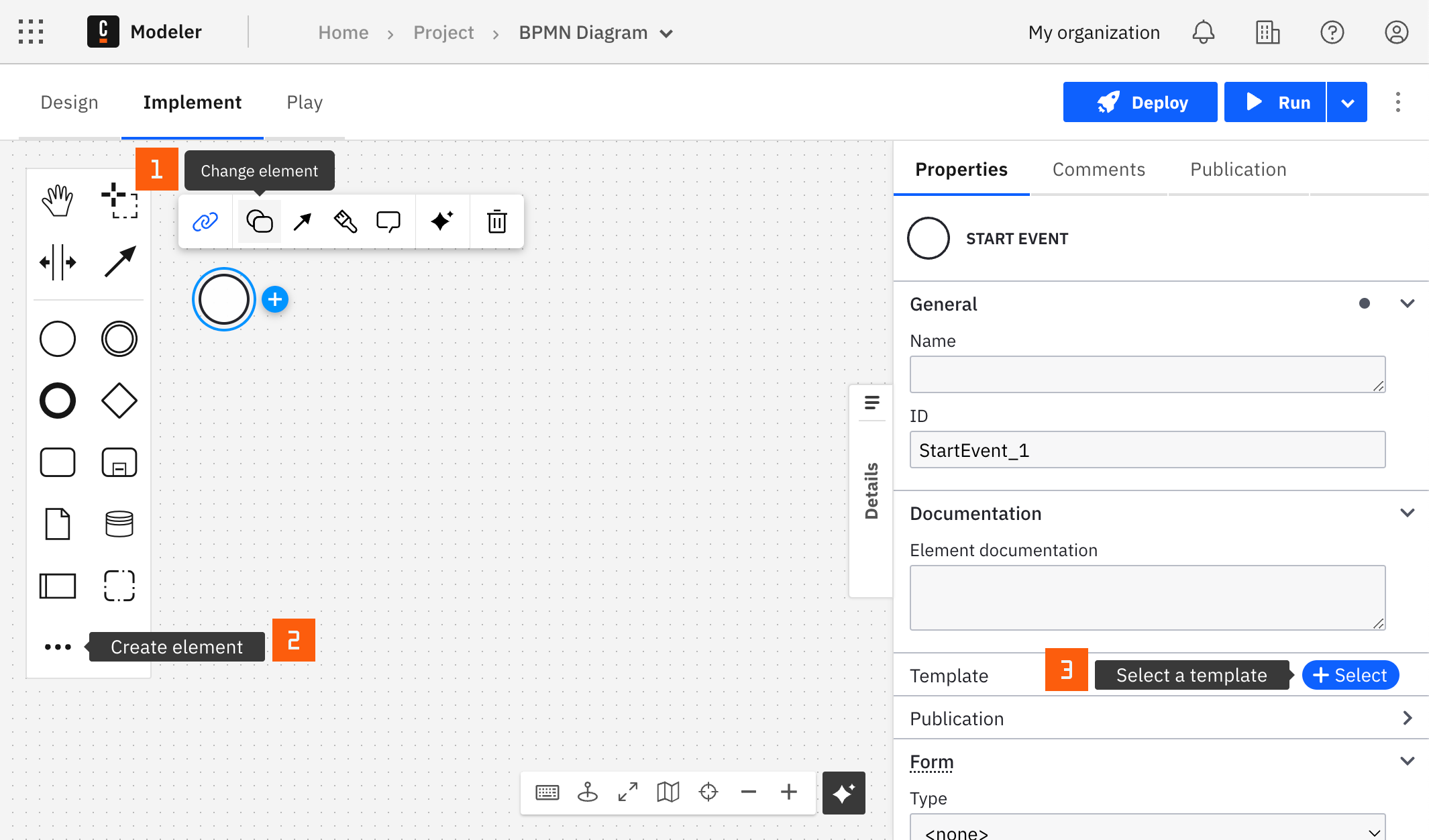
In each of these menus, you can search by connector name or by the operation you want to perform, such as upload object or send email. Connectors that provide several operations list them as separate entries, and selecting an operation applies the connector with that operation preselected.
After you have applied a connector to your element, follow the configuration steps or see using connectors to learn more.
Authentication
To authenticate the connector with Box, select an authentication type from the Authentication dropdown:
- Client Credentials Enterprise: Authenticate using an Enterprise ID. You must have an enterprise account with Box.
- Client Credentials User: Authenticate using a User ID. You must have a Custom App set up in Box.
- Devoloper Token : Authenticate using a developer token. These tokens are usually only valid for 60 minutes, and should be used for testing purposes only.
- JWT JSON Config: Authenticate using a JSON configuration file created and downloaded from your Box App Configuration page.
Operations
The Box connector supports the following operations that allow you to interact with the items stored in your Box account.
The Box connector supports two methods for locating items stored in your Box account:
- File or folder path properties allow you to either specify the Item ID (found in the Box URL when browsing your items) or using the item names separated by slashes (
/) for items in folders. - A path consisting of only a single
/denotes the root of your Box folder. For example,/my-folderwould point to themy-folderfolder located in the root directory. You can use the path notation for files (/my/image.png) and folders (/my/sub/folder).
Starting from version 8.7.0, the Box connector supports uploading documents from (or downloading documents to) the Camunda document store. Review the Document field in the properties panel where the document reference can be provided. See additional details and limitations in document handling.
Create Folder
Creates a new folder in your store.
| Property | Type | Required | Example |
|---|---|---|---|
| Folder name | String | Yes | "my-folder" |
| Parent path | Folder path | No | /, 123, /my/parent/folders |
This operation fails if a folder already exists with the same name, as Box only supports unique names.
Delete Folder
Deletes an existing folder. Optionally include all items and subfolders.
| Property | Type | Required | Example |
|---|---|---|---|
| Folder path | String | Yes | "/my-folder" |
| Recursive | Boolean | No | true |
Delete File
Deletes a single file item.
| Property | Type | Required | Example |
|---|---|---|---|
| File path | String | Yes | "/my-file.png" |
Move File
Moves a file item into a folder.
| Property | Type | Required | Example |
|---|---|---|---|
| File path | String | Yes | "/my-file.png" |
| Target folder path | String | Yes | "/another/folder" |
Download File
Downloads a file item and returns its content in the return format you choose.
| Property | Type | Required | Example |
|---|---|---|---|
| File path | String | Yes | "/my-file.png" |
| Return format | Enum | Yes | Document reference / As text / As JSON |
Select a return format for the downloaded content:
- Document reference: a reference to a document created in the Camunda document store is returned in
document. - As text: the content is decoded to a string (with an optional encoding, default UTF-8) and returned in
content. - As JSON: the content is parsed as JSON and returned in
content.
As text and As JSON return the content directly in a process variable and are subject to a size guard (approximately 1.5 MiB); use Document reference for large files. As JSON fails the job when the content is not valid JSON.
For example, with Document reference you can reference the downloaded file using the example response expression:
{ "download": document }
Upload File
Upload a file to your Box store.
| Property | Type | Required | Example |
|---|---|---|---|
| File path | String | Yes | "/my-file.png" |
| Folder path | String | Yes | "/upload/folder" |
| Document | Document source | Yes | {...} |
Select a document source for the file to upload: a Camunda document reference, inline content built from process data, or an external document URL. The Box connector resolves the source and creates a new file item in your Box store.
The result of the upload can be accessed via the item property of the result.
Example value of a successful file upload:
{ "item": { "id": "1734104173434", "name": "my_new_file.png", "type": "file" } }
Search
Searches the items stored in the Box account.
| Property | Type | Required | Example |
|---|---|---|---|
| Search query | String | Yes | "inci" |
| Seach sort column | String | No | modified_at |
| Search sort direction | String | No | DESC |
| Search offset | String | No | 0, 10 |
| Search limit | String | No | 50 |
Example search result with a single item:
{
  "items": [
    { "id": "1733978444906", "name": "incident-wrapped.png", "type": "file" }
  ]
}