Amazon S3 connector
The Amazon S3 connector is an outbound connector that allows you to interact with Amazon Simple Storage Service (Amazon S3) from your BPMN process.
Prerequisites
To use the Amazon S3 connector, you will need an AWS account with an access key and secret key.
The key will need the following permissions:
GetObjectDeleteObjectPutObject
Learn more about Amazon S3 in the Amazon Simple Storage Service Documentation.
Use Camunda secrets to store credentials and avoid exposing sensitive information from the process. See managing secrets.
Create an Amazon S3 connector task
You can apply a connector to a task or event via the append menu. For example:
- From the canvas: Select an element and click the Change element icon to change an existing element, or use the append feature to add a new element to the diagram.
- From the properties panel: Navigate to the Template section and click Select.
- From the side palette: Click the Create element icon.
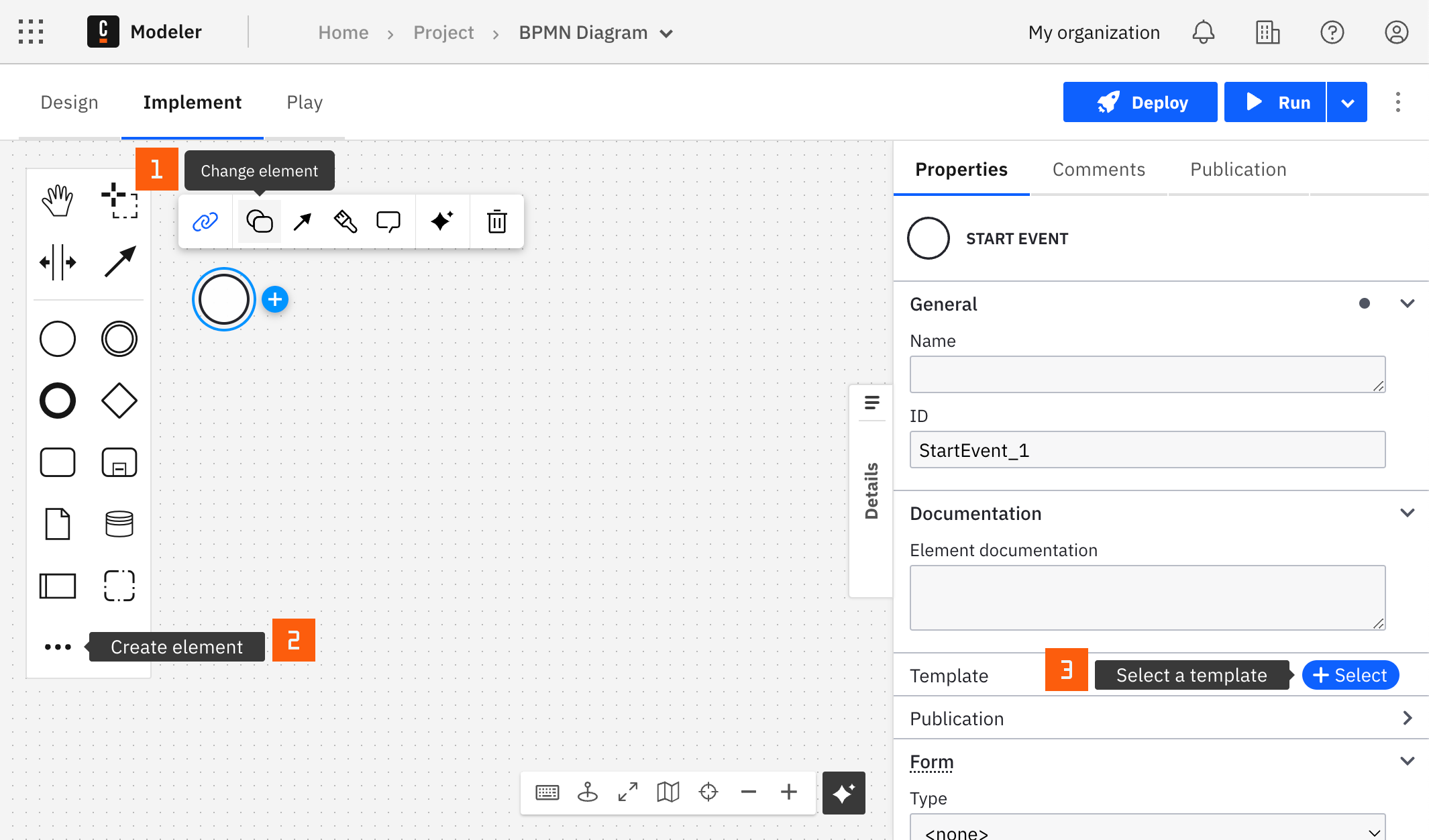
In each of these menus, you can search by connector name or by the operation you want to perform, such as upload object or send email. Connectors that provide several operations list them as separate entries, and selecting an operation applies the connector with that operation preselected.
After you have applied a connector to your element, follow the configuration steps or see using connectors to learn more.
Authentication
Select an authentication type from the Authentication dropdown.
-
Credentials (SaaS/Self-Managed): Select this option if you have a valid pair of access and secret keys provided by your AWS account administrator. This option is supported for both SaaS and Self-Managed users.
-
Default Credentials Chain (Hybrid/Self-Managed only): Select this option if your system is configured as an implicit authentication mechanism, such as role-based authentication, credentials supplied via environment variables, or files on target host. This option is only supported for Self-Managed or hybrid distributions. This approach uses the Default Credential Provider Chain to resolve required credentials.
If you select Credentials, you must supply the appropriate credentials:
- Access key: Provide an access key of a user with permissions to the Amazon S3 actions.
- Secret key: Provide the secret key of the user with the access key provided above.
The Access key and the Secret key are required properties and must be provided to use the connector.
Region
In the Region field, enter the region of the deployed endpoint.
Action
The Amazon S3 connector supports the following actions:
Upload DocumentDownload DocumentDelete Document
Upload Document
Upload a document to S3.
Parameters
| Parameter | Description |
|---|---|
AWS bucket | The targeted AWS S3 bucket where the document should be uploaded. |
AWS key | (Optional) The key of the document that uniquely identifies the object in an Amazon S3 bucket. Will fallback to the document filename if not set |
Document | The document to upload. Select a document source: a Camunda document reference, inline content built from process data, or an external document URL. |
Use inline content to build a file (for example, a .json error report) directly from process variables without first storing it in the Camunda document store. See inline documents.
To learn more about Friendly Enough Expression Language (FEEL) expressions, see what is FEEL?.
Response Structure
The following JSON response is returned after a successful document upload operation:
bucket: Echoes back the bucket of the uploaded document.key: Echoes back the unique key of the uploaded document.link: The document link.
Starting from version 8.7.0, the Amazon S3 connector supports uploading documents from (or downloading documents to) the Camunda document store. Review the Document field in the properties panel where the document reference can be provided. See additional details and limitations in document handling.
Example Response
The following example shows a successful send upload operation response:
{
  "bucket": "Example Subject",
  "key": true,
  "link": "https://mybucket.s3.amazonaws.com/test"
}
Download Document
Download the document from AWS S3.
Parameters
| Parameter | Description |
|---|---|
AWS bucket | The targeted AWS S3 bucket that the document should be downloaded from. |
AWS key | The key of the document that uniquely identifies the object in an Amazon S3 bucket. |
Return format | How the downloaded content is returned. Select a return format: Document reference, As text (with an optional encoding, default UTF-8), or As JSON. |
To learn more about Friendly Enough Expression Language (FEEL) expressions, see what is FEEL?.
Response Structure
The following JSON response is returned after a successful document download operation:
bucket: Echoes back the bucket of the downloaded document.key: Echoes back the unique key of the downloaded document.element: Represents the downloaded content. Its value depends on the selected Return format:- Document reference:
elementcontains a reference to the document created in the Camunda document store. - As text:
elementcontains the content decoded as a string. - As JSON:
elementcontains the content parsed as JSON.
- Document reference:
As text and As JSON return the content directly in a process variable and are subject to a size guard (approximately 1.5 MiB). A larger object fails the job with an incident. Use Document reference for large files. As JSON fails the job when the content is not valid JSON.
Example Response
The following examples show a successful download operation response.
With Document reference:
{
  "bucket": "Example Subject",
  "key": "report.json",
  "element": {
    "storeId": "in-memory",
    "documentId": "20f1fd6a-d8ea-403b-813c-e281c1193495",
    "metadata": {
      "contentType": "image/webp; name=305a4816-b3df-4724-acd3-010478a54add.webp",
      "size": 311032,
      "fileName": "305a4816-b3df-4724-acd3-010478a54add.webp"
    },
    "camunda.document.type": "camunda"
  }
}
With As JSON:
{
  "bucket": "Example Subject",
  "key": "report.json",
  "element": {
    "testKey": "testValue"
  }
}
Delete Document
Delete the document from AWS S3.
Parameters
| Parameter | Description |
|---|---|
AWS bucket | The targeted AWS S3 bucket that the document should be deleted from. |
AWS key | The key of the document that uniquely identifies the object in an Amazon S3 bucket. |
To learn more about Friendly Enough Expression Language (FEEL) expressions, see what is FEEL?.
Response Structure
The following JSON response is returned after a successful document deletion operation:
bucket: Echoes back the bucket of the uploaded document.key: Echoes back the unique key of the uploaded document.
Example Response
The following example shows a successful deletion operation response:
{
  "bucket": "Example Subject",
  "key": "document.txt"
}