AI Agent Task connector
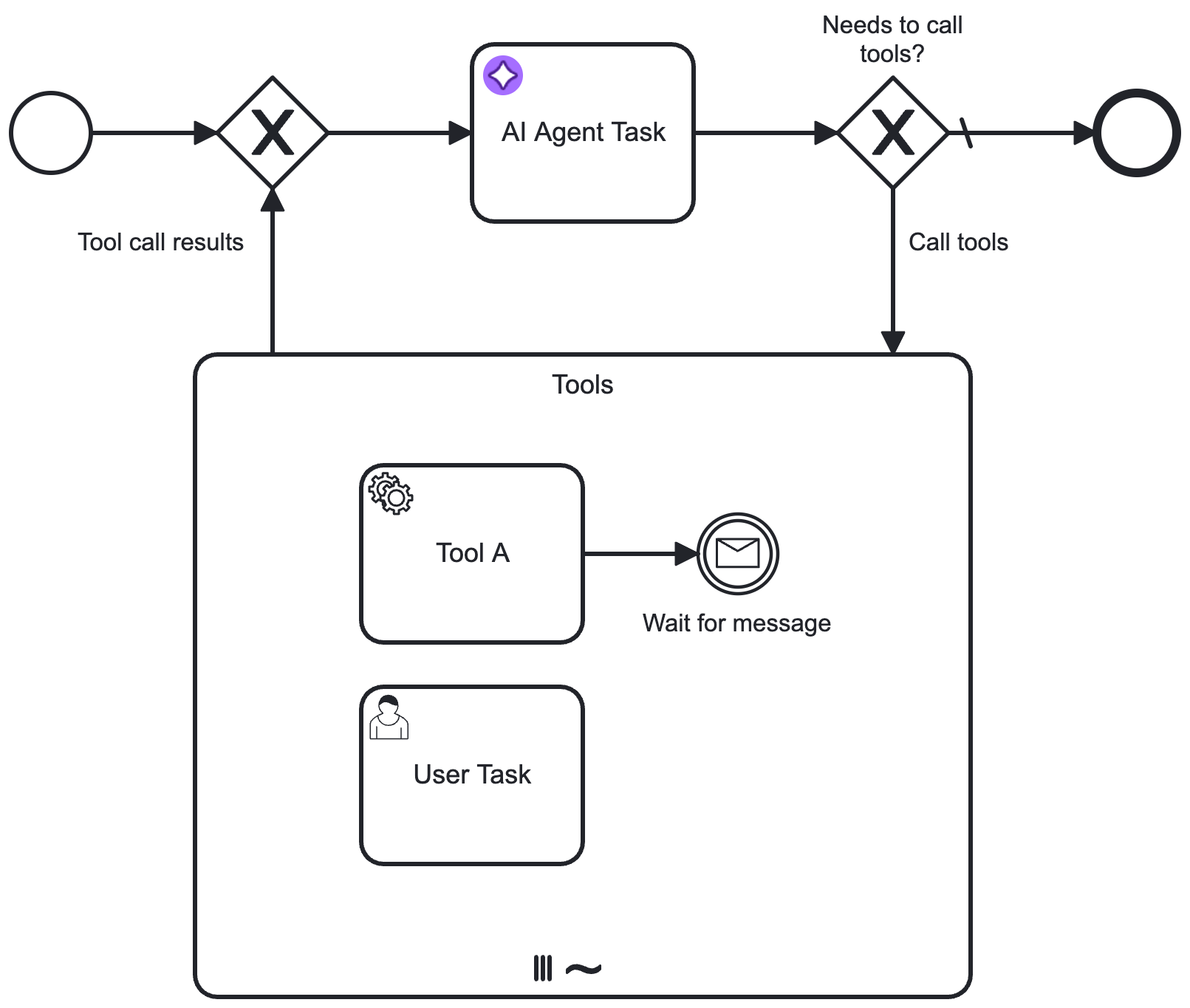
Implement an AI agent using an AI Agent connector applied to a service task, paired with an optional ad-hoc sub-process to provide tools usable by the AI.
- For more information and usage examples, see AI Agent Task.
- The example integration page outlines how to model an agentic AI process using the AI Agent Task implementation.
Configuration
Model provider
Select the LLM model Provider and Model. See model providers for supported providers and configuration details.
System prompt
The System Prompt is a crucial part of the AI Agent connector configuration, as it defines the behavior and goal of the agent and instructs the LLM on how to act.
| Field | Required | Description |
|---|---|---|
| System prompt | Yes | Specify a system prompt to define how the LLM should act.
|
User Prompt
The User Prompt contains the actual request to the LLM model.
| Field | Required | Description |
|---|---|---|
| User prompt | Yes | This could either contain the initial request or a follow-up request as part of a response follow-up.
|
| Documents | No | Add a list of document references to allow an AI agent to interact with documents and images. The list is internally resolved and passed to the LLM as content blocks if the document type is supported. See document support for supported file types and details. |
Tools
Specify the tool resolution for an accompanying ad-hoc sub-process.
| Field | Required | Description |
|---|---|---|
| Ad-hoc sub-process ID | No | Specify the element ID of the ad-hoc sub-process to use for tool resolution (see Tool Definitions). When entering the AI Agent connector, the connector resolves the tools available in the ad-hoc sub-process, and passes these to the LLM as part of the prompt. |
| Tool call results | No | Specify the results collection of the ad-hoc sub-process multi-instance execution. Example: |
- Leave this section empty if using this connector independently, without an accompanying ad-hoc sub-process.
- To actually use the tools, you must model your process to include an agent loop, routing into the ad-hoc sub-process and back to the AI agent connector, and configure the sub-process for tool calls. See agent loop for tool calls.
Memory
Configure the agent's short-term conversational memory using the following parameters:
| Field | Required | Description |
|---|---|---|
| Agent context | Yes | Specify an agent context variable to store all relevant data for the agent loop and response follow-ups across tool calls and LLM responses. Make sure this variable points to the This is an important variable required to make the agent loop work correctly. This variable must be aligned with the Output mapping Result variable and Result expression for this connector. Avoid reusing the agent context variable across different agent tasks. Define a dedicated result variable name for each agent instead and align it in the context and the result configuration. Example: |
| Context window size | No | Specify the maximum number of messages to pass to the LLM on every call. Defaults to 20 if not configured.
|
| Memory storage type | Yes | Specify how the conversation memory should be stored. See Choose a memory storage backend below for the available options and their trade-offs. |
Choose a memory storage backend
These are the available storage backend options:
- In-process storage is the default option and stores conversation messages as part of the agent context process variable, subject to variable size limitations.
- Camunda document storage stores conversation messages as a JSON document in document storage. This avoids the process variable size limitation, but you must configure a time-to-live (TTL) that matches your process's expected lifetime to avoid losing history.
- AWS AgentCore Memory stores conversation messages as events in Amazon Bedrock AgentCore Memory, an AWS-managed memory service with built-in long-term memory extraction. This offloads storage to an AWS-managed service, but adds an external dependency and its own setup and authentication requirements.
- Custom implementation uses a custom storage implementation through a customized connector runtime, available only in Self-Managed or hybrid setups. This gives you full control over how messages are stored, at the cost of building and maintaining the implementation yourself.
Evaluate these trade-offs against your process's expected lifetime, conversation size, and external dependencies to choose the backend that fits your use case.
Operate's conversation history comes from the Agent Instance API, a separate representation from wherever the agent context itself is stored. See agent context and memory for how the two relate. The backend you choose here only changes where the messages are durably stored for the agent's own context window, and whether you can also inspect them directly, for example as a raw process variable.
In-process storage
Messages passed between the AI agent and the model are stored within the agent context process variable, so you can also inspect them directly as raw JSON in the element's Variables tab in Operate.
This is suitable for many use cases, but you must be aware of the variable size limitations that limit the amount of data that can be stored in the process variable.
Camunda document storage
Messages passed between the AI agent and the model are not directly available as process variable but reference a JSON document stored in document storage.
As documents are subject to expiration, to avoid losing the conversation history you must be able to predict the expected lifetime of your process, so you can correctly configure the document time-to-live (TTL).
| Field | Required | Description |
|---|---|---|
| Document TTL | No | Time-to-live (TTL) for documents containing the conversation history. Use this field to set a custom TTL matching your expected process lifetime. The default cluster TTL is used if this value is not configured. |
| Custom document properties | No | Optional map of properties to store with the document. Use this option to reference custom metadata you might want to use when further processing conversation documents. |
AWS AgentCore Memory
Messages passed between the AI agent and the model are stored as events in Amazon Bedrock AgentCore Memory. In addition to short-term conversation replay, AgentCore Memory automatically extracts long-term memory insights from conversational messages, enabling your agent to build up knowledge across sessions.
You must create an AgentCore Memory resource in your AWS account before configuring this storage type.
| Field | Required | Description |
|---|---|---|
| Region | Yes | The AWS region where the AgentCore Memory resource is located. For example, us-east-1. |
| Endpoint | No | Custom API endpoint for VPC/PrivateLink configurations, AWS GovCloud, or other non-standard deployments. |
| Authentication | Yes | Select the authentication method for AgentCore Memory access. |
| Memory ID | Yes | The ID of the pre-provisioned AgentCore Memory resource. |
| Actor ID | Yes | Identifier of the actor associated with memory events (for example, end-user or agent/user combination). Supports FEEL expressions. |
To authenticate, choose one of the methods from the Authentication dropdown:
- Use Credentials if you have a valid pair of access and secret keys. The IAM user requires permissions for the
bedrock-agentcore:CreateEventandbedrock-agentcore:ListEventsactions.
This option is applicable for both SaaS and Self-Managed users.
- Use Default Credentials Chain if your system is configured with an implicit authentication mechanism, such as role-based authentication, credentials supplied via environment variables, or files on target host. This approach uses the Default Credential Provider Chain to resolve required credentials.
This option is applicable only for Self-Managed or hybrid distributions.
Limits
Set limits for the agent interaction to prevent unexpected behavior or unexpected cost due to infinite loops.
| Field | Required | Description |
|---|---|---|
| Maximum model calls | No | Specify the maximum number of model calls. As a safeguard, this limit defaults to a value of 10 if you do not configure this value. |
Despite these limits, you must closely monitor your LLM API usage and cost, and set appropriate limits on the provider side.
Response
Configure the response format by specifying how the model should return its output (text or JSON) and how the connector should process and handle the returned response.
The outcome of an LLM call is stored as an assistant message designed to contain multiple content blocks.
- This message always contains a single text content block for the currently supported providers/models.
- The connector returns the first content block when handling the response, either as a text string or as a parsed JSON object.
| Field | Required | Description |
|---|---|---|
| Response format | Yes | Instructs the model which response format to return.
|
| Include assistant message | No | Returns the entire message returned by the LLM as Select this option if you need more than just the first response text. |
Text response format
If not configured otherwise, this format is used by default and returns a responseText string as part of the
connector response.
| Field | Required | Description |
|---|---|---|
| Parse text as JSON | No | If this option is selected, the connector will attempt to parse the response text as JSON and return the parsed object as
|
For an example prompt that instructs the model to return a JSON response, (see Anthropic documenation):
Output in JSON format with keys: "sentiment" (positive/negative/neutral), "key_issues" (list), and "action_items" (list of dicts with "team" and "task").
JSON response format
If the model supports it, selecting JSON as response format instructs the model to always return a JSON response. If the model does not return a valid JSON response, the connector throws an error.
To ensure the model generates data according to a specific JSON structure, you can optionally provide a JSON Schema. Alternatively, you can instruct the model to return JSON following a specific structure as shown in the text example above.
Support for JSON responses varies by provider and model:
- OpenAI: Selecting the JSON response format is equivalent to using the JSON mode. Providing a JSON Schema instructs the model to return structured outputs.
- Anthropic: JSON response format requires a JSON Schema. See Anthropic's structured outputs documentation.
- AWS Bedrock: JSON response format requires a JSON Schema. See AWS Bedrock structured output documentation.
- Other providers: Consult the provider's documentation to check if JSON response format is supported. If not, use the text response format with the Parse text as JSON option instead.
| Field | Required | Description |
|---|---|---|
| Response JSON schema | No | Describes the desired response format as JSON Schema. See OpenAI's structured outputs documentation for examples. |
| Response JSON schema name | No | Depending on the provider, the schema must be configured with a name for the schema (such as Ideally this name describes the purpose of the schema to make the model aware of the expected data. |
For example, the following shows an example JSON Schema describing the expected response format for a user profile:
={
  "type": "object",
  "properties": {
    "userId": {
      "type": "number"
    },
    "firstname": {
      "type": "string"
    },
    "lastname": {
      "type": "string"
    }
  },
  "required": [
    "userId",
    "firstname",
    "lastname"
  ]
}
Assistant message
If the Include assistant message option is selected, the response from the AI Agent connector contains a
responseMessage object that includes the assistant message, including all content blocks and metadata. For example:
{
  "responseMessage": {
    "role": "assistant",
    "content": [
      {
        "type": "text",
        "text": "Based on the result from the GetDateAndTime function, the current date and time is:\n\nJune 2, 2025, 09:15:38 AM (Central European Summer Time)."
      }
    ],
    "metadata": {
      "framework": {
        "tokenUsage": {
          "inputTokenCount": 1563,
          "outputTokenCount": 95,
          "totalTokenCount": 1658
        },
        "finishReason": "STOP"
      }
    }
  }
}
To retrieve the response text from the responseMessage object, use the following FEEL expression (assuming the response variable is named agent):
agent.responseMessage.content[type = "text"][1].text
Output mapping
Specify the process variables that you want to map and export the AI Agent connector response into.
| Field | Required | Description |
|---|---|---|
| Result variable | Yes | The result of the AI Agent connector is a context containing the following fields. Set this to a unique value for every agent task in your process to avoid interference between agents.
Response fields depend on how the Response is configured:
|
| Result expression | No | In addition, you can choose to unpack the content of the response into multiple process variables using the Result expression field, as a FEEL Context Expression. |
To model your first AI Agent, you can use the default result variable (agent) and
configure the Agent Context as agent.context.
When adding a second AI Agent connector, use a
different variable name (such as mySecondAgent) and align the context variable accordingly (for example, mySecondAgent.context) to avoid interference and
unexpected results between different agents.
To learn more about output mapping, see variable/response mapping.
Error handling
If an error occurs, the AI Agent connector throws an error and includes the error response in the error variable in Operate.
| Field | Required | Description |
|---|---|---|
| Error expression | No | You can handle an AI Agent connector error using an Error Boundary Event and error expressions. |
In the error expression, you can handle the following error codes emitted by the AI Agent connector to respond to specific situations. For example, you can map a specific error code to a BPMN error and model your process accordingly.
| Error code | Description |
|---|---|
FAILED_MODEL_CALL | The call to the LLM API failed, for example, due to misconfiguration or invalid credentials. The error message contains additional details. |
MODEL_RESPONSE_CONTENT_FILTERED | The LLM provider blocked the model response with content filtering. This can happen when the provider's safety filters stop the model from returning response content. |
FAILED_TO_PARSE_RESPONSE_CONTENT | The AI Agent was configured to parse the LLM response as JSON, but parsing failed. |
MAXIMUM_NUMBER_OF_MODEL_CALLS_REACHED | The AI Agent reached the configured maximum number of model calls. |
MIGRATION_MISSING_TOOLS | Tools referenced by the AI Agent were removed after a process instance migration. Removing or renaming tools is not supported. See process instance migrations for more details. |
MIGRATION_GATEWAY_TOOL_DEFINITIONS_CHANGED | Gateway tool definitions have changed after a process instance migration. Adding or removing gateway tools to a running agent is not supported. See process instance migrations for more details. |
NO_USER_MESSAGE_CONTENT | No user message content, either from a user prompt or a document, was provided to the agent. |
TOOL_CALL_RESULTS_ON_EMPTY_CONTEXT | Tool call results were passed to the AI Agent despite an empty context, which typically indicates a misconfiguration of the agent context. |
The AI Agent Task generates the following error codes when creating the tool schema from the process definition XML:
| Error code | Description |
|---|---|
AD_HOC_SUB_PROCESS_XML_FETCH_ERROR | The process definition XML could not be fetched. |
AD_HOC_SUB_PROCESS_NOT_FOUND | The ad-hoc sub-process with the configured ID could not be found in the process definition XML. |
AD_HOC_TOOL_DEFINITION_INVALID | The ad-hoc sub-process contains invalid tool definitions which can't be transformed into a tool schema. |
Retries
Specify connector execution retry behavior if execution fails.
| Field | Required | Description |
|---|---|---|
| Retries | No | Specify the number of retries (times) the connector repeats execution if it fails. |
| Retry backoff | No | Specify a custom Retry backoff interval between retries instead of the default behavior of retrying immediately. |
Execution listeners
Add and manage execution listeners to allow users to react to events in the workflow execution lifecycle by executing custom logic.
Limitations
No event handling support
Unlike the AI Agent Sub-process implementation, the AI Agent Task implementation does not support event handling as part of an event subprocess.
If you want to handle events while the AI agent is working on a task, use the AI Agent Sub-process implementation instead.
Process definition not found errors when running the AI Agent for the first time
The AI Agent Task implementation relies on the eventually consistent Get process definition XML API to fetch the BPMN XML source when resolving available tool definitions.
- If you deploy a new or changed process and directly run it after (for example using Deploy & Run), the process definition might not be available when the AI Agent attempts to fetch the process definition XML.
- It will retry to fetch the definition several times, but if the definition is still not available after the retries are exhausted, the connector will fail with a "Process definition not found" error and raise an incident.
To avoid this error, wait a few seconds before running a newly deployed new or changed process, to allow the exporter to make the process definition available via the API.