Validate and deploy your process application
Validate your process application in development before deploying it to testing, staging, or production.
Validate your process application
Use Play mode to validate your process application in development.
- Open the BPMN diagram in the process application that you want to validate.
- Select the Play tab to play the process application using your selected development cluster.
- Perform validation as required, for example, debug your process logic and test the process application.
To learn more about using Play for validation, see Play mode for rapid validation
Deploy your process application
Before deploying a process application
- If the target cluster has authorizations enabled, make sure that the deploying users have
CREATEpermission to theRESOURCEresource type.
Once validation is complete, deploy your process application to cluster stages in your development lifecycle, such as testing, staging, or production. For example, deploy to your testing cluster to run automated tests or make it available for testing.
- Open the process application homepage.
- Select the Deploy latest changes option from the Deploy & run combo button to open the Deploy process application modal.
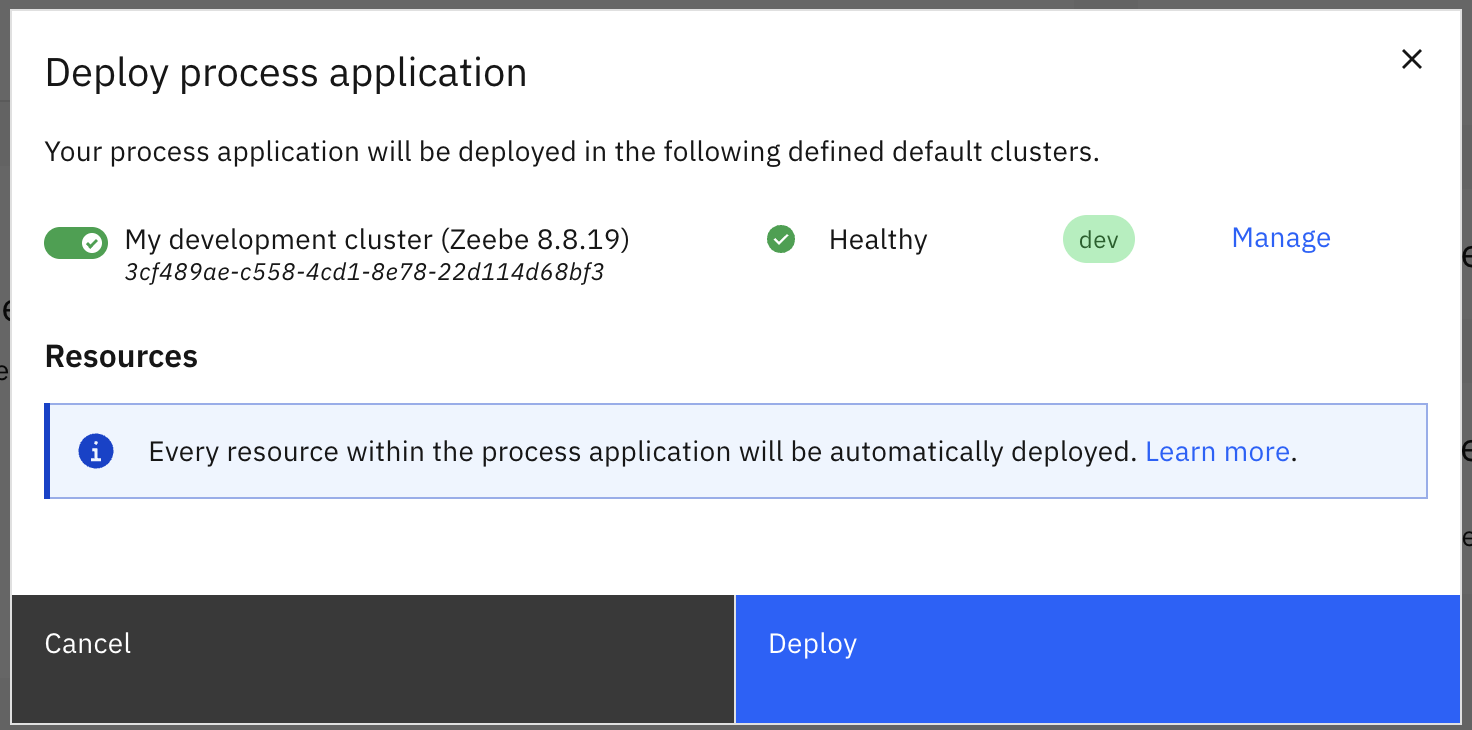
- Turn on the toggle for the cluster stage you want to deploy to. In Self-Managed, you may be prompted to enter your cluster details manually if no configuration is provided.
- Perform any other actions as required, such as:
- Unpausing the chosen cluster if it has been auto-paused. Select Resume cluster within the Cluster Details.
- Managing the cluster. Select Manage.
- Select Deploy to deploy the process application to the selected cluster.
When you deploy from the process application homepage, all BPMN, DMN, and form files in the process application are deployed as a single bundle.
In Self-Managed, you can deploy your process application to the cluster defined in your Web Modeler configuration.
If any resource fails to deploy, the whole deployment fails and the cluster state remains unchanged. This safely ensures that a process application cannot be deployed incompletely or in an inconsistent state.
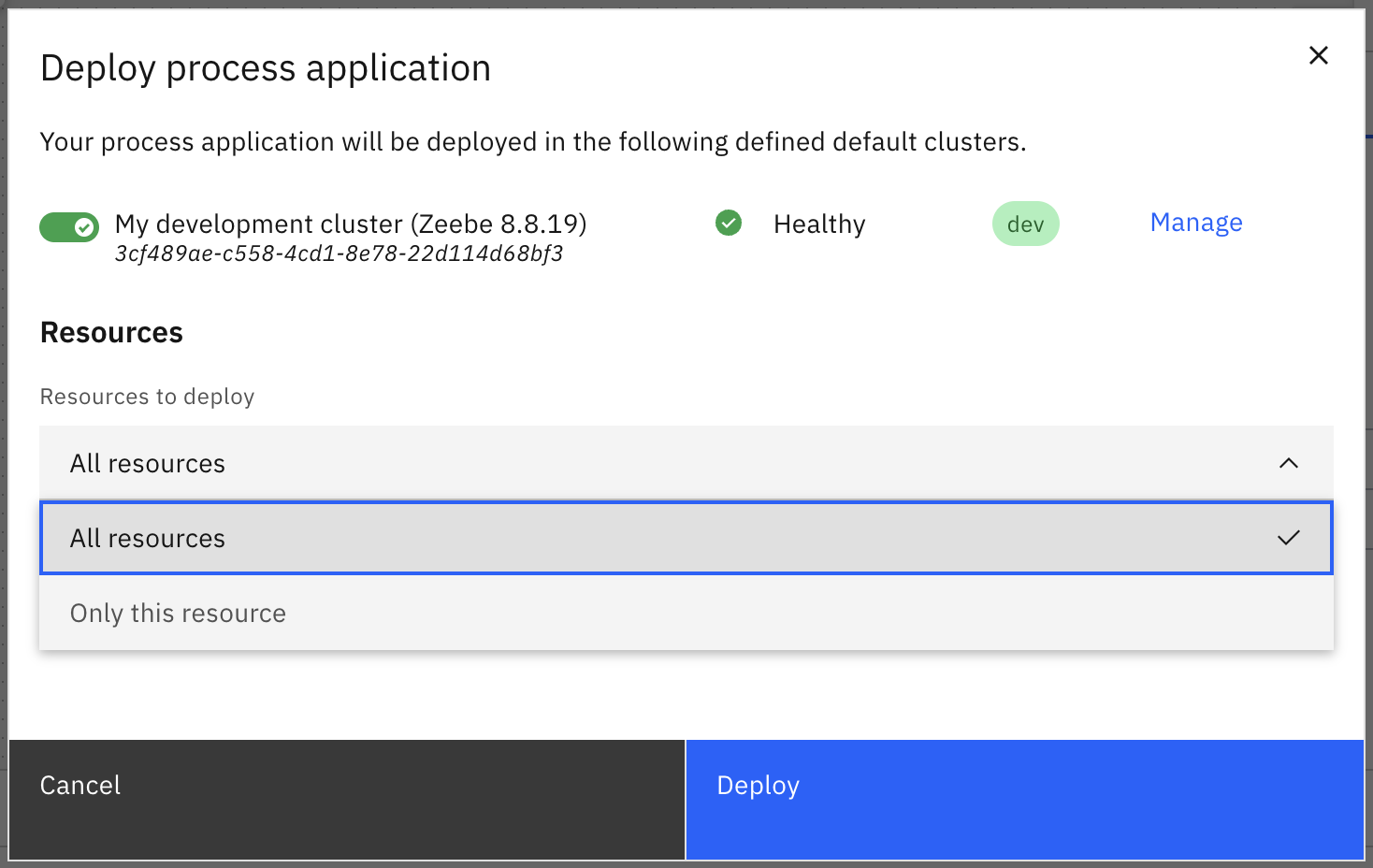
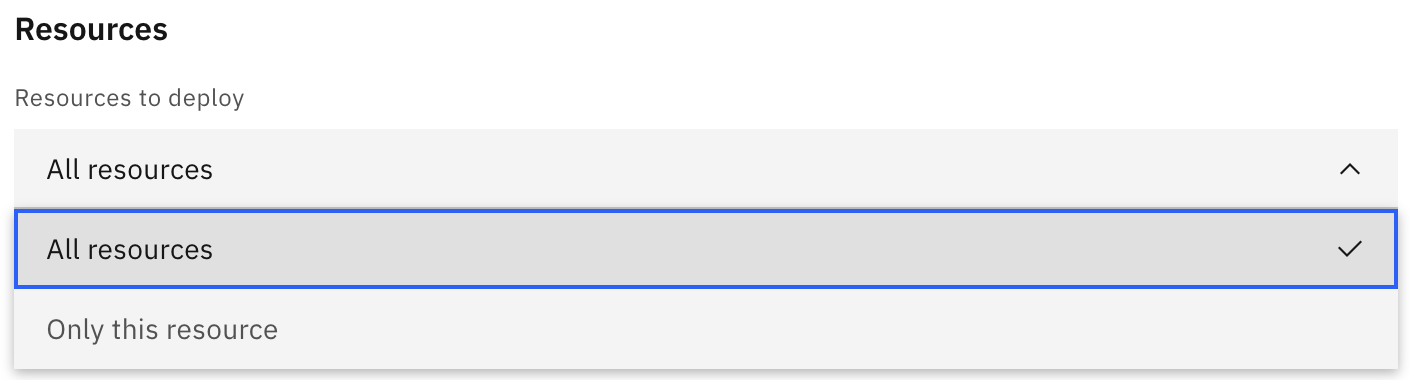
You can also open the deployment modal from the details page of any deployable file in the process application. In that case, the modal includes an additional option to select the resources to deploy.
Run your process application
You can manually run your process application to test it after it has been deployed to a testing, staging, or production cluster.
Use Play to validate your process application in a development cluster, and only use Run when interacting with other stages such as testing, staging, or production.
To run your process application:
- Open the process application homepage.
- Select Deploy & run to open the Deploy & run process application modal.
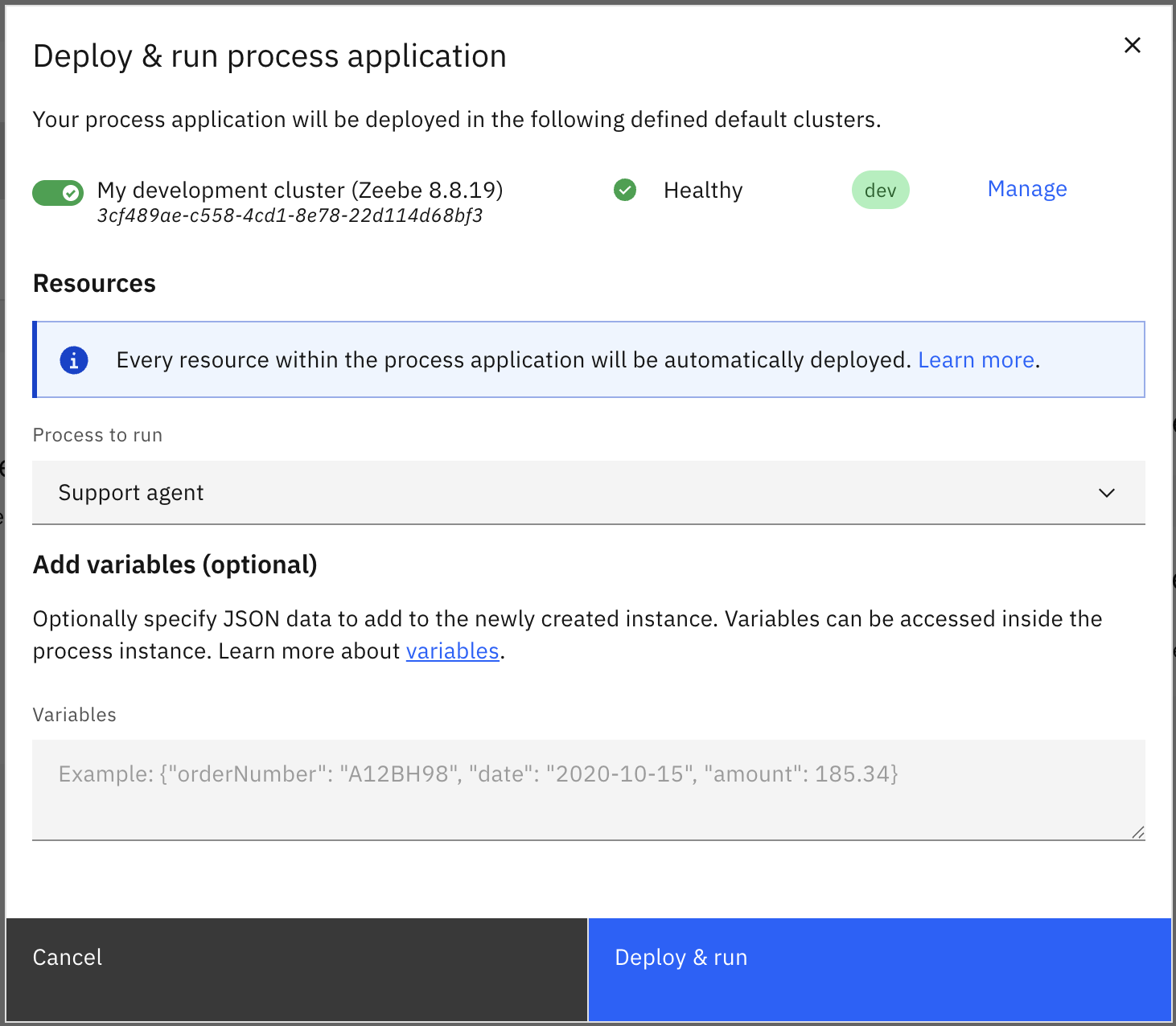
- Select the process for which you want to start a new instance in Process to run.
- Select Deploy & run to start a new instance.
- Before the process instance starts, all resources are redeployed if required so the new instance uses their latest state.
- After the process instance starts, you will receive a notification with a link to the process instance view in Operate. Open this link to monitor the process instance. If the target cluster has authorizations enabled, make sure you have the following permissions to be able to view the process instance in Operate:
READ_PROCESS_DEFINITIONandREAD_PROCESS_INSTANCEpermissions on thePROCESS_DEFINITIONresource typeoperatepermission to theCOMPONENTresource type
You can also open the Deploy & run modal from the details page of any BPMN file in the process application. In that case, the current process is run and the modal includes an additional option to select the resources to deploy.
Deployment errors
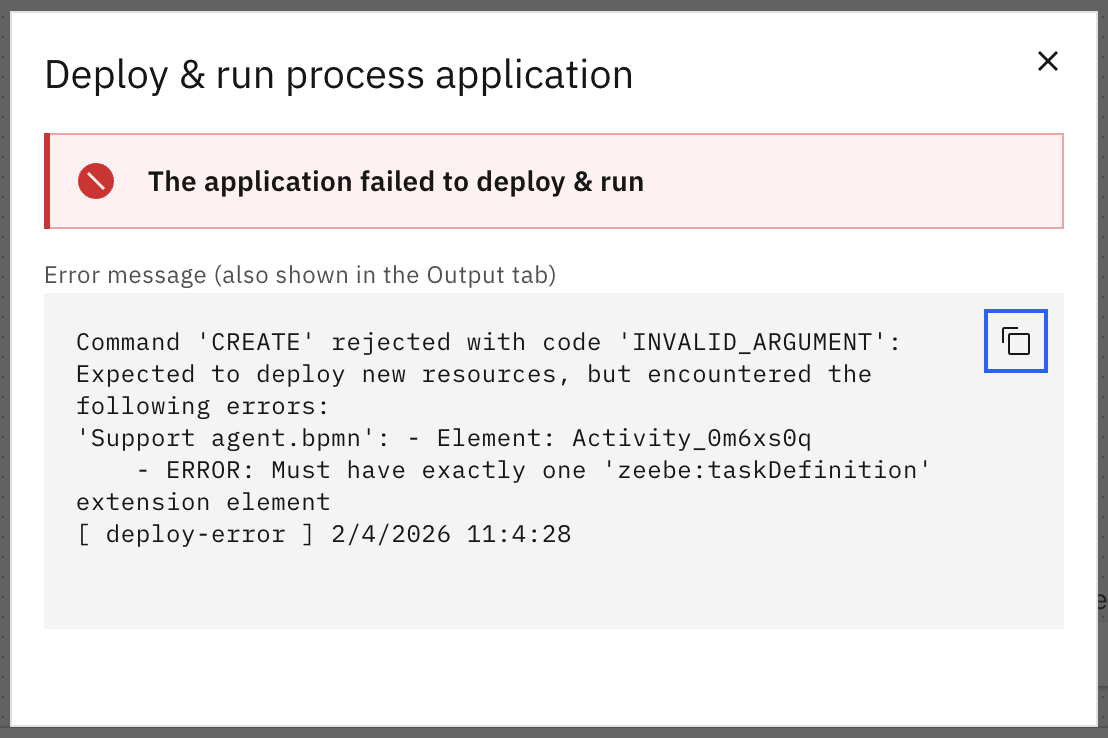
If the deployment of a process application fails (for example, because one or more of the contained resources has invalid implementation properties), a modal is shown containing the error message thrown by the Zeebe engine.
The message typically provides the name of the affected resource, the ID of the invalid diagram element, and the error details.
Deployment of external resources
You can link BPMN processes, DMN decisions, or forms that are not part of the process application itself (external resources) from any process inside a process application. When you deploy the process application, linked resources located outside the process application are not deployed with the process application, so you must deploy them separately.