Create a process application
Create a process application in your project to work on and deploy a set of related files.
Create a process application
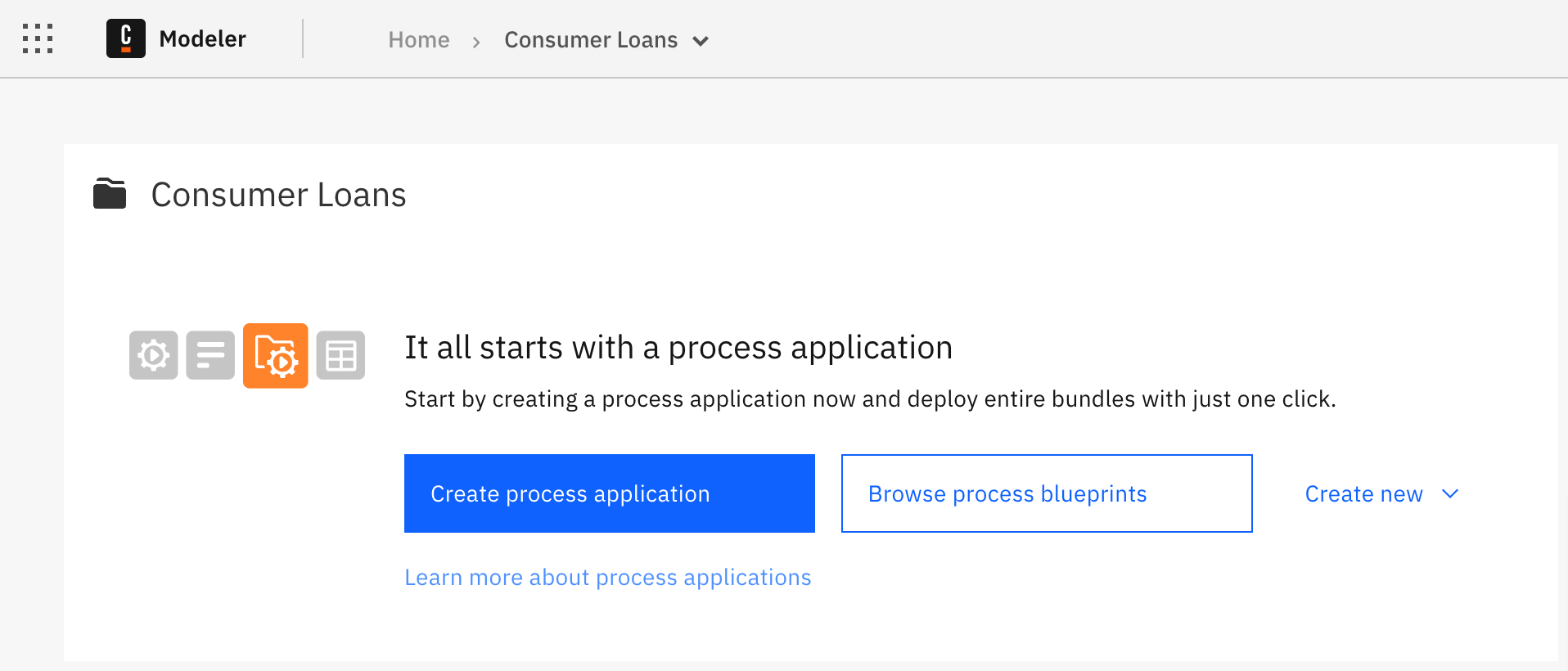
To create a process application, either:
- Select Create process application in an empty project.
- Select New project > Create process application if you have not yet created a project.
Select a default cluster
Camunda 8 SaaS onlyWhen you create a process application, you must select a development cluster to deploy to.
- If you have already created a cluster, turn on the toggle next to the cluster name in Select a development cluster.
- If you have not yet created a cluster, or if No Cluster has been created yet is shown, select Create new dev cluster. The Console Clusters tab opens so you can create a new cluster.
-
If your modeling plan does not allow you to create more clusters, a
Cluster creation is not available on this modeling planwarning is shown. Contact the administrator or owner of your organization to upgrade your plan. -
If you do not have the proper permissions to create a cluster, a
Missing permissionswarning is shown. Contact the administrator or owner of your organization to create a cluster.
Process application homepage
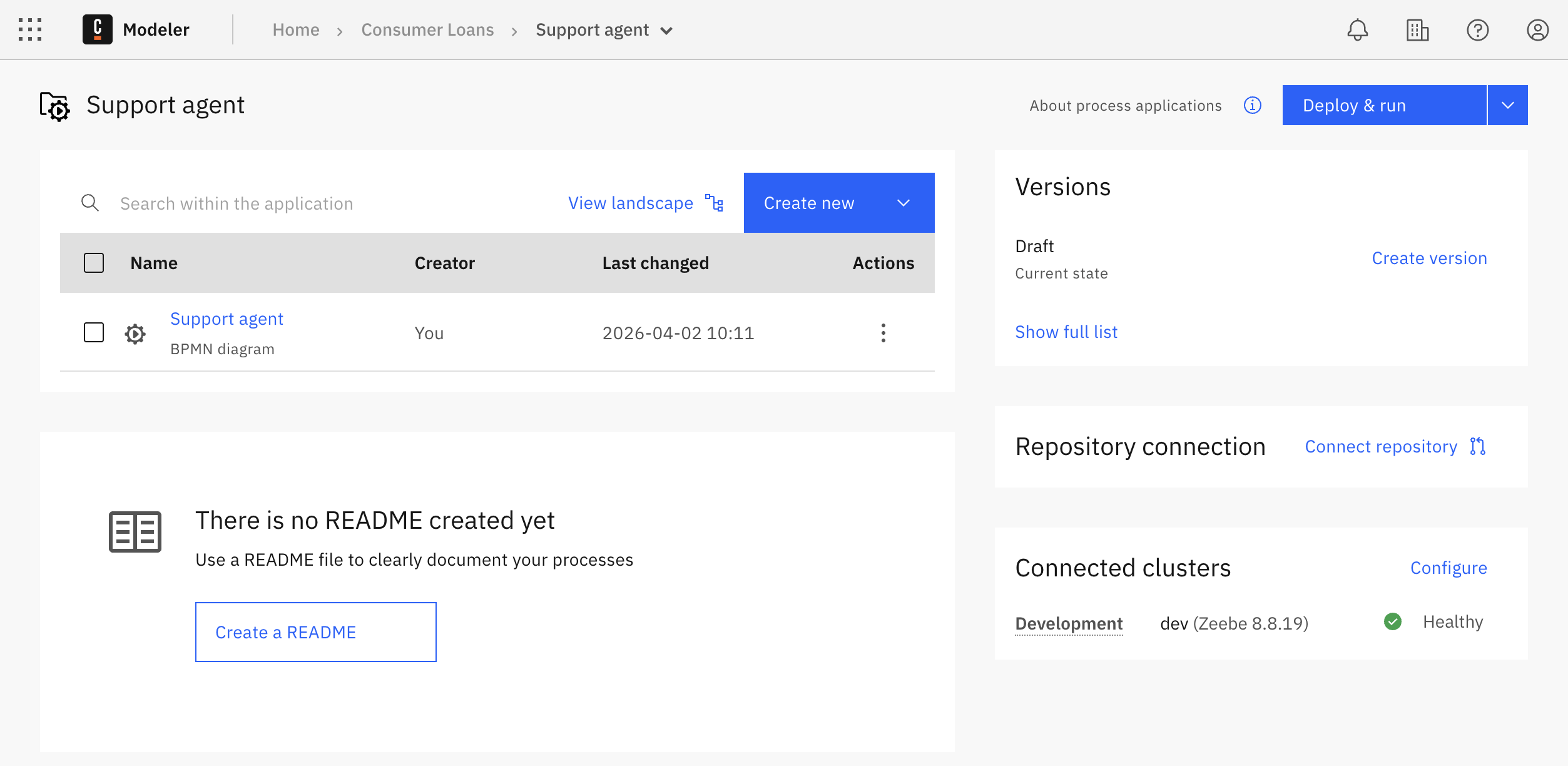
After creating the process application, you land on the process application homepage. From there, you can manage and explore files, preview the README if it exists, create and manage versions, set up and sync with a Git repository, connect clusters to the process application, and deploy or run the process application.
You may not see some of these options depending on your project permissions.
Add files to a process application
When you create a process application, a new BPMN diagram is automatically created. To add more files to the process application, either:
- Select the Create new dropdown on the process application page to create and add a new file.
- Drag and drop files from your local computer.
- Move an existing file into the process application from a different location in Web Modeler.
You can also create subfolders to organize files within the process application.
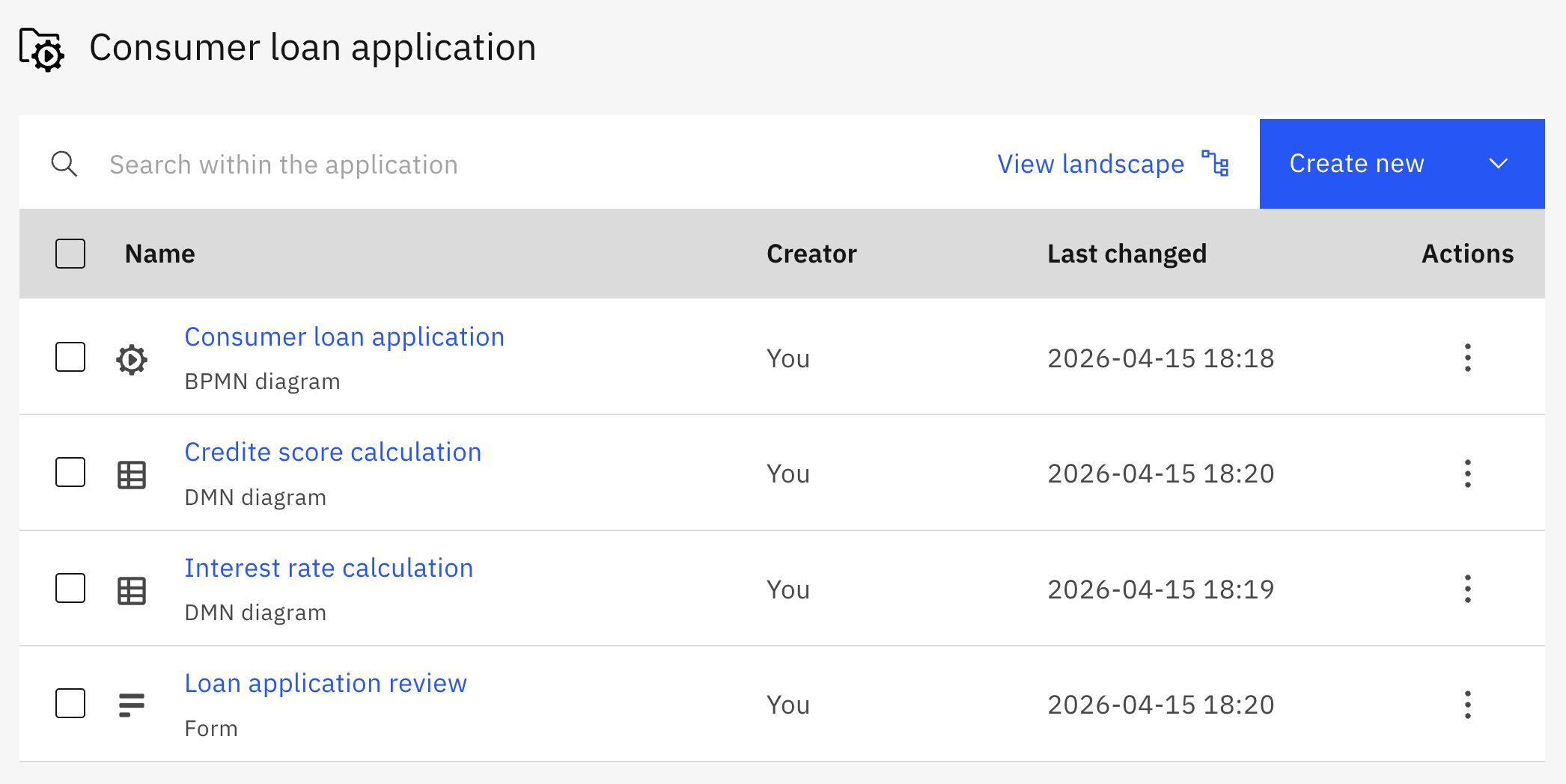
Process IDs, decision IDs, and form IDs must be unique across all files within a process application. This avoids ambiguity and conflicts when you link resources and deploy the process application.