Document classification
Automatically classify documents by type using LLM-powered classification templates.
About document classification
Document classification templates use LLM foundation models to analyze and categorize documents into defined types based on their content. For example, incoming documents can be classified as invoices, contracts, identity documents, or any custom type you define.
- Create a document classification template to categorize documents before routing them to the appropriate process step or document extraction template.
- Classification templates are published as connector templates that can be integrated into your processes, enabling you to route different document types to the correct downstream automation.
- Choose and test different LLM models to find the model that best suits your budget and accuracy requirements.
Document classification templates require cluster version 8.9-alpha5 or later.
Create a classification template
To create a new document classification template:
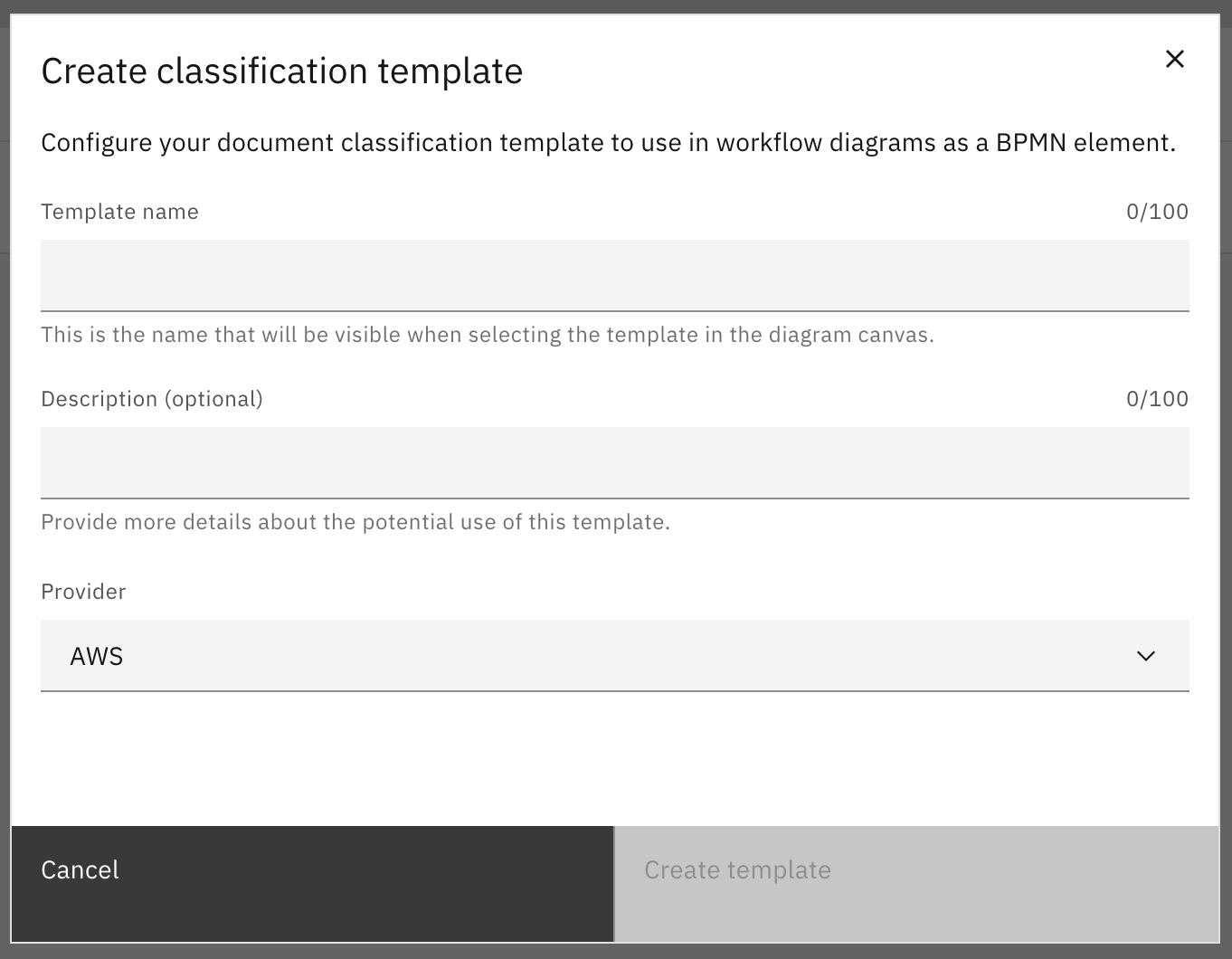
- In your IDP application, click Create new and select Classification template.
-
Name: Enter a descriptive name for the classification template, such as "Incoming document classifier".
-
Description: Enter a description to provide more information about what types of documents this template classifies.
-
Provider: Select the cloud provider you want to use for classification. The available providers depend on the connector secrets configured for your cluster.
-
Click Create to create and open the new classification template.
Configure a classification template
Complete the following steps to configure and publish a document classification template.
Step 1: Define document types
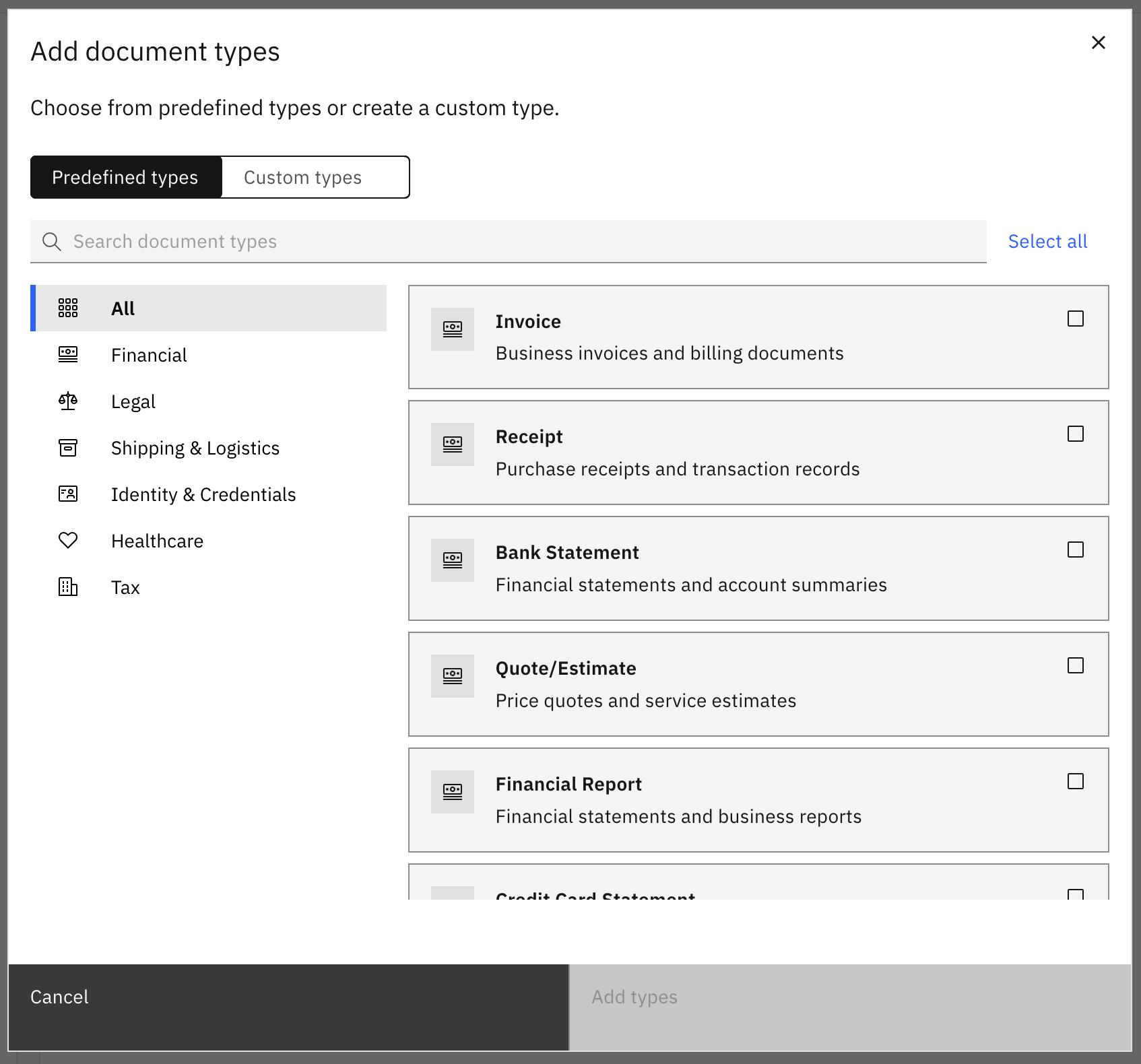
On the Define classifications tab, configure the document types that the LLM uses to classify incoming documents.
Add document types
You must define at least two document types before you can publish a classification template.
You can add document types from preconfigured types or create custom types:
Add preconfigured document types
IDP provides a set of preconfigured document types (such as invoice, contract, identity document) to help you get started quickly.
- Click Add document type.
- Browse or search the list of available preconfigured document types.
- Select the document types you want to add.
Create custom document types
Create your own document types for document categories specific to your business.
- Click Add document type and select Create custom type.
- Name: Enter a descriptive name for the document type (for example, "Purchase Order" or "Medical Claim").
- Description: Enter a description to help the LLM understand the characteristics of this document type.
- Classification instructions: Provide specific instructions to guide the LLM in recognizing this document type. For example, describe key features, typical content, or distinguishing characteristics.
Edit document types
You can edit all aspects of a document type at any time, including:
- Name: The display name of the document type.
- Description: A description of the document type's characteristics.
- Classification instructions: Instructions that guide the LLM in classifying documents of this type.
- Output value: The value returned in the process when a document is classified as this type. For example, the document type "ID Document" might have an output value of
id-document. This allows you to align classification output with your business process definitions.
To edit a document type, select it from the list and modify the fields as needed.
Remove document types
To remove a document type, select the document type and use the actions menu to delete it.
You must have at least two document types defined to publish a classification template.
Configure fallback behavior
You can configure the fallback output value, which is the value returned when a document cannot be classified as any of the defined types. By default, this value is unclassified-document.
You can customize this value to align with your process routing logic.
Step 2: Test classification
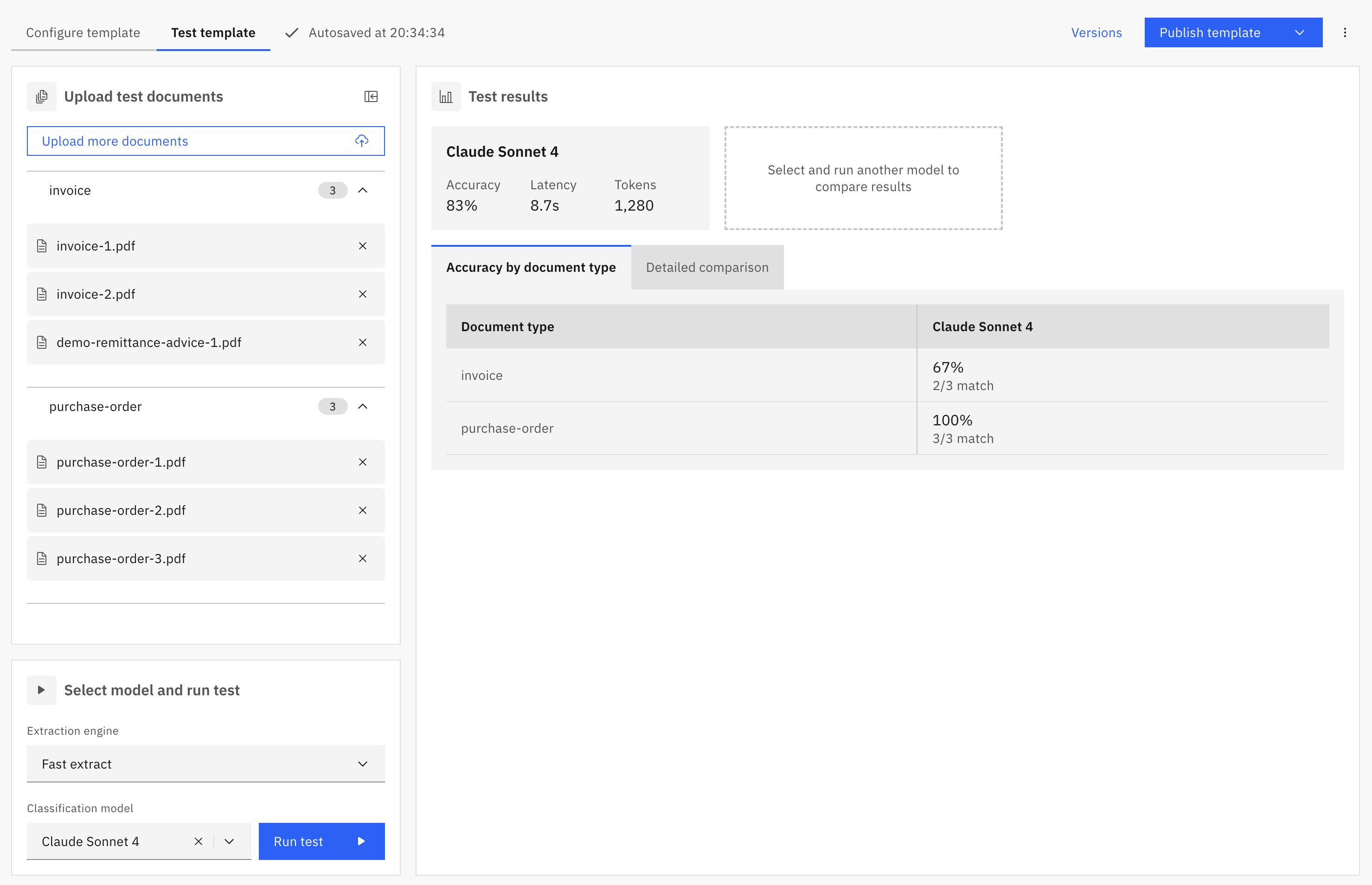
On the Test template tab, upload sample documents and evaluate the classification results using different LLM models.
Upload test documents
Upload sample documents that represent the types of documents you expect to classify.
- Click Upload documents to browse for and upload your sample documents. Batch upload is supported.
- For each upload batch, assign an expected document type to enable validation of classification results. The available document types are those you defined in Step 1.
Run classification tests
Select an extraction engine and LLM model, then run classification tests against your uploaded documents.
- Extraction engine: Select the text extraction engine to use for text extraction before classification.
- Extraction model: Select the LLM model to use for classification.
- Click Classify documents to run the classification.
Review classification results
After running a classification test, the results are displayed for each document:
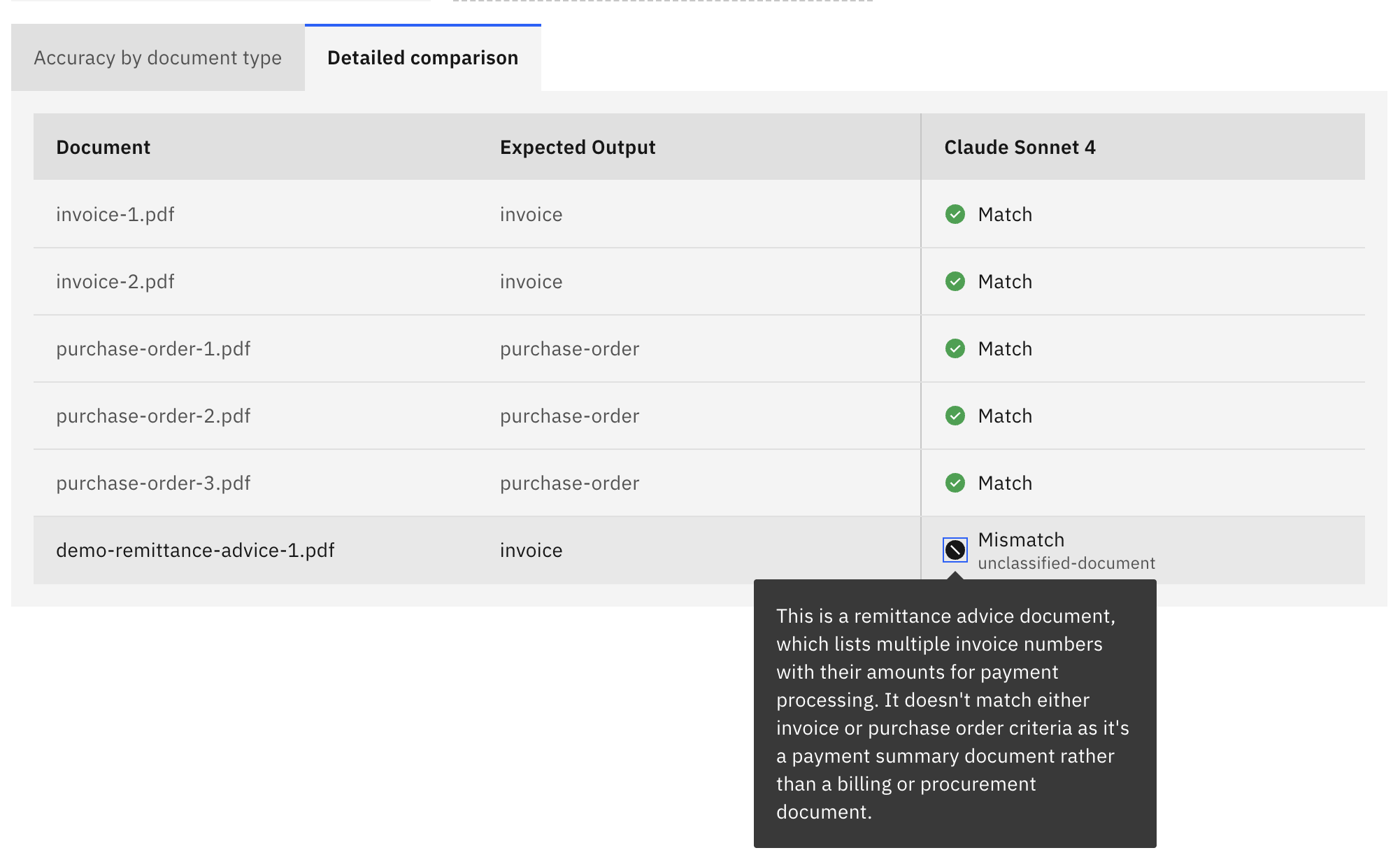
- Classified document type: The document type assigned by the LLM.
- Reasoning: The LLM's explanation for why it chose this document type.
- Tokens used: The number of tokens consumed during classification.
- Latency: The time taken for classification.
Validation indicators show whether the classification matches the expected type.
A summary of the classification results is shown, allowing you to quickly compare the success rate across different models.
Test different combinations of extraction engines and LLM models to find the combination that best suits your document types, budget, and accuracy requirements.
Step 3: Publish classification template
Publish the classification template to make it available for integration into your processes.
-
Click Publish and select either:
- Publish to project: Only users in the Web Modeler project can access the classification template.
- Publish to organization: The classification template is made available as a shared resource within your organization. This option is only available for organization owners or users with the Admin role.
-
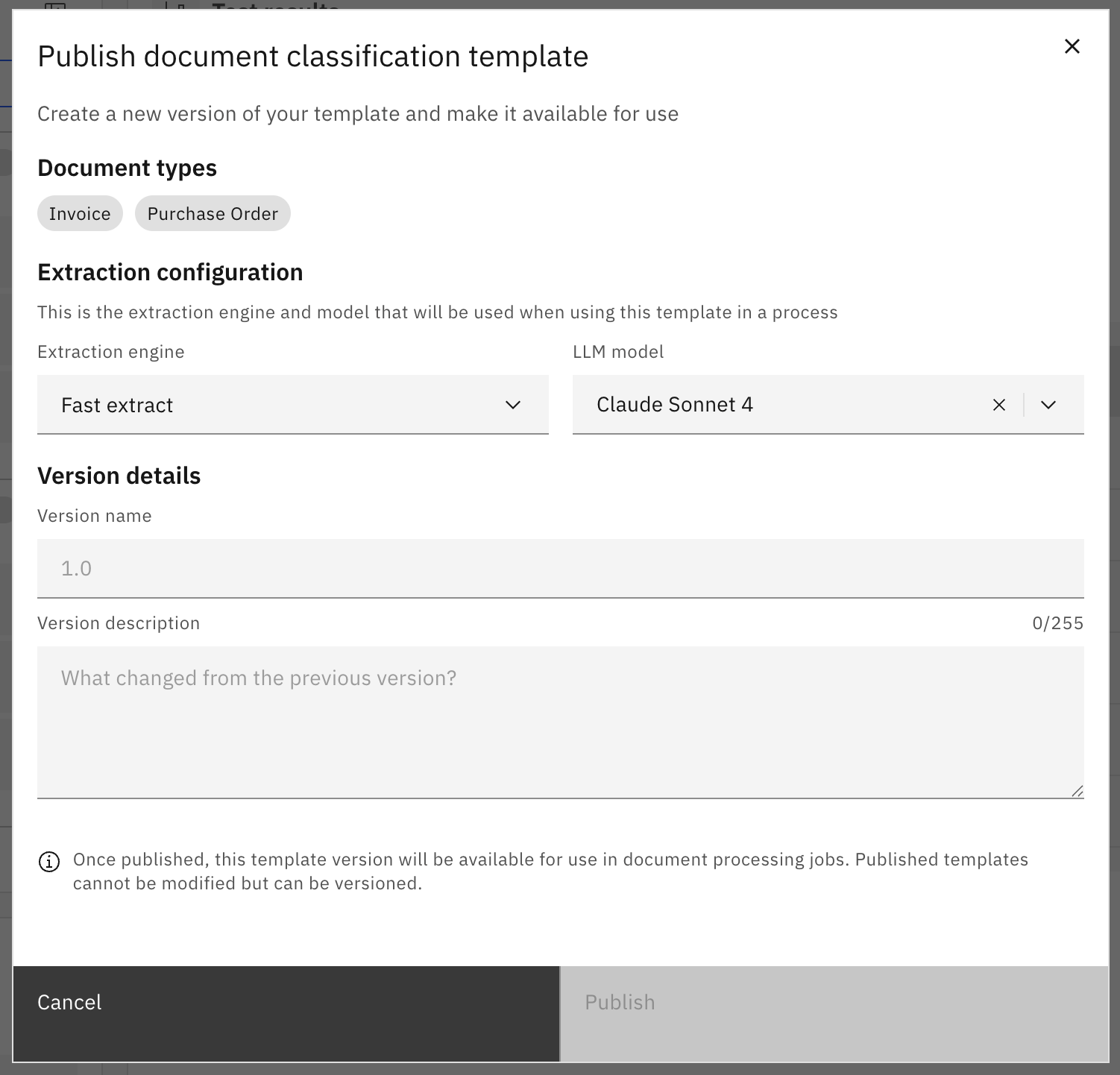
On the Publish Classification Template dialog, configure the publish settings:
- Extraction engine: Select the text extraction engine to use for the published classification template.
- Extraction model: Select the LLM model to use for the published classification template.
- Version name: Enter a version name for the published classification template.
- Version description: Enter a description for this version.
-
Click Publish to make the classification template available for integration into your processes.
You must have at least two document types defined before you can publish a classification template.
Manage versions
Click Versions to view and manage your published classification template versions.
Compare versions
You can compare the change history between two template versions as JSON code in the diff layout.
- Ensure that the sidebar Show changes toggle is turned on.
- Select the version that you want to compare. The previous version is automatically selected for comparison.
Restore a version
- In the sidebar Versions list, hover over the version you want to restore.
- Select the three vertical dots to open the actions menu.
- Select Restore as latest.
Update a version
- In the sidebar Versions list, hover over the version you want to update.
- Select the three vertical dots to open the actions menu.
- Select Edit and enter a new name and/or description for the version.
Delete a version
- In the sidebar Versions list, hover over the version you want to delete.
- Select the three vertical dots to open the actions menu.
- Select Delete.
- You are prompted to confirm the deletion.
Deleting a classification template version is permanent.