Manage credentials
A credential is reusable configuration for a job worker, connector, or other element template, so you don't repeat the same authentication and connection settings on every task.
About credentials
- A credential lets you define and manage reusable configuration for job workers, connectors, and other element templates, instead of entering the same settings every time one asks for them.
- Credentials are generally usable infrastructure, available in any Camunda 8 distribution, including standalone ones that run without Hub. Camunda Hub adds an organization-wide, federated view and central management across your clusters, which is what the rest of this page covers.
- A credential type is defined alongside an element template, through an embedded configuration template. If you build custom connectors or job workers and want to define your own credential type, see Create a credential template.
- A credential is stored as a cluster variable in each environment you deploy it to, which makes it available by name to any job worker or connector that references it there.
A credential is selected as a whole: an element template never renders or edits a credential's fields. It writes a reference to the chosen credential into the diagram, and the engine resolves that reference at runtime, passing the credential's values, including any secrets, to the job worker or connector.
Learn more:
- Using credentials: how a connector task uses a credential.
- Configuration input type: how an element template declares the
Configurationproperty that renders the credential chooser. - Configure credentials in the modeling interface: how to choose, create, edit, or upgrade a credential from the properties panel.
Credentials and environments
A credential is deployed to environments, not to clusters. An environment is the unit Camunda Hub tracks a credential's targets, values, and health against.
- On Camunda 8 SaaS, and on any cluster before 8.10, a cluster holds a single environment, named after the cluster.
- On Self-Managed 8.10 and later, a cluster holds one environment for each Physical Tenant. The environment for the
defaultPhysical Tenant uses the cluster name, and every other environment uses its Physical Tenant ID. - Camunda Hub shows an environment by its name, and adds the cluster name in parentheses whenever the two names differ.
- On a Self-Managed cluster with several Physical Tenants, each environment is an independent target, with its own copy of the credential, its own values, and its own state. A credential deployed to one environment isn't readable from the other environments on that cluster.
Terminology
| Term | Meaning |
|---|---|
| Credential | The reusable object you create and then select on an element template field, such as a connector task or a job worker's configuration. |
| Credential type | The shape of a credential, such as AWS Credential, REST Authentication, or JDBC Connection. A credential type defines which fields a credential of that type has. |
| Environment | The target a credential is deployed to. On Camunda 8 SaaS an environment is the cluster; on Self-Managed 8.10 and later, a cluster can hold one environment for each Physical Tenant. |
| Configuration | The element template property type that renders the credential chooser. A credential is a configuration whose kind is CREDENTIAL. See Configuration input type. |
Credentials and connector secrets
Credentials and connector secrets work together rather than replacing each other:
| Connector secret | Credential | |
|---|---|---|
| Stores | A single sensitive value, such as an API key | A complete, typed set of authentication and connection settings |
| Scope | One cluster | One or more environments, managed from your organization |
| Used by | Any connector field that supports secrets | A connector's credential field |
A credential's sensitive fields reference secrets, so the secret is still where the sensitive value lives. Create the secret first, then reference it from the credential.
Reference a secret from a credential field
To reference a secret from a credential field, enter camunda.secrets. followed by the secret key as the whole value of the field. For example, reference a secret with the key AWS_SECRET_KEY as follows:
camunda.secrets.AWS_SECRET_KEY
A secret key can contain letters, digits, underscores, and hyphens. The key ends at the first character outside that set, so a key cannot contain a period.
A reference is recognized at the start of a value, or directly after a character that is not a letter, digit, underscore, or period. Anywhere else, camunda.secrets. is part of a longer word:
| Field value | How it is read |
|---|---|
camunda.secrets.AWS_SECRET_KEY | A reference to the secret AWS_SECRET_KEY. |
(camunda.secrets.AWS_SECRET_KEY) | A reference to the secret AWS_SECRET_KEY. The reference is recognized after the opening parenthesis, and the key ends at the closing parenthesis, because neither character can be part of a key. |
foo.camunda.secrets.AWS_SECRET_KEY | Not a reference, because camunda.secrets. is in the middle of a word. The value is stored and sent as plain text. |
camunda.secrets.camunda.secrets.AWS_SECRET_KEY | A reference to a secret with the key camunda, because the key ends at the next period. |
wJalrXUtnFEMI/K7MDENG/bPxRfiCYEXAMPLEKEY | Plain text. Camunda Hub warns you, and stores the value as you entered it. |
Credential fields use camunda.secrets.MY_API_KEY, without braces. This is not the same as the {{secrets.MY_API_KEY}} syntax you use in a connector field. Use camunda.secrets. inside a credential, and {{secrets.}} in connector fields that support secrets.
Store sensitive values as secrets, not plain text
Store every sensitive value, such as a password or API key, as a secret on the cluster, and reference it from the credential field. A credential field accepts any text you type, so a value entered directly is stored as you typed it, outside the secrets vault.
To guide you to a secret, Camunda Hub highlights a sensitive field and warns you when its value is not a secret reference. Saving is still allowed, so the value stays exposed until you replace it with a reference. The warning clears as soon as the field references a secret.
If the clusters that host the environments you selected hold no secrets yet, the field says so instead of showing an empty suggestion list. Secret suggestions are cluster-scoped, so every environment on a cluster offers that cluster's secret names.
In Camunda 8 SaaS, both messages carry an Open Clusters link that opens in a new tab, so your part-finished credential survives the detour. Self-Managed shows no link, because secrets come from the connector runtime configuration.
The same warning appears in the modeling interface.
Credential types
Camunda provides a credential type for each family of connectors that supports credentials. The following types are available:
| Credential type | Bound to the connector's input | Example connectors |
|---|---|---|
| AWS Credential | awsCredential | Amazon SQS, Amazon S3, Amazon Bedrock, and other Amazon Web Services connectors |
| REST Authentication | authenticationConfiguration | HTTP Polling, HTTP REST, GraphQL, Azure OpenAI, and Microsoft Office 365 Mail connectors |
| JDBC Connection | configuration | Execute SQL Statement on Database |
| Email Account (Inbound) | emailAccountConfiguration | Email Boundary Event, Email Intermediate Catch Event, Email Receive Task, and Email Message Start Event connectors |
| Email Account (Outbound) | emailAccountConfiguration | Email Connector |
| Kafka Connection | kafkaConnectionConfiguration | Publish Message to Kafka, and the Kafka Boundary Event, Kafka Intermediate Catch Event, Kafka Receive Task, and Kafka Message Start Event connectors |
| Slack Signing Secret | inbound.slackCredential | Slack Webhook Boundary Event, Slack Webhook Intermediate Catch Event, Slack Webhook Receive Task, and Slack Webhook Message Start Event connectors |
| Slack Token | slackCredential | Slack Outbound Connector |
| Azure Blob Storage Credential | authenticationConfiguration | Azure Blob Storage Outbound Connector |
| Microsoft Entra ID | authenticationConfiguration | Microsoft Teams Outbound Connector, and the Microsoft O365 Email Boundary Event, Microsoft O365 Email Intermediate Catch Event, and Microsoft O365 Email Message Start Event connectors |
More connectors gain credential support over time, so this list grows. Each credential type card in the Create a credential wizard lists the connectors that currently use that type under Used by.
Manage credentials in Hub
Camunda Hub provides a Credentials page for your organization. It has two tabs:
- Managed in Hub: credentials that Hub creates and manages. Use this tab to create, edit, and delete credentials.
- Environments only: credentials that exist on a cluster but are not managed in Hub, typically because they were created from Desktop Modeler or directly through the cluster API.
Managed credentials
Before you create your first credential, the Managed in Hub tab shows an empty state with a Create credential button.
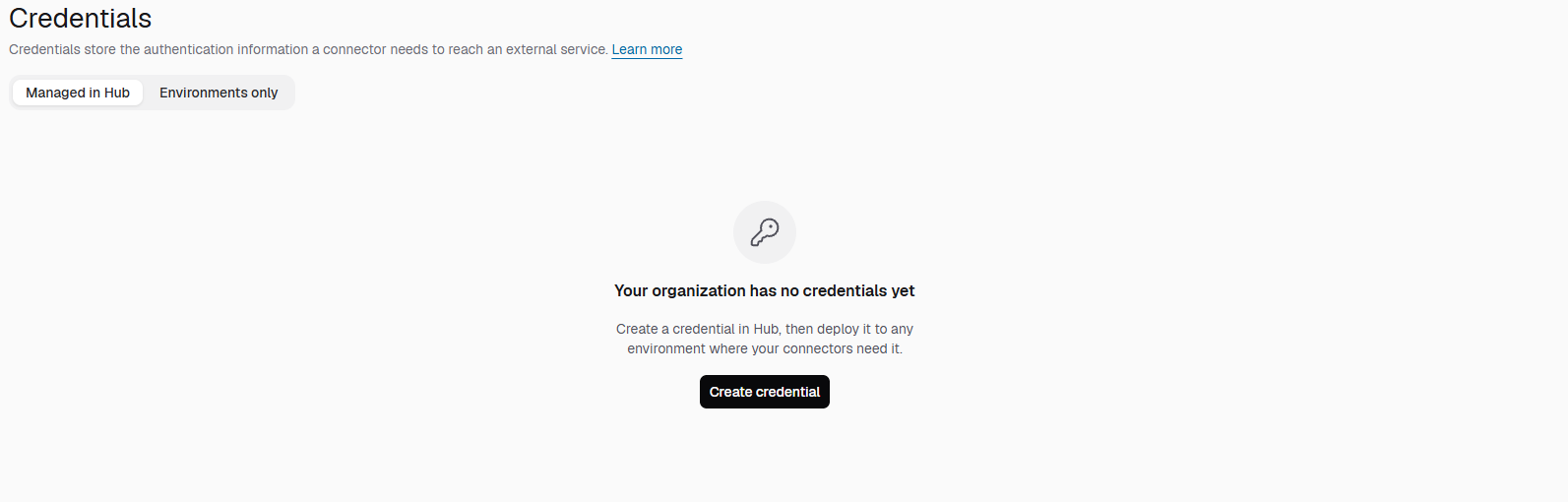
Once credentials exist, this tab lists them with their name, credential type, state, the environments they cover, and when they were last modified.
Create a credential
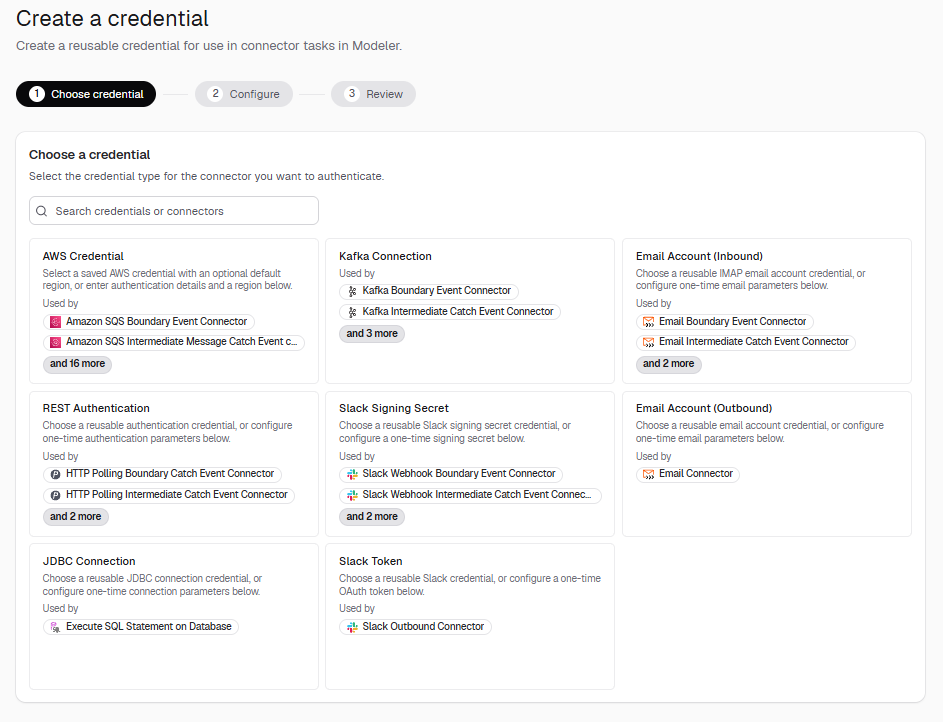
To create a credential, select Create credential, and complete the three steps of the wizard.
-
Choose credential: select the credential type for the connector you want to authenticate. Each card describes the credential type and lists the connectors that use it. Use the search field to search by credential type or by connector name.
-
Configure: name the credential, choose which environments it applies to, and fill in the fields for the credential type you selected.
Camunda suggests an ID for the credential based on the name you enter. You can change the ID while you are creating the credential, but not afterwards. For a sensitive field, enter a reference to an existing secret, such as
camunda.secrets.AWS_SECRET_KEY, rather than the value itself. Select the field to pick from the secrets that exist on the clusters that host the environments you selected.Camunda Hub highlights a sensitive field and warns you when its value is not a secret reference. Continue stays enabled, so replace the value with a reference before you save. See store sensitive values as secrets, not plain text.
If you select more than one environment, keep Use same credentials for all environments enabled to apply one set of values everywhere, or disable it to configure each environment separately.
-
Review: check the summary, then select Create to save the credential and deploy it to the environments you selected.
You can also save the credential as a draft at any step. A draft is saved in Hub but is not deployed to any environment.
You cannot create a secret while creating a credential. Add the secret to the cluster first in Connector secrets, then reference it here. A credential's ID also cannot be changed after you create it, so to rename a credential, delete it and create a new one.
Credential states
The Managed in Hub tab shows a state for each credential. Hub checks the state in the background after the list loads, so a state can take a moment to appear. Refresh the list to check again.
| State | Meaning |
|---|---|
| Active | The credential is deployed to every environment you selected, and every secret it references exists on the clusters that host them. |
| Warning | The credential is deployed to at least one environment, but it is missing from another environment, or a secret it references does not exist. |
| Not deployed | The credential is not present in any environment. Drafts always have this state. |
A credential in the Warning state is still deployed. Processes that use it can fail at runtime if the missing secret or environment is the one they rely on.
The secret check behind these states is cluster-wide, so a credential can read Active while a secret it references doesn't resolve in one of its environments. On a cluster with Physical Tenants, each Physical Tenant needs its own secret store. See secret resolution.
Edit a credential
Select a credential from the Managed in Hub tab to open it, then edit its values. The credential's ID is shown but cannot be changed. Saving your changes redeploys the credential to its environments.
If an environment is deleted, the credential's detail page marks that target Missing. Saving from the edit wizard drops the missing target, so select another environment to deploy there instead.
Delete a credential
Deleting a credential removes it from Hub and from every environment it is deployed to. Hub asks you to confirm, and lists the environments that are affected.
Editing or deleting a credential takes effect immediately for every process that references it. Running process instances can fail if the credential no longer works or no longer exists.
Environments only credentials
A credential created outside Hub, such as one created in Desktop Modeler or directly through the cluster API, exists on its cluster but is not tracked in Hub. The Environments only tab finds these credentials so you can bring them under Hub management.
The scan works per cluster, even though the tab lists environments. Each cluster appears once in the list, under the name of one of its environments.
- Under Environments, select the environments you want to scan. You can scan up to 10 environments at a time.
- Select Scan environments. Hub scans the cluster behind each selected environment for global variables that are tagged as credentials and that match a known credential type.
- Select Add to Hub on a result to manage that credential in Hub. Hub reads the credential's configuration only when you open the Add to Hub dialog.
Adding a credential to Hub links it where it was found, without redeploying it, and records one environment on that cluster as its target, chosen for you rather than by you. Only the additional entries you select in the Add to Hub dialog are deployed to, again one environment for each cluster. Check the targets on the credential's detail page afterwards.
Select Rescan environments to run the scan again, for example after a credential is created outside Hub.
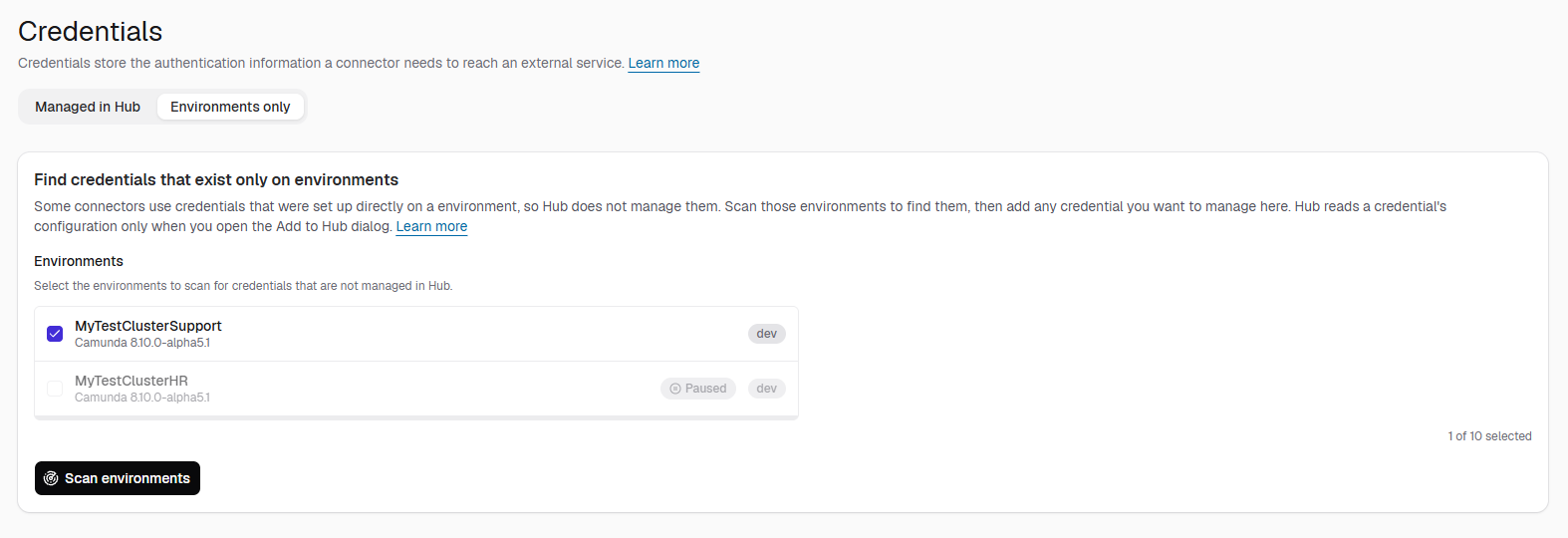
If the scan returns no results, none of the clusters behind the environments you selected has a credential-tagged variable that matches a known credential type and version. Environments that are paused, or whose cluster runs a Camunda version without credential support, show a Paused or Unsupported badge and can't be scanned.
When there is nothing to find, Hub shows: "No environment-only credentials found. The scan did not find any unmanaged variables that match an exact known credential type and version."
Permissions
Every member of your organization who has access to Camunda Hub can see the Credentials page and every credential it lists, and can open a credential to see its configuration.
The same members can create, edit, deploy, and delete credentials. Camunda Hub has no separate credential permission, and it doesn't check your organization role, workspace role, or environment access before it saves a credential.
Hub reads from and writes to a cluster with your own identity. It does so when it scans a cluster for Environments only credentials, when you open the Add to Hub dialog, and when it deploys, redeploys, or deletes a credential. The cluster's own authorizations therefore still apply:
- You can't find or open a credential on a cluster whose authorizations don't let you read its variables.
- If a cluster refuses a deployment, Hub reports that environment as failed with the message
Not authorized to perform this operation on this cluster. - If a cluster refuses to remove a credential because you lack permission or its credentials are wrong, Hub keeps the credential, so you can resolve the problem and delete it again.
- On a Self-Managed cluster that uses Basic authentication, Hub asks you for the cluster's username and password.
When you choose environments for a credential or for a scan, Hub lists only the environments you can see. On SaaS, every user in your organization sees every environment. On Self-Managed, users with the Organization Admin or DevOps role, or any role with the admin:* or admin:clusters permission, see every environment. Other users see only the environments assigned to workspaces where they are a Workspace Admin or Editor. The credential list and detail page still show every credential and all of its targets, and a target in an environment you can't see is shown by its ID.
Known limitations
In this release:
- You cannot create a secret from a credential. Create secrets in Connector secrets first.
- The plain-text warning checks the whole field value, so a value that combines literal text with a reference, such as
Bearer camunda.secrets.TOKEN, is flagged even though the reference resolves. - Hub does not show which processes use a given credential, so check the impact yourself before you edit or delete one.
- Credentials are visible to everyone in your organization who has access to Camunda Hub. You cannot restrict a credential to a project or a subset of users.
- A credential's ID cannot be changed after creation.
- Credentials are edited in place, with no history of previous values.
- Secret suggestions are cluster-scoped, so a credential field offers every secret name on the cluster that hosts the environment you selected, including names that other environments on that cluster use.
- Filtering the Managed in Hub tab by environment matches every environment on that environment's cluster.
- Camunda Hub checks credential permissions per organization, not per environment, so its own check doesn't follow the isolation between environments on a cluster. The cluster's own authorizations still apply when Hub writes to it.
- The Environments only scan reads a cluster's shared variables, which on Self-Managed belong to the
defaultPhysical Tenant. A credential created directly in another Physical Tenant isn't found.