SAP BTP plugin
The Camunda SAP Business Technology Platform (BTP) plugin is an artifact run on BTP. It consists of a UI5 app, a CAP service layer and backend (using PostgreSQL), and an approuter for traffic dispatching.
The BTP plugin connects to Camunda 8 SaaS to provide:
- A generic Fiori app for starting BPMN processes and displaying Camunda Forms in the Fiori design language.
- A generic endpoint to start BPMN processes with.
Prerequisites
- Camunda API Client: Create an API client for your Camunda SaaS cluster with the full scope:
Zeebe,Tasklist,Operate,Optimize,Secrets - Locally, for configuring via
csaponly (see below): Node.js >= 20 LTS - On SAP BTP:
- Cloud Foundry CLI with the multiapps plugin installed on the machine executing the deployment.
- SAP BTP subaccount with a Cloud Foundry environment enabled and a created space.
- A minimum of 4 GB storage quota and 4 GB runtime memory.
- Entitlements for:
- BTP PostgreSQL, hyperscaler option. Ensure the available BTP PostgreSQL, hyperscaler option, and configuration options match your sizing plan. For example, for multi-region databases or high availability, the BTP plugin defaults to a minimum, only specifying PostgreSQL version 16 (see
/core/pg-options.json) and a single database instance, with no high availability. - Destination Service,
liteplan - Connectivity Service,
liteplan - Authorization and Trust Management Service,
applicationplan
- BTP PostgreSQL, hyperscaler option. Ensure the available BTP PostgreSQL, hyperscaler option, and configuration options match your sizing plan. For example, for multi-region databases or high availability, the BTP plugin defaults to a minimum, only specifying PostgreSQL version 16 (see
Features
- Model user tasks in your BPMN process—they will be automatically detected and rendered by the BTP plugin at runtime.
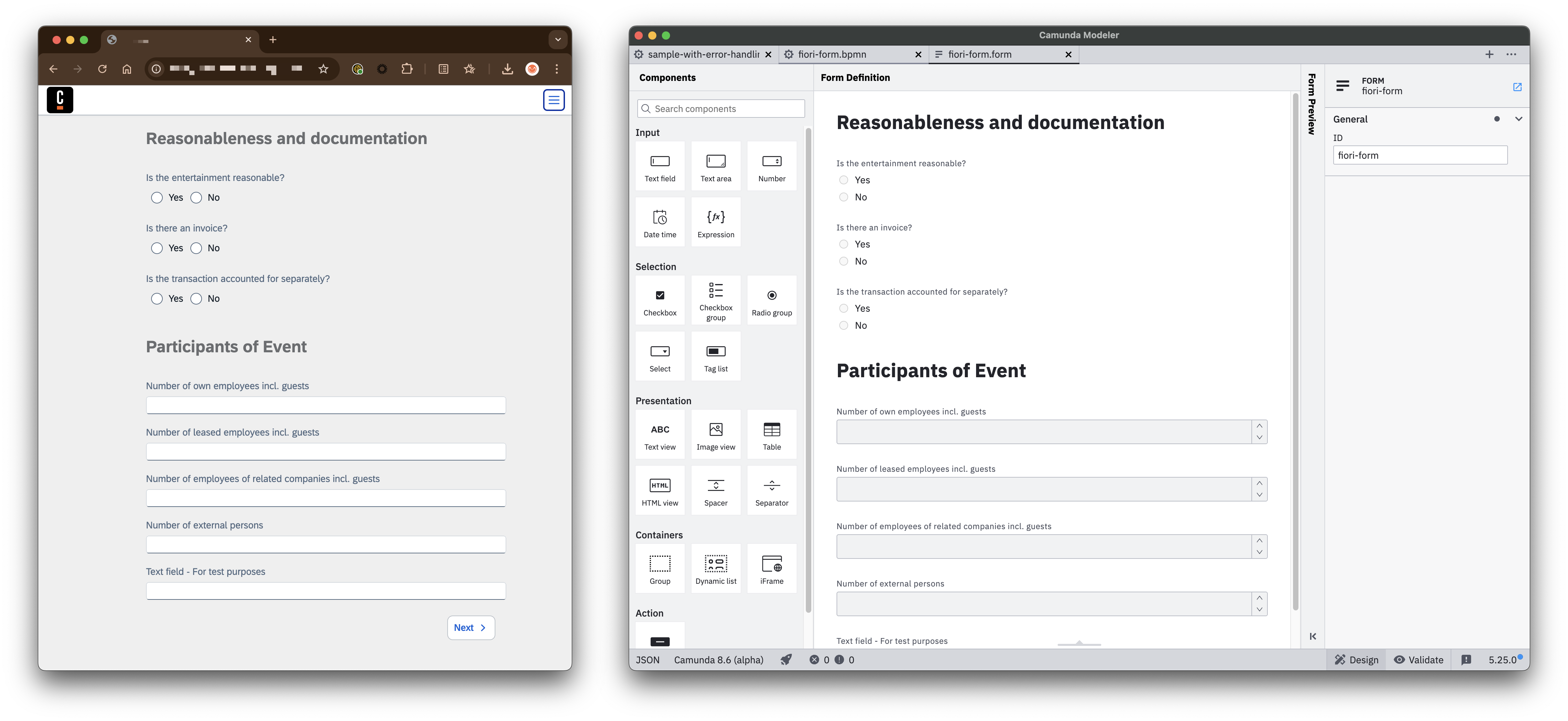
- Design your form in the Form Builder as part of the BPMN process. When you model a user task and link it to the form, the BTP plugin will automatically detect and render the task and its associated form at runtime.
-
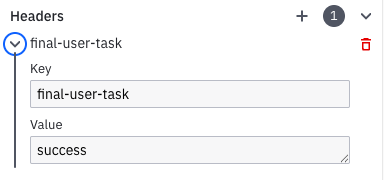
Equip the last user task with a custom header
final-user-taskand the value:successto display the last user task on the "happy path".failto use that user task to communicate a failed process to the user.
-
Auto-start a process via URL parameter using
run=<processID>.
For example,https://<btp plugin url>/index.html?channelId=<id>&run=application-process. -
For debugging purposes, add
debug=trueas the URL parameter.
For example,https://<btp plugin url>/index.html?channelId=<id>&run=application-process&debug=true. -
/inboundendpoint for starting a BPMN process in Camunda
Camunda Forms in SAP Fiori
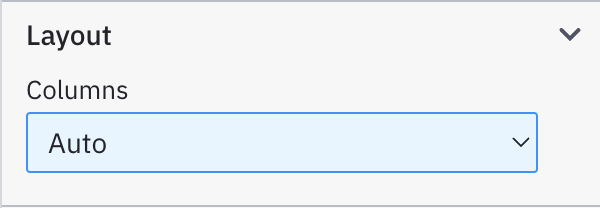
Layout: Only a single-row layout is supported:
Custom properties are not supported:

Supported Form Features and Properties
| Camunda Forms Feature / Property | Supported in Camunda BTP Plugin? | Comments | |
|---|---|---|---|
| Input | |||
| Text field | ✅ | ||
| Text area | ✅ | ||
| Number | ✅ | ||
| Date time | ✅ | Only UTC values will be stored - Date format yyyy-MM-dd, for example 2025-02-29"12- Hours format will be stored as the string 10:12:34 pm- 24 hours format will be stored as the string 22:12:34 | |
| Expression | ❌ | ||
| Filepicker | ❌ | ||
| Selection | |||
| Checkbox | ✅ | ||
| Checkbox group | ❌ | ||
| Radio group | ✅ | Only static options source is supported. | |
| Select | ✅ | Only static options source is supported. | |
| Tag list | ❌ | ||
| Presentation | |||
| Text view | ✅ | ||
| Image view | ✅ | ||
| Table | ❌ | ||
| HTML view | ✅ | ||
| Document preview | ❌ | ||
| Spacer | ❌ | ||
| Separator | ❌ | ||
| Containers | |||
| Group | ❌ | ||
| Dynamic list | ❌ | ||
| iframe | ❌ | ||
| Action | |||
| Button | ❌ |
Configuration and deployment
Use csap for setting up the BTP plugin, as a manual configuration is cumbersome and error-prone.
Within Camunda, no setup/config work is necessary to use the BTP plugin.
Configuring the BTP plugin using csap
Either walk yourself through the prompts or provide all information to the CLI:
-
csap setupwill guide you interactively. -
Assuming your Camunda cluster's API credentials are sourced in your shell environment, this will do the configuration for you:
csap setup --for btp-plugin \
	--camunda 8.7 \
	--deployment SaaS \
	--btpRoute camunda-btp-plugin.cfapps.eu10-004.hana.ondemand.com
The host name provided as btpRoute will be the URL to the BTP plugin's app; following the example above: https://camunda-btp-plugin.cfapps.eu10-004.hana.ondemand.com.
Deploying to BTP
- Log into the desired SAP BTP subaccount via the Cloud Foundry
cli(cf-cli):
$> cf login
API endpoint: https://api.cf. ...
...
cdto the foldercsaplogs after a successful build, for example,/tmp/camunda/8.6/sap-btp-plugin- Issue
cf deploy mta_archives/*.mtar- Add the
-fswitch to force an update, for example, by deploying the same version again (cf deploy mta_archives/*.mtar -f). - Consider adding
--delete-servicesto recreate eventually failed service creation of previous deployment. For example,cf deploy mta_archives/*.mtar -f --delete-services.
- Add the
For advanced deployment configuration, consider working with your SAP practice, starting from the created mta.yaml deployment descriptor (in the $TMP folder as output by csap).
Working with the BTP plugin
The BTP plugin provides a guided, one-user multi-page flow where a single user progresses through a sequence of steps to complete a task or workflow. It renders subsets of Camunda Forms, with each page representing a distinct part of the process.
After deployment, the BTP plugin is available at the btpRoute provided: https://<btpRoute>. If called manually (for example, in the browser) it will redirect automatically to /app/index.html?channelId=<unique id> . The <unique id> or "channel ID" links the output device to the BTP plugin, representing a dedicated "output channel".
Starting a BPMN process in the browser
Start any Camunda BPMN process manually via the menu bar.
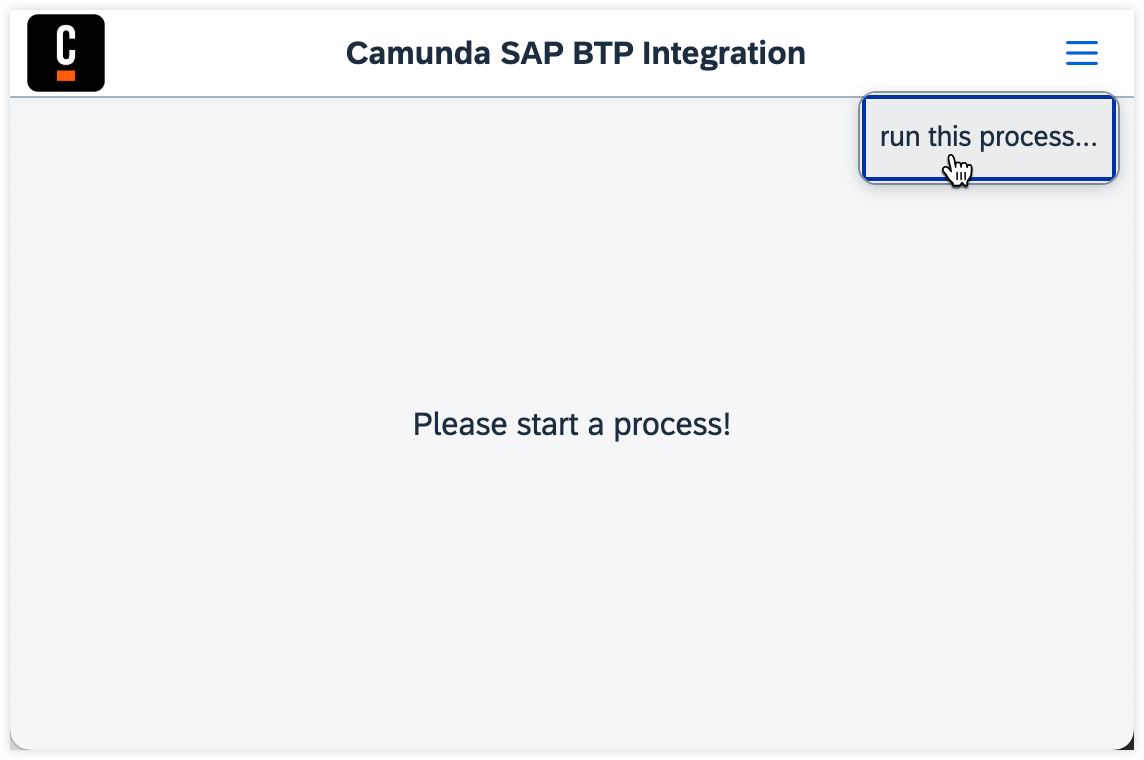
In the popup, enter the ID of the BPMN to run.
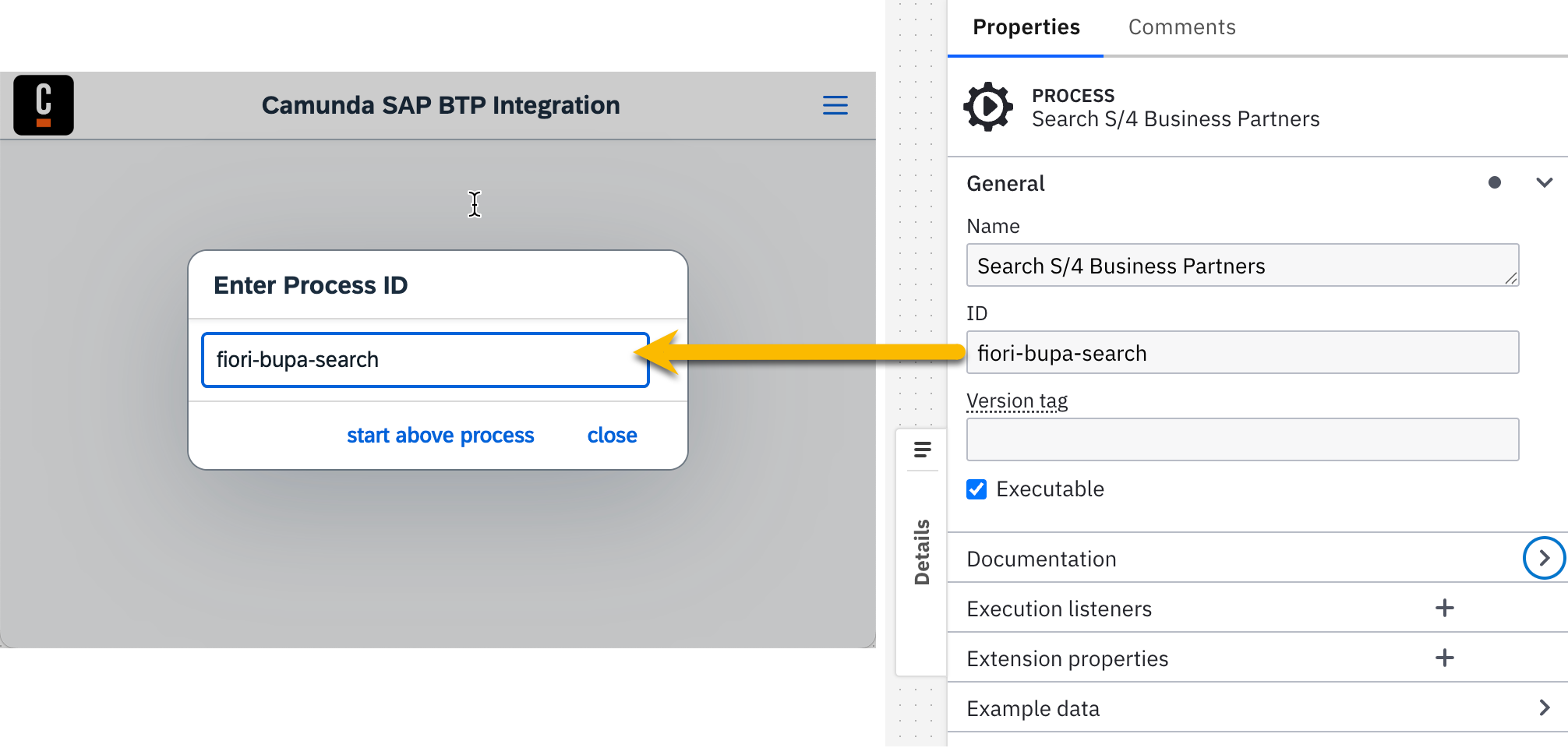
Alternatively, the process can be auto-started by directly calling the URL:
https://<btp plugin url>/index.html?channelId=<random id>&run=fiori-bupa-search
Starting a BPMN process via API
Make a POST http call to https://<btpRoute>/backend/inbound with this defined payload:
{
  "bpmnProcessId": "processId", # ex above: fiori-bupa-search
  "user": "beck@renegade.org", # unique id of the user
  "wait": false, # or true to wait for the BPMN run to finish and get the result back
    "variables": { # optional
    "some_key": "some_value",
    "some_other_key": 10
  }
}
Process design in Camunda
When modeling a process for the BTP plugin, choose one of the following variants.
Variant 1: Camunda user task (recommended)
User task listeners are available from Camunda 8.8 onwards. They were briefly included in 8.7.0-alpha2 but were not available in the 8.7.0 GA release. Use Camunda 8.8 or higher for this variant.
In Camunda Modeler, model each user interaction step as a separate Camunda user task and link it to a Camunda Form. The BTP plugin detects these tasks and renders the linked forms in the Fiori UI.
For each form step:
- Create a user task for the step.
- Set Implementation type to
Camunda user task. - Link the task to the corresponding Camunda Form.
- Add a task listener with:
- Event type:
Creating - Listener type:
sap-tl-creating
- Event type:
Use this configuration for every user task the BTP plugin should display. If you model a form step without the Camunda user task implementation type, or if the sap-tl-creating listener is missing, the BTP plugin can't prepare and manage the task as expected.
The Creating task listener is triggered when the user task is created. With the sap-tl-creating listener type, the BTP plugin can initialize the task so the corresponding form step is available in the guided Fiori flow.
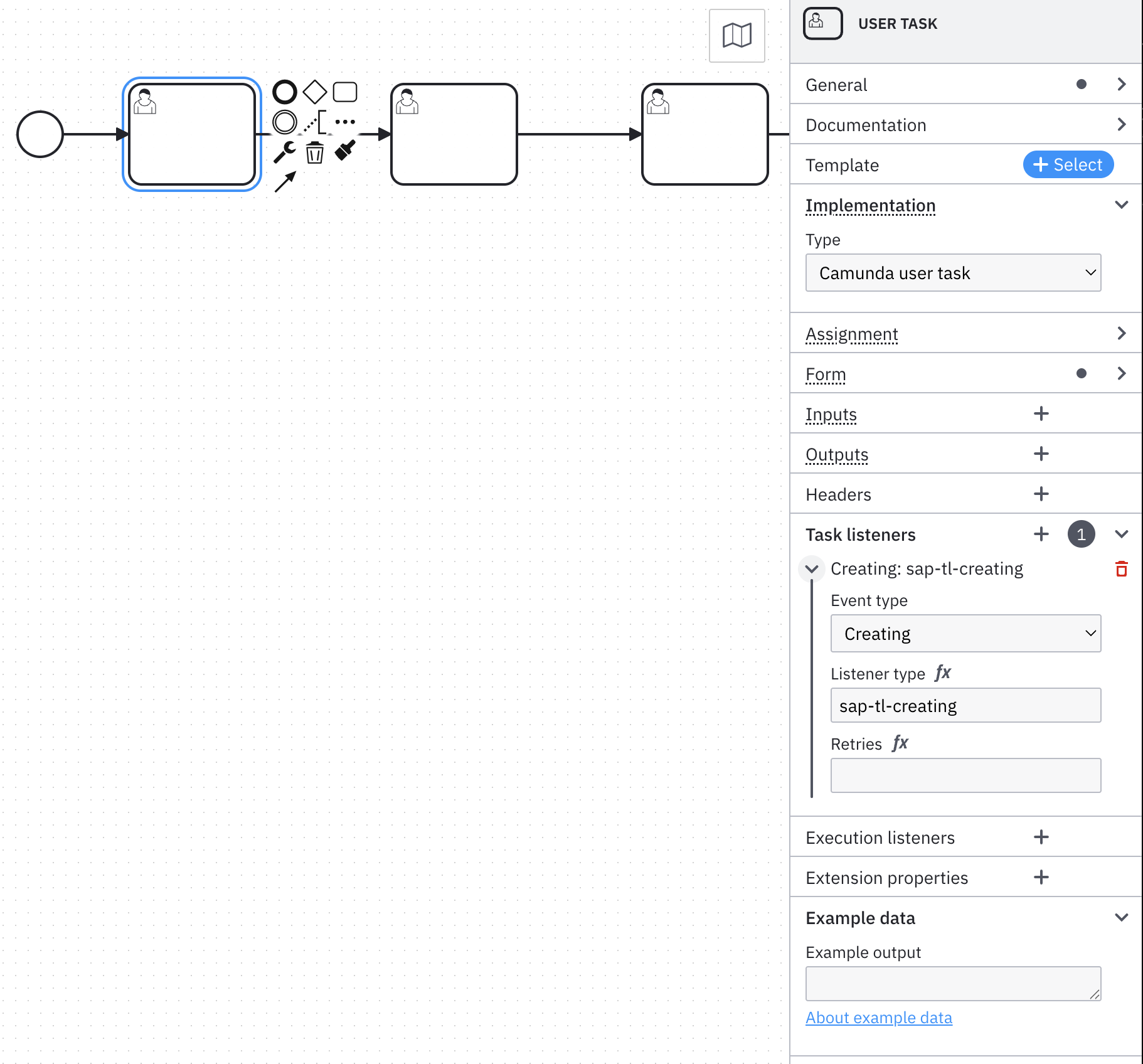
If your process contains multiple form steps, repeat the same setup for each task. This keeps the process model explicit and allows the BTP plugin to render each step in sequence.
Variant 2: Job worker (deprecated)
This setup is deprecated and kept for backward compatibility only. Use the Camunda user task variant for new processes.
Model the process to be advanced by a job worker that polls for work and drives the flow. This means the BTP plugin is not responsible for task progression in the process model.
In Camunda Modeler, configure each form step as a job worker task.
For each form step:
- Create the task for the step.
- Set Implementation type to
Job worker. - Configure the form in one of the following ways:
- Use Form type
Camunda Form (linked)and provide the form ID. - Use Form type
Camunda Form (embedded)and paste the form JSON directly into the task configuration.
- Use Form type
To end the form flow, add a final Camunda user task that represents the outcome of the flow.
For the final task:
- Create a Camunda user task.
- Set Implementation type to
Camunda user task. - Add a header with the key
final-user-task. - Set the header value to
successfor the successful end of the form flow, or tofailfor the failed end of the form flow.
This final task marks the end of the form flow for the BTP plugin and determines whether the flow completed successfully or failed.
Completing the form flow
Each form flow in your process must end with a completion task. This task signals to the BTP plugin that the form sequence is finished, and the process should proceed to the next phase.
Create a Camunda user task for the completion step and configure it as follows:
- Create a user task to represent the completion step.
- Set Implementation type to
Camunda user task. - Add a task listener with:
- Event type:
Creating - Listener type:
sap-tl-completing-success
- Event type:
The sap-tl-completing-success listener tells the BTP plugin that the form flow has completed successfully and allows the process to move forward.
If your process distinguishes between successful and failed form flows, you can optionally add another completion task with the listener type sap-tl-completing-fail. This task represents a failure scenario where the user did not complete the form flow successfully. Configure this task identically, but use sap-tl-completing-fail as the Listener type. Make sure to design and link an appropriate Camunda Form to this task as well, so the BTP plugin can display a meaningful message or summary to the user when the form flow ends in a failure state.
Including both completion variants (success and failure) keeps your process model explicit and allows the BTP plugin to handle different outcomes appropriately.
Compared to the Orchestration Cluster REST API, you can use the authentication realm between BTP and S/4 or ECC, so you don't need to manage additional credentials.