Add long-term memory to your AI agents
Add long-term memory to your AI agents using RAG and the Vector Database connector.
About
Use Retrieval-Augmented Generation (RAG) with the Vector Database connector to give your AI agents access to persistent, domain-specific knowledge that grows over time.
When to use long-term memory
A standard AI agent operates within a fixed context window. This works well for many tasks, but becomes limiting when the agent needs access to large or frequently updated knowledge.
Long-term memory solves this by storing knowledge outside the agent in a vector database and retrieving only the most relevant fragments at runtime. Common use cases include:
- Policy and procedure lookup: The agent answers questions about internal rules or processes by retrieving the relevant document sections on demand.
- Product and catalog search: The agent finds product details, specifications, or pricing from a large catalog without loading it all into context.
- Support knowledge base: Answers to previously resolved questions are stored and surfaced automatically when similar questions arise in the future.
- Compliance and audit: The agent retrieves the exact policy text needed to justify or explain a decision, making its reasoning traceable.
How it works
The Vector Database connector supports two operations that together implement long-term memory:
- Retrieve document: Performs a semantic similarity search and returns the most relevant results from a vector index. Use this to let the agent query its knowledge base.
- Embed document: Converts text into a vector embedding and stores it in the vector index. Use this to add new knowledge to the agent's memory.
The LLM is responsible for generating natural language queries when retrieving, and for deciding what content is worth storing. The actual vector operations (encoding, indexing, and searching) are handled by the connector and the underlying vector store.
To configure either operation, you need:
- A supported vector store and connection credentials.
- A supported embedding model and its provider credentials.
- An index name that identifies the collection to read from or write to.
Retrieve from the vector database
To perform a semantic search from a vector database, you can use one of the following two approaches.
Add a vector database query tool
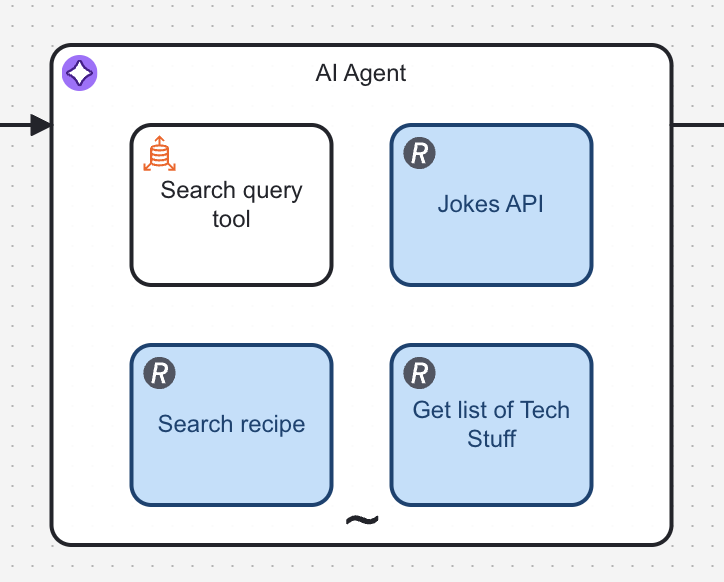
To let an agent query a vector database, add a Vector Database connector task with no incoming sequence flows inside the AI Agent's ad-hoc sub-process.
Tasks with no incoming flows are treated as available tools by the AI Agent connector.
Configure the task as follows:
- Give the task a clear Name and write a descriptive Element documentation to help the LLM understand when to use this tool. The element documentation is passed to the LLM as the tool description.
- Set Operation to Retrieve document.
- Set Search query using the
fromAi()function so the LLM generates the query dynamically at runtime:
fromAi(toolCall.query, "The query you're making to the vector database.")
- Set Max results to control the maximum number of documents returned. For example, set it to five.
- Configure the Embedding model with your provider credentials.
- Configure the Vector store with your database connection details and index name. The index name identifies the collection of documents the agent searches. You can use different indexes for different knowledge domains.
- In the Output mapping section, set the output Result variable to
toolCallResult.
Isolate content with dynamic index names
When multiple agents, tenants, or conversations share the same vector database, you can isolate their content by using dynamic index names. Instead of hardcoding a single index, construct the index name at runtime using process variables. For example, by appending a tenant ID or conversation ID:
"knowledge-base-" + tenantId
This ensures each scope reads and writes only its own documents, without requiring metadata-based filtering at query time.
Because indexes are created on demand when documents are first embedded, a retrieval task may run before any documents have been stored for a given scope. This may result in an index_not_found error.
See how to handle missing or empty results.
Handle missing or empty results
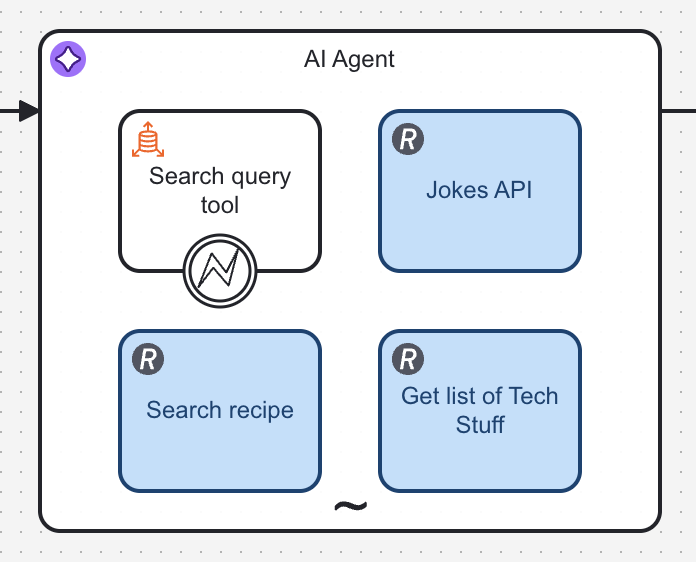
To prevent process failures when no results are retrieved, you can set an error handler to inform the agent as follows.
- In the Error handling section, set the Error expression to handle these scenarios. For example:
if contains(error.message, "index_not_found") then bpmnError("index_not_found", "The index does not exist") else null
- Add an error boundary event to the Vector Database connector:
- In the boundary event's Output mapping section, add an output variable as follows:
- Set Process variable name to
toolCallResult. - Set Variable assignment value to:
{
  "searchResult": "Nothing was found"
}
Prefetch context with a vector database retrieval
Instead of letting the agent decide when to query the vector database via a tool, you can retrieve relevant context before the agent runs. This ensures the agent always has access to relevant knowledge from the first interaction, without requiring a tool call.
This pattern is useful when:
- The user's query is predictable enough to retrieve meaningful context upfront.
- You want to reduce the number of tool calls and agent reasoning steps.
- The agent should ground its first response in domain-specific knowledge without deciding whether to search.
Configure the retrieval task
- Add a Vector Database connector task in your process, sequenced before the AI Agent connector task.
- Set Operation to Retrieve document.
- Set Search query to the user's input. For example, if the user query is stored in a process variable:
userQuery
- Set Max results to control the maximum number of documents returned. For example, set it to five.
- Configure the Embedding model with your provider credentials.
- Configure the Vector store with your database connection details and index name. The index name identifies the collection of documents the agent searches. You can use different indexes for different knowledge domains.
- In the Output mapping section, set the output Result variable. For example,
retrievalResult.
Pass retrieved context to the agent
Once the retrieval task completes, include its results in the AI Agent's user message. There are two approaches:
Concatenate as text
Build the user message by appending the retrieved text to the original query:
userQuery + "

Use the following context to inform your answer:
" + " ".join(retrievalResult.searchResult)
This works well when the retrieved content is short and you want the agent to treat it as inline context.
Attach as documents
If the Vector Database connector returns structured document objects, you can add them to the user message's document list. This keeps the user query and the supporting documents separate, which can help the LLM distinguish between the question and the reference material.
Refer to the AI Agent connector documentation for details on how to structure the message input with documents.
Prefetch vs. tool-based approach
| Consideration | Prefetch | Tool-based retrieval |
|---|---|---|
| Agent autonomy | Agent does not choose when to search | Agent decides if and when to search |
| Latency | Retrieval runs once before the agent starts | Retrieval adds a tool-call round trip |
| Query control | Uses the raw user query directly | LLM reformulates the query dynamically |
| Relevance | Best when the user query maps well to stored content | Best when the agent needs to refine or decompose the query |
You can combine both patterns: prefetch broad context to prime the agent, and still expose a retrieval tool for follow-up searches the agent initiates on its own.
Store in the vector database
You can store knowledge in the vector database in two ways:
- Batch import: Documents are embedded and stored before the agent starts processing, typically as part of a data preparation process. Use a Vector Database connector task in a separate BPMN process or script.
- Runtime ingestion: New knowledge is added to the vector database as the agent encounters it. For example, when a human provides an answer that did not previously exist in the database.
Re-embedding the same document is not idempotent: if you store it again without deleting the existing chunks first, you’ll create duplicate chunks in the vector database.
For both approaches, add a Vector Database connector task and configure it as follows:
- Set Operation to Embed document.
- Set Document source to Plain text.
- Provide the text to embed. This can be a process variable, a form output, or any string value.
- Configure the same Embedding model and Vector store settings used by the retrieval method so both operations target the same index.
Make sure the embedding model configuration, including vector dimensions, matches your retrieval setup.
Gate memory writes with human approval
Allowing an agent to write to its own knowledge database without human oversight can lead to incorrect or irrelevant data being stored.
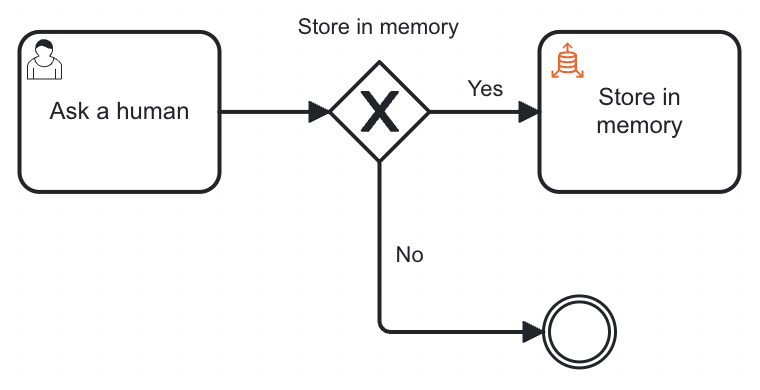
Besides, an effective pattern for building long-term memory is to combine a human escalation tool with runtime knowledge ingestion. When the agent can’t find an answer in the vector database, it escalates to a human. The human responds to the agent and decides whether it’s worth storing the answer in the vector database for future queries.
Over time, this creates a self-improving knowledge base: as humans answer previously unknown questions, the agent's ability to resolve those questions autonomously increases and the rate of human escalations decreases.
To implement this pattern:
- Add a user task inside the AI Agent's ad-hoc sub-process. The agent will invoke it as a tool when it cannot resolve a query from its existing knowledge.
- Configure the user task's Input mapping to pass the agent's question to the form using
fromAi(). For example:
fromAi(toolCall.question, "The question the agent needs a human to answer.")
- Add a form to the user task. It should capture the human's answer and include a decision checkbox for whether to store it in long-term memory.
- Configure the user task's Output mapping to set the human's answer as
toolCallResultso it is returned directly to the agent. - Add an exclusive gateway after the user task with two outgoing paths:
- Approved: Store in the vector database.
- Rejected: Do not store.
- Use the human's output variable as the gateway condition.